Onboarding Checklist
When you create your first property in Propty, an interactive checklist appears on your property dashboard. This checklist guides you through the essential setup steps to get your community up and running.
- A property already created in Propty
- 15-20 minutes to complete the checklist items
- Basic information about your units, residents, and payment settings
The Onboarding Checklist
The checklist contains six key steps. Each step has a status indicator showing whether it's Not Started or Completed.
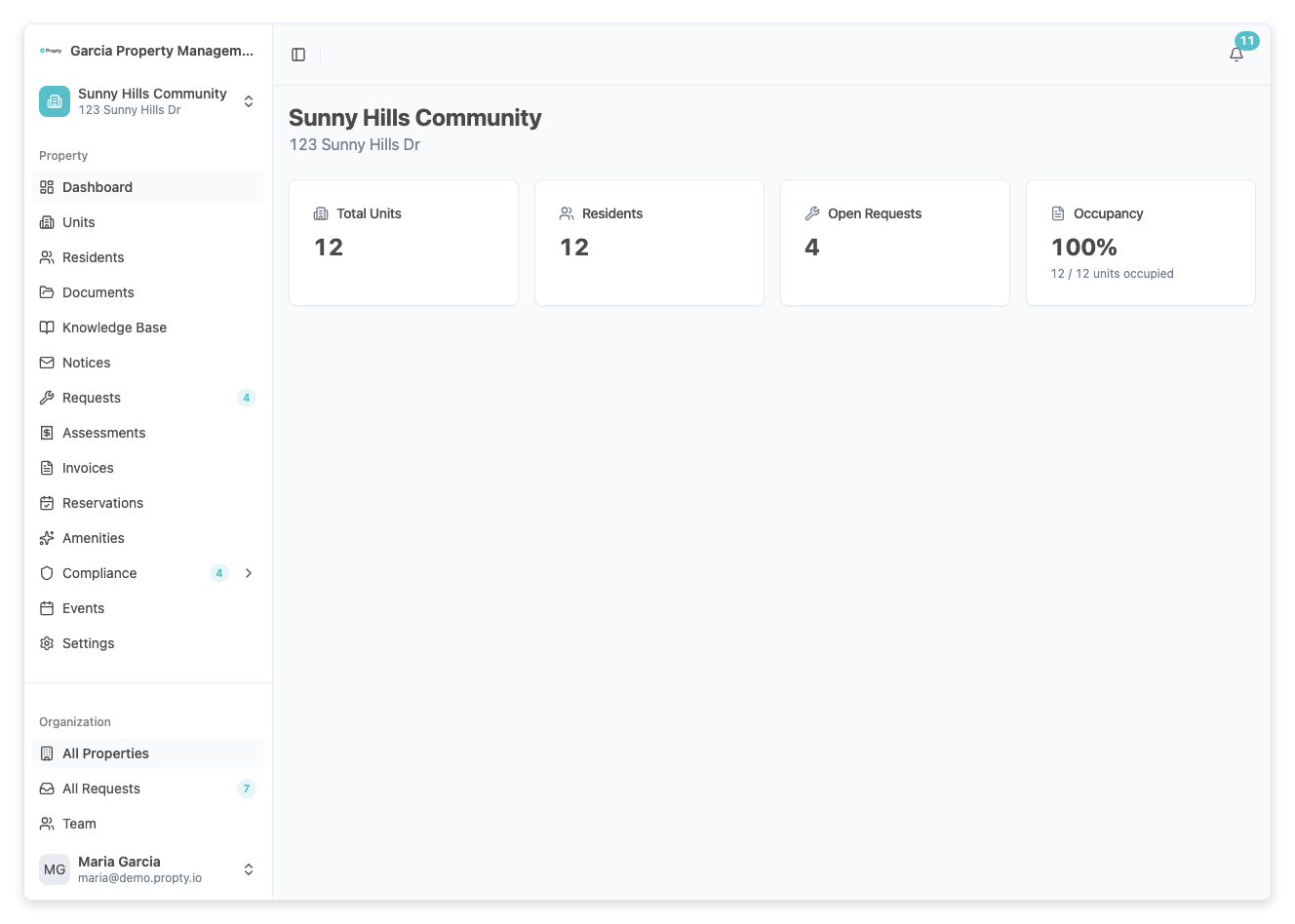
Checklist Steps
1. Add Units
Goal: Register your property's units in Propty.
- Click this step to go to the Units section.
- Add each unit by entering:
- Unit number or identifier
- Address or location
- Unit type (condo, townhome, single-family, etc.)
- Lot size (optional)
- Add at least one unit to complete this step.
Why it matters: Units are the foundation of everything — invoices, residents, violations, and service requests are all tied to units.
See also: Add Units
2. Add Residents
Goal: Register residents who live in or own your units.
- Click this step to go to the Residents section.
- Add each resident by entering:
- Name
- Email address
- Phone (optional)
- Role (Owner, Tenant, Occupant)
- Assign to a unit
- Add at least one resident to complete this step.
Why it matters: Residents receive invoices, notices, and invitations through Propty. Without residents, there's no one to communicate with.
See also: Add Residents
3. Invite Your First Resident
Goal: Send a portal invitation so a resident can log in and view their account.
- Click this step to open the resident list.
- Select a resident and click Invite to Portal.
- Propty sends them an email with a login link.
- When they log in, this step is marked complete.
Why it matters: This confirms that your email delivery is working and that at least one resident can access the portal.
See also: Invite Residents to Portal
4. Enable Payments
Goal: Connect Stripe so residents can pay invoices online.
- Click this step to go to Payment Settings.
- Follow the Stripe Connect flow:
- Create or log into your Stripe account
- Authorize Propty to access Stripe
- Connect your bank account for payouts
- Once Stripe is connected, this step is marked complete.
Why it matters: Online payments reduce your workload and help residents pay conveniently. Most residents expect this option.
See also: Payment Configuration
5. Set Up Notices
Goal: Configure what notices and communications Propty will send to residents.
- Click this step to go to Notification Settings.
- Choose which notifications to enable:
- Invoice published → notify resident
- Payment received → confirmation email
- Maintenance request submitted → update emails
- Violation issued → notification
- Configure which roles receive which notifications (manager alerts, board notifications, etc.).
- Save your configuration to complete this step.
Why it matters: Setting up notifications ensures your team is in the loop and residents stay informed.
See also: Notification Settings
6. Enable Service Requests
Goal: Turn on the service request feature so residents can submit maintenance requests.
- Click this step to go to Request Settings.
- Review the settings:
- Whether service requests are enabled
- Which staff members handle requests
- Request categories (maintenance, landscaping, etc.)
- Make sure requests are enabled (toggle on if off).
- Save to complete this step.
Why it matters: Service requests give residents a central place to report problems and help you track and organize all issues.
See also: Service Request Settings
Completion Tracking
Propty automatically detects when you've completed each step:
| Step | Completed when |
|---|---|
| Add Units | At least one active unit exists |
| Add Residents | At least one resident is added |
| Invite First Resident | At least one resident has logged into the portal |
| Enable Payments | Stripe is connected and working |
| Set Up Notices | Notification settings are saved with at least one notification enabled |
| Enable Service Requests | Service requests are enabled in settings |
You don't need to manually mark items complete — Propty checks and updates them as you go.
"Fully Activated" Status
Once all six checklist items are completed plus at least one resident has logged into the portal, your property is marked as Fully Activated.
This status appears on:
- Your property dashboard
- Your organization's property list
- Any reports or analytics
Dismissing the Checklist
Once your setup is underway or complete, you can dismiss the checklist to get more screen space on your dashboard.
How to dismiss
- On your property dashboard, look for the checklist widget.
- Click the Dismiss button (usually in the top right of the checklist).
- The checklist disappears from your dashboard.
Getting it back
If you dismiss the checklist and later want to see it again:
- Go to your property Settings.
- Look for Show Onboarding Checklist or similar option.
- Toggle it on.
The checklist reappears on your dashboard.
Checklist Tips
- Do it in order. The steps are designed to flow logically — units first, then residents, then enabling features.
- You don't have to complete it all at once. Propty saves your progress. You can work on one step per day if needed.
- Invite a test resident first. When you invite your first resident, it's good to use your own email for testing. Later, you can invite the real property manager or board president.
- Configure payments early. Stripe setup can take a few minutes due to bank verification. Do it sooner rather than later so residents can pay by the time you publish invoices.
- Ask your team to help. If you're a board member, involve your property manager or staff in these steps. They may handle residents and payments.
What's Next After Onboarding?
Once you complete the checklist, your property is ready for day-to-day management:
- Publish your first invoice → Create and Publish Invoices
- Start collecting → Collection Cases
- Create house rules and violation types → Violation Types Configuration
- Schedule a meeting or election → Create an event
- Set up compliance tracking → Inspections
Troubleshooting
The checklist isn't showing on my dashboard
- The checklist only appears for new properties (properties created within the last 30 days).
- If you dismissed it, go to property Settings and enable Show Onboarding Checklist.
I completed a step but it's still showing "Not Started"
- Propty checks automatically, but it may take a minute to update.
- Refresh your browser to see the latest status.
- For example, if you invited a resident, they must actually log in before that step completes — checking your invite email doesn't count.
I can't connect Stripe
- Make sure you have the correct payment method (credit card or bank account) to link to Stripe.
- If Stripe verification is pending, wait 1-2 business days for your bank to confirm.
- Contact support if you're still having trouble.
A resident can't log in after I invited them
- Check their email (including spam/junk folder) for the invitation email.
- Verify that their email address is correct in Propty.
- If they still can't find it, resend the invitation.
I want to skip a step and come back to it
- You can skip steps. The checklist doesn't require all steps to be done immediately.
- However, some features require earlier steps. For example, you can't enable payments without units and residents.
- The checklist will still show incomplete items until you finish them.