Configure Property Details
The property settings page lets you manage your property's name, address, contact information, office hours, and more. These details appear in communications sent to residents.
- Manager access to the property
- The property address and contact information
Accessing Property Settings
Step 1: Go to the Settings page
In the sidebar, click Settings at the bottom of the property menu.
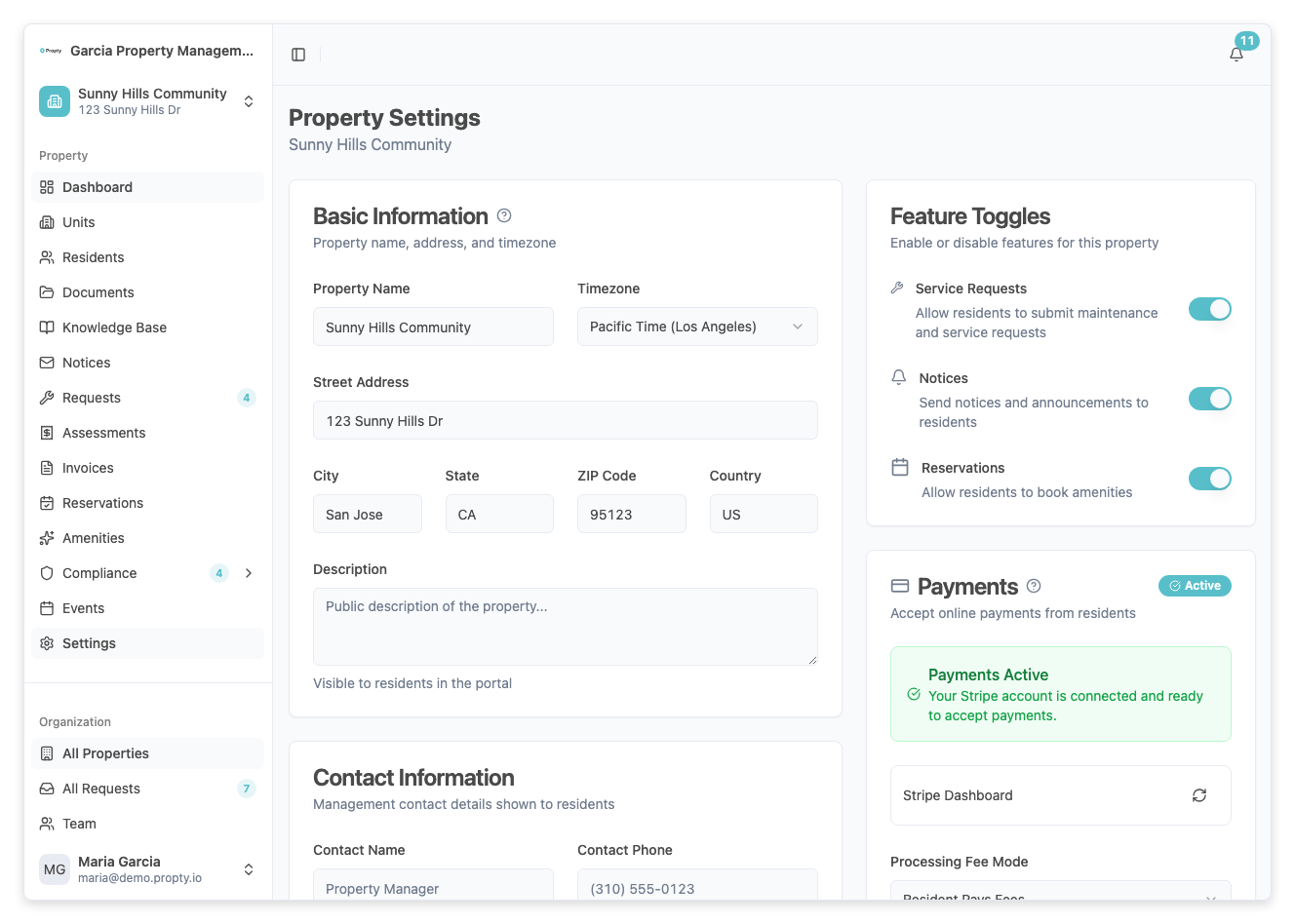
You will see the settings page with several cards.
Basic Information
The first card contains the core property details.
Fields
| Field | Description |
|---|---|
| Property Name | The name of your community or building. This appears in the sidebar and in communications. |
| Timezone | The timezone for this property. Used for scheduling notices, office hours, and reports. Select from the dropdown (e.g., America/New_York, America/Los_Angeles). |
| Street Address | The property's street address. |
| City | The city. |
| State/Province | The state or province. |
| Postal Code | The ZIP or postal code. When you enter a US ZIP code, the timezone will auto-update to match. |
| Country | The country. |
| Description | A description of your property visible to residents. Use this for community details, rules, or general information. |
To update basic information:
- Edit any of the fields above.
- Click Save Changes at the bottom of the page.
- A "Settings saved" confirmation will appear.
Contact Information
The second card contains contact details for property management.
Fields
| Field | Description |
|---|---|
| Contact Name | The name of the primary contact person for this property (for example, "Maria Garcia, Property Manager"). |
| Contact Phone | The main phone number for property management inquiries. |
| Emergency Phone | An after-hours or emergency phone number. This is shown prominently to residents. |
| Office Opens | When the management office opens (24-hour format, e.g., 09:00). |
| Office Closes | When the management office closes (24-hour format, e.g., 17:00). |
Time fields use 24-hour format (HH:MM). For example, 9:00 AM is "09:00" and 5:00 PM is "17:00".
Internal Notes
The third card is for private notes about the property.
- Internal Notes — Notes that are only visible to property managers and staff. Use this for internal reminders, management notes, or special instructions. Residents cannot see these notes.
Feature Toggles
On the right side of the settings page, you'll see the Feature Toggles card. This lets you enable or disable specific features for this property:
- Reservations — Allow residents to book amenities.
- Service Requests — Allow residents to submit maintenance requests.
- Notices — Enable the notices feature for this property.
Only organization managers can change feature toggles.
Troubleshooting
| Problem | Solution |
|---|---|
| Can't edit settings | Only property managers and organization managers can edit settings. Check your access level. |
| "Save Changes" button is grayed out | You haven't made any changes. Edit a field and the button will become active. |
| Timezone is wrong | Select the correct timezone from the dropdown, or enter a US ZIP code to auto-detect it. |
| Office hours not in the right format | Use 24-hour format: "09:00" for 9 AM, "17:00" for 5 PM. |