Switch Properties
If you are associated with more than one property in Propty (for example, you own units at two different communities), you can switch between them in the portal.
What You'll Need
- A Propty resident account with access to multiple properties
Steps
1. Log in to the portal
Go to app.propty.io and log in with your email address.
2. Look for the property selector
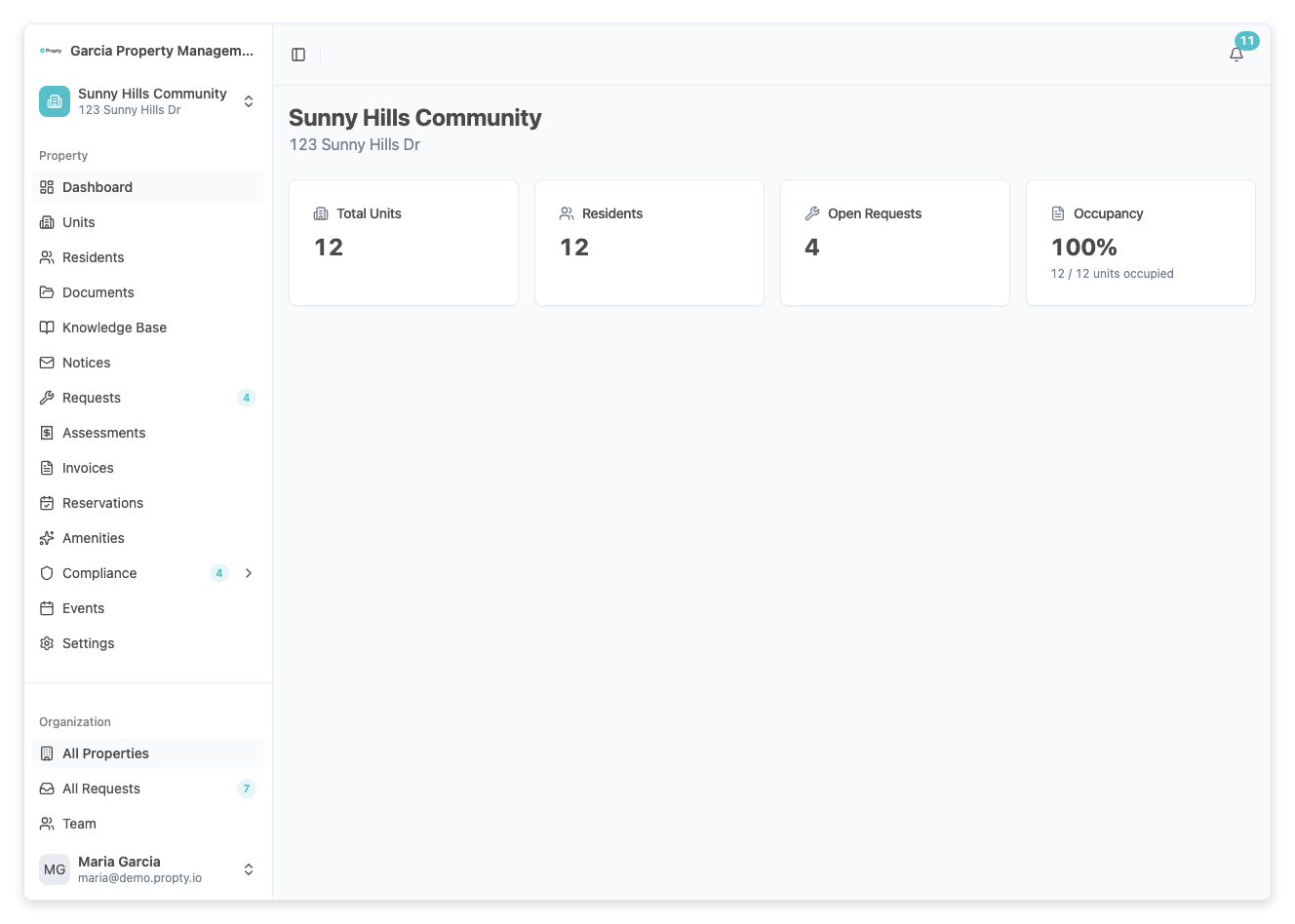
If you have access to multiple properties, you will see a property selector in the portal navigation. This may appear as:
- A dropdown at the top of the sidebar showing the current property name
- A property selection page when you first log in
3. Select a different property
Click the property selector and choose the property you want to view. The portal will update to show information for the selected property — invoices, documents, requests, and notices for that specific property.
What Changes When You Switch
When you switch properties, the portal shows data specific to that property:
| Section | Shows |
|---|---|
| Account | Balance and invoices for the selected property |
| Invoices | Only invoices from the selected property |
| Requests | Requests submitted to the selected property |
| Documents | Documents shared by the selected property |
| Notices | Notices from the selected property |
| ARC Requests | ARC requests for the selected property |
Your login session stays active — you don't need to log in again when switching.
Troubleshooting
I don't see a property selector
- You may only have access to one property. The selector only appears when you are associated with multiple properties.
- If you believe you should have access to another property, contact the property manager for that community and ask them to add you.
A property is missing from the list
- Your property manager at that community needs to add you as a resident and send you a portal invitation.
- If you were recently added, try logging out and logging back in.
I see the wrong property's information
- Check the property selector to make sure the correct property is selected. The currently selected property name is displayed in the navigation.