View Your Resident Profile
Your account page shows your balance, invoice history, autopay settings, and property contact information — all in one place.
What You'll Need
- A Propty resident account with portal access
Steps
1. Log in to the portal
Go to app.propty.io and log in with your email address.
2. Open your account page
From the portal sidebar, click Account (or My Account). You will see your account overview.
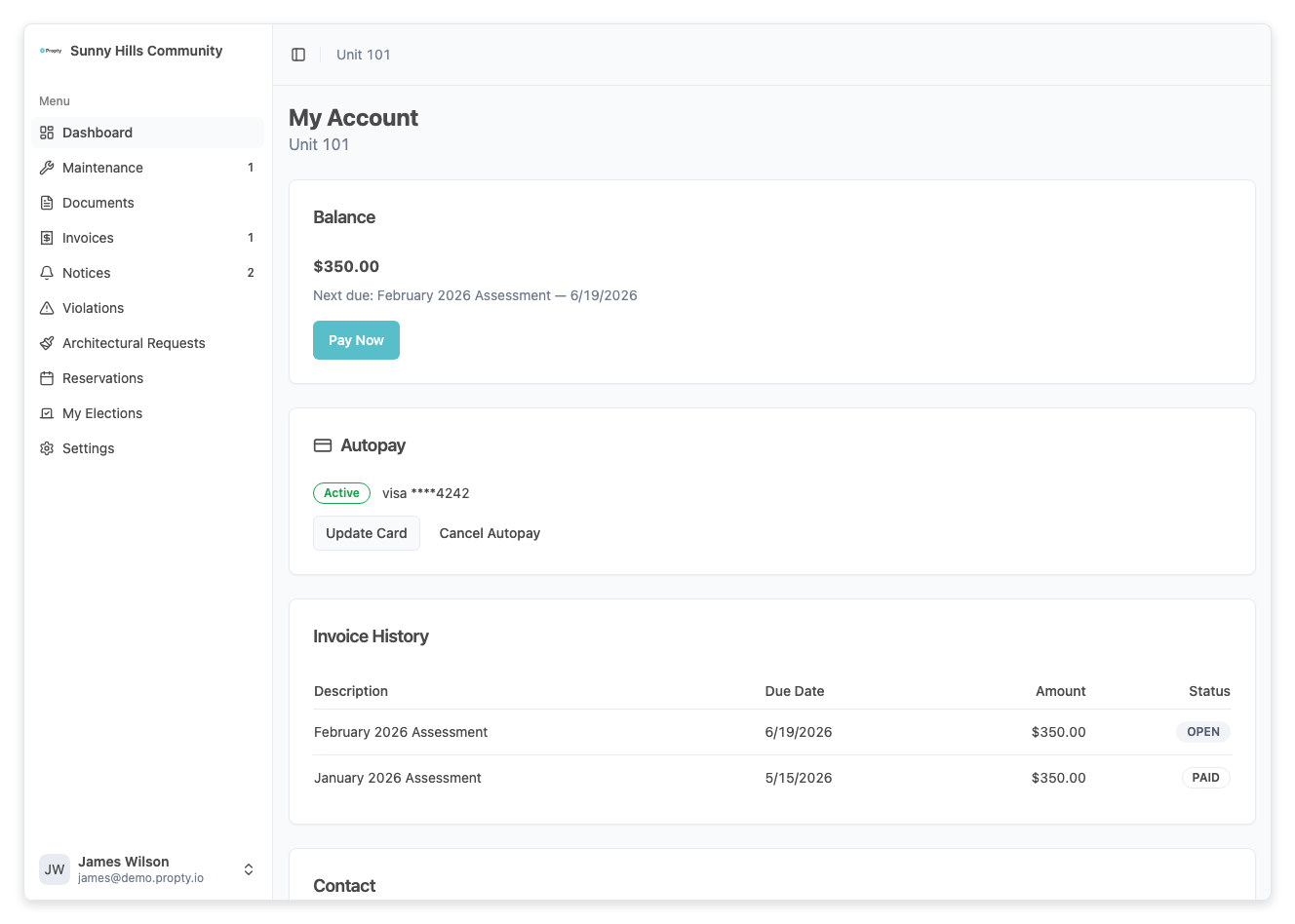
What You'll See
Balance
At the top of the page, you will see your current balance — the total amount you owe across all open invoices.
- If your balance is $0, a green "Paid up" badge is displayed
- If you have an outstanding balance, a Pay Now button takes you to your invoices
- The next due invoice title and date are shown below the balance
Autopay
If autopay is available for your property, you will see an autopay section where you can:
- View your current autopay status
- Set up or modify automatic payments
- See Set Up Autopay for details
Invoice History
A table shows all your invoices with:
| Column | Description |
|---|---|
| Description | Invoice title and period |
| Due Date | When the payment is due |
| Amount | Invoice amount |
| Status | Paid, Open, or Overdue |
Click any invoice row to view its details or make a payment.
Contact Information
At the bottom of the page, you'll find your property management's contact information, including:
- Property name
- Contact person name
- Contact phone number
Use this information if you need to reach your property manager.
Troubleshooting
My balance seems incorrect
- Check your invoice history for any invoices you may have missed
- If a payment was recently made, it may take a moment to reflect in your balance
- Contact your property manager if you believe there is an error
I don't see the autopay section
- Autopay may not be enabled for your property. Contact your property manager for more information.
I can't access the account page
- Make sure you are logged in to the portal
- If you see a "no access" message, contact your property manager — you may not be assigned to a unit at this property