View All Residents
The Residents page shows everyone associated with your property — owners, tenants, and occupants. You can search, filter, and manage residents from this central list.
- Property manager or organization manager role
Steps
1. Go to the Residents page
From the sidebar, click Residents under your property name.
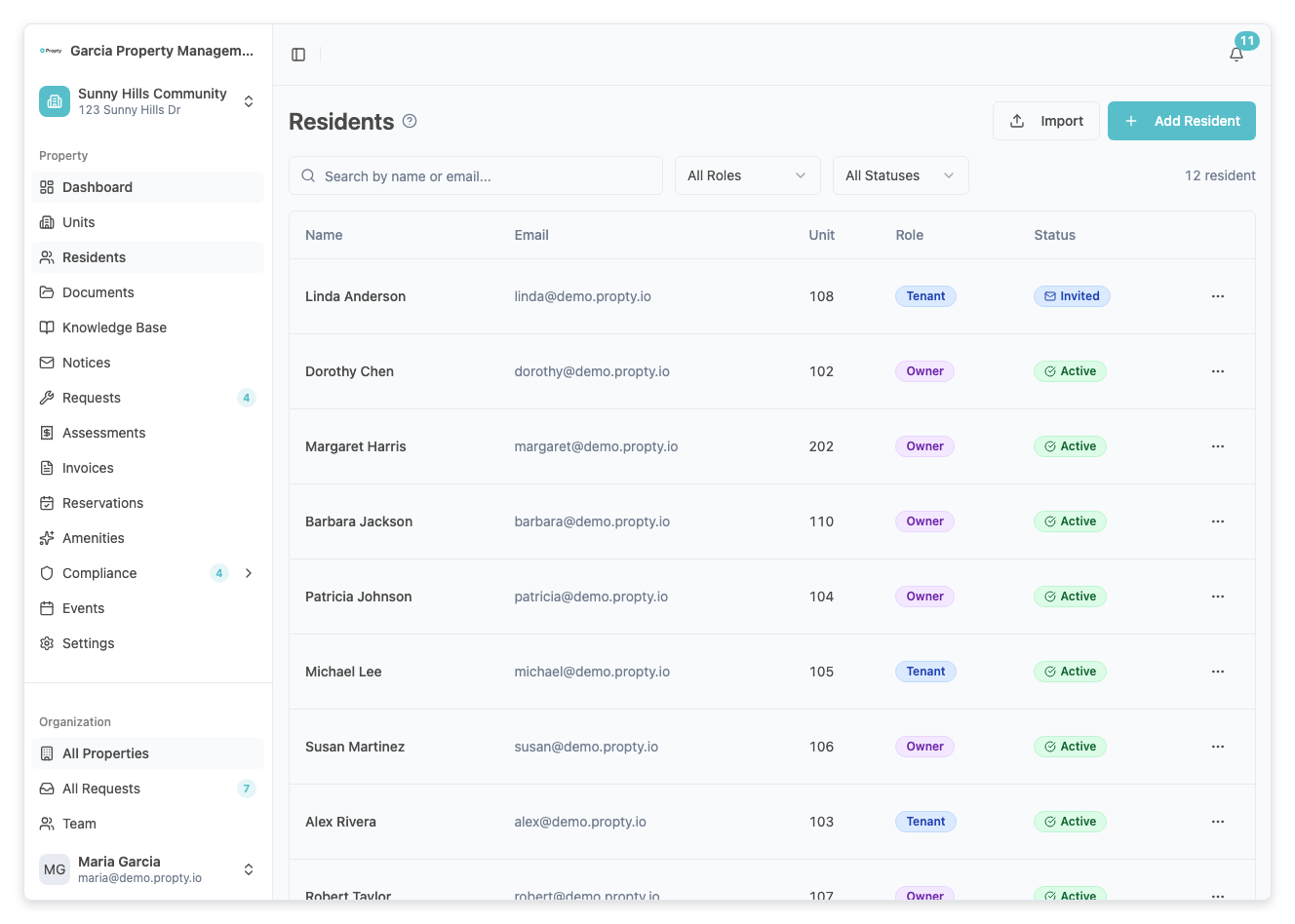
2. Browse the residents table
The table shows all residents assigned to units in your property:
| Column | Description |
|---|---|
| Name | First and last name |
| Email address | |
| Unit | The unit they are assigned to |
| Role | Owner, Tenant, or Occupant |
| Status | Pending, Invited, Active, or Inactive |
On mobile devices, residents are displayed as cards instead of a table.
3. Search and filter
Use the controls above the table to find specific residents:
- Search — Type a name or email to search
- Status — Filter by Pending, Invited, Active, or Inactive
- Role — Filter by Owner, Tenant, or Occupant
Click Clear Filters to reset all filters.
The total number of matching residents is displayed next to the filters.
4. Use pagination
If you have many residents, the list is paginated. Use the controls at the bottom to:
- Navigate between pages with the Previous and Next buttons
- Change the number of rows per page (10, 25, 50, or 100)
Actions from the Residents List
For each resident, click the three-dot menu (or the row itself) to access actions:
- Edit — Open the edit sheet to update resident details (see Edit Resident Info)
- Send / Resend Invitation — Send or resend the portal invitation email
- Delete — Remove the resident from the property
Sending Invitations
If a resident is in Pending status, you can send them a portal invitation. If they are in Invited status and haven't responded, you can resend the invitation.
URL Persistence
Your search, filter, and pagination settings are preserved in the URL. This means:
- You can bookmark a filtered view (e.g., all active owners)
- Sharing the URL with a colleague shows the same filtered results
- Using the browser's back button restores your previous filter state
Troubleshooting
The list is empty
- No residents have been added yet. Click Add Resident to add your first one. See Add a Resident.
- If you have filters active, click Clear Filters to check if residents exist but are filtered out.
I can't find a specific resident
- Try searching by email address instead of name
- Check if the resident was added to a different property
- Clear all filters and scroll through the full list
Invitation email was not received
- Verify the email address is correct by editing the resident
- Resend the invitation using the three-dot menu
- Ask the resident to check their spam or junk folder