Edit Resident Info
Update a resident's personal information, unit assignment, role, language preference, and other settings using the edit sheet.
- An existing resident in your property
Steps
1. Open the Residents page
From the sidebar, click Residents under your property name.
2. Find the resident
Use the search bar or filters to find the resident you want to edit.
3. Open the edit sheet
Click the three-dot menu on the resident's row, then select Edit. A sheet will slide in from the right side of the screen.
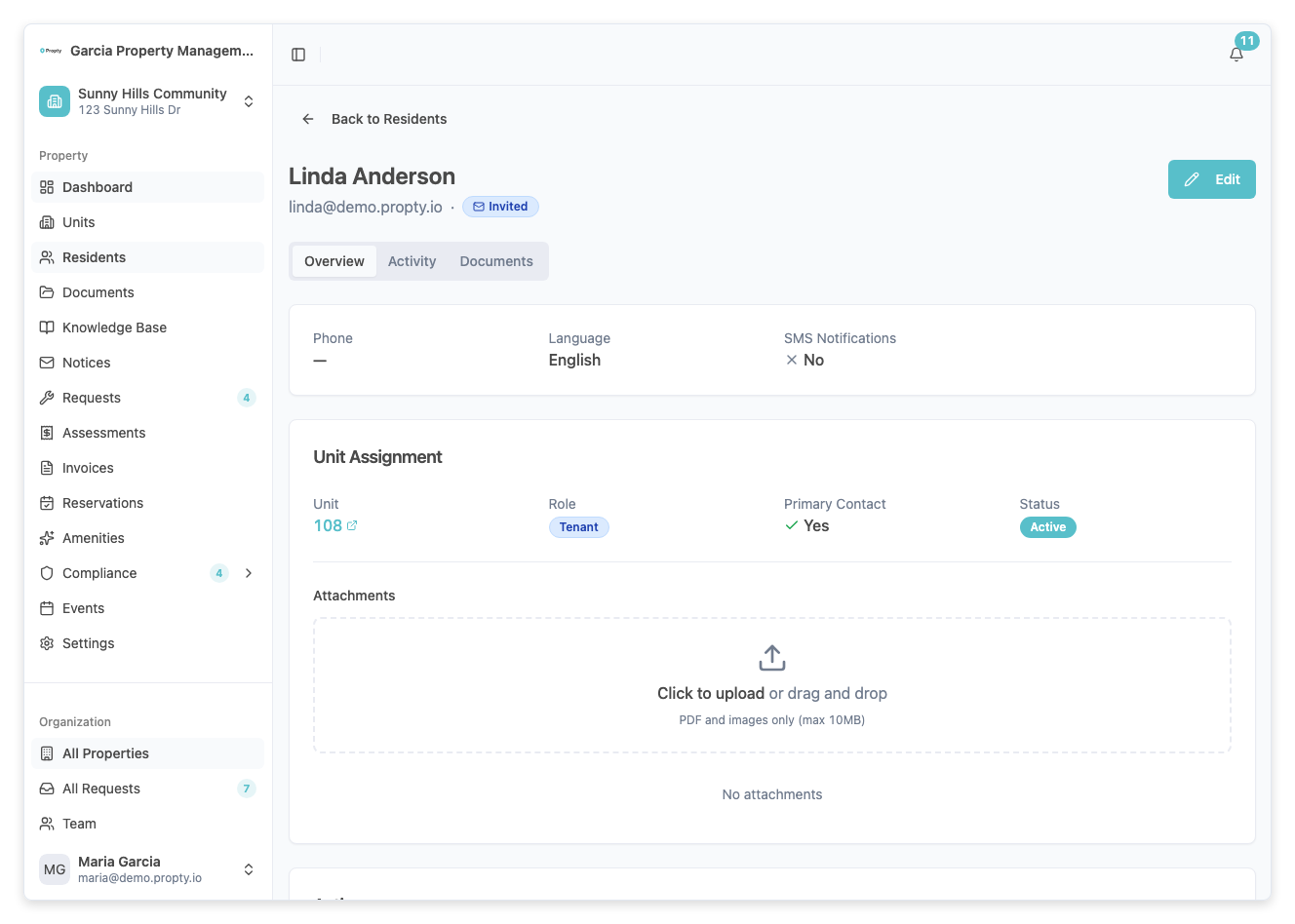
4. Update personal information
The top section of the sheet contains the resident's personal details:
- First Name (required)
- Last Name (required)
- Email (required) — Must be unique within your organization
- Phone (optional)
- Language — Choose between English and French. This determines the language of emails and portal content for this resident.
- SMS Notifications — Toggle on/off to enable or disable SMS notifications for this resident
5. Update unit and role (if assigned)
If the resident is assigned to a unit, you will see a Unit & Role section below the personal information:
- Unit — Change which unit the resident is assigned to
- Role — Change between Owner, Tenant, or Occupant
- Primary Resident — Toggle to mark this resident as the primary contact for the unit. The primary resident receives invoice notifications and other unit-specific communications.
6. Manage attachments
Below the unit and role section, you can manage attachments associated with this resident's unit assignment (such as lease documents):
- Upload — Click to add a new file
- Download — Click an existing attachment to download it
- Delete — Remove an attachment
7. Save changes
Click Save Changes at the bottom of the sheet. A success message will confirm the update.
If you have unsaved changes and try to close the sheet, you will see a confirmation dialog asking whether you want to discard your changes.
What You Can't Edit Here
- Portal access status — Use the invitation/resend actions on the residents list instead
- Board member status — Board membership is displayed as read-only in the edit sheet
- Ownership share / voting weight — These are set when adding the resident
Troubleshooting
"Email already exists" error
Each email must be unique within your organization. Check if the email is already used by another resident.
"Unit not found" error
The unit may have been deleted. Refresh the page and try again.
"Assignment already exists" error
The resident is already assigned to this unit. Check if you are selecting the correct unit.
Changes aren't saving
- Make sure all required fields are filled in
- Check for validation errors (red text below fields)
- Try refreshing the page and editing again