Submit a Maintenance Request
When something in your unit or a common area needs repair, you can submit a maintenance request through the portal. Your property manager will be notified and can coordinate the repair.
What You'll Need
- A Propty resident account with access to the portal
- Details about the issue (location, description, and optionally a photo)
Steps
1. Log In to the Portal
Go to app.propty.io and log in with your email address.
2. Open Requests
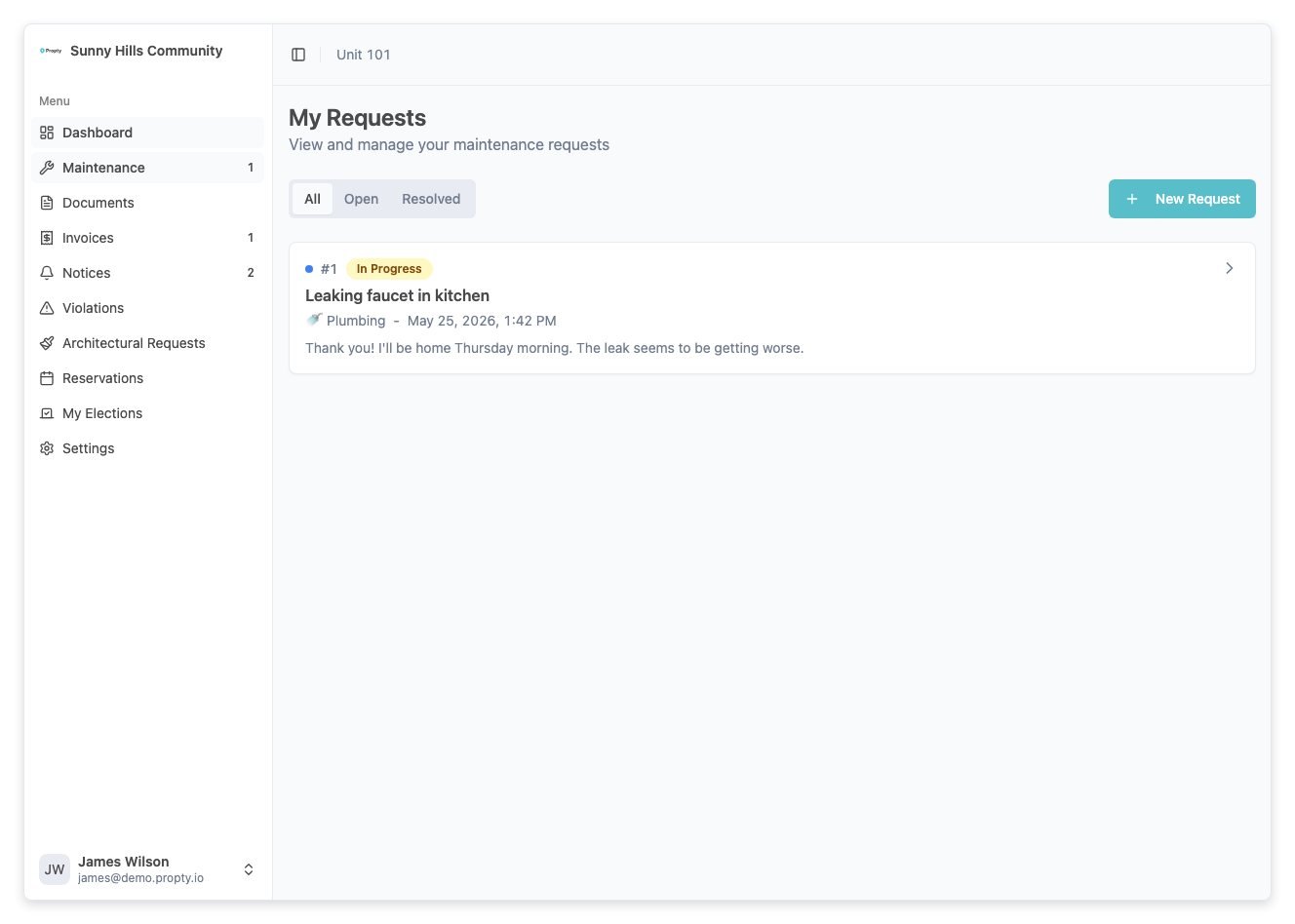
From the portal sidebar, click Requests. You will see a list of your existing requests (if any).
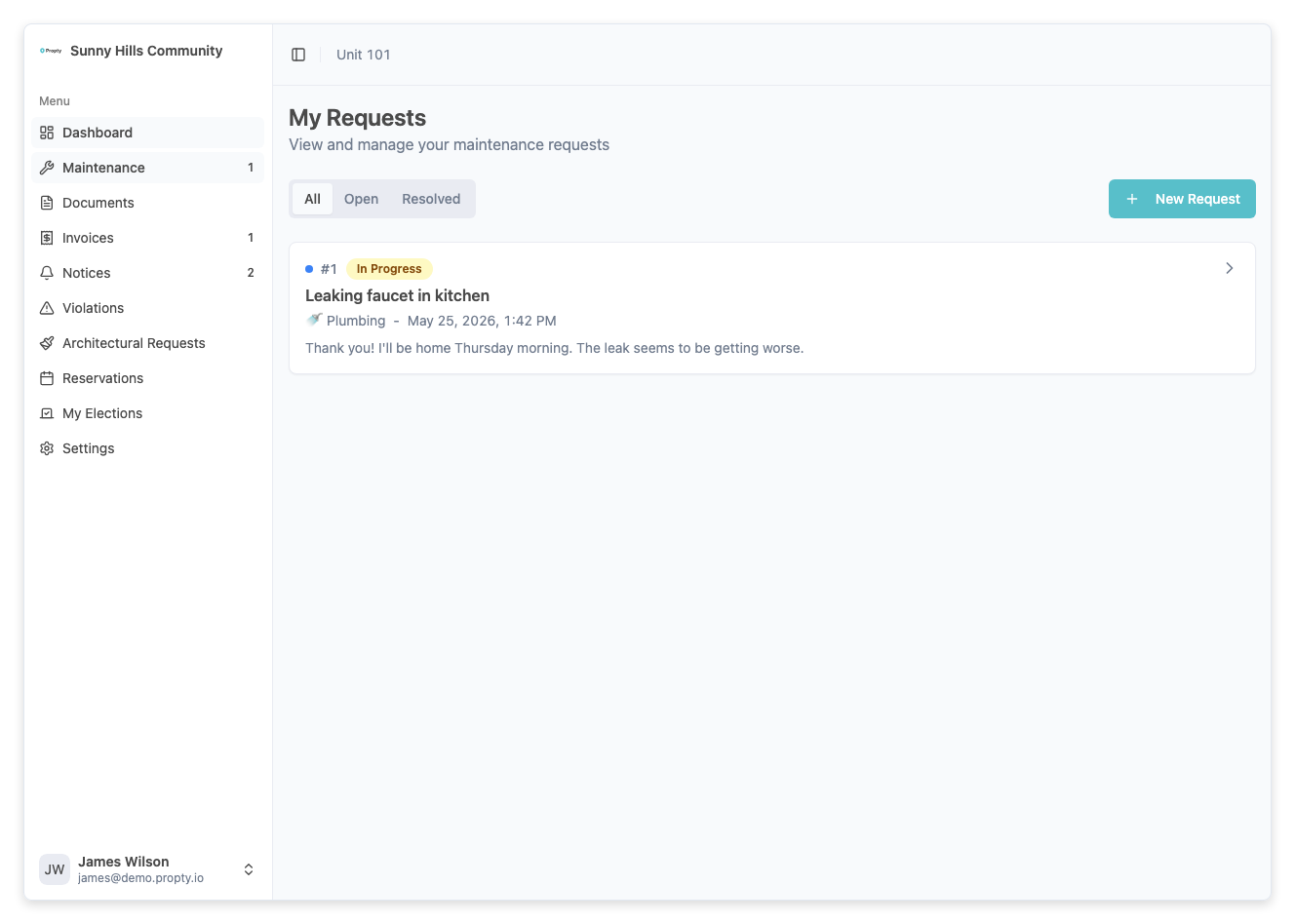
3. Click "New Request"
Click the New Request button to open the request form.
4. Fill In the Request Details
Complete the following fields:
-
Title (required) — A short description of the issue. For example: "Kitchen faucet leaking" or "Hallway light not working"
-
Category (required) — Select the category that best matches your issue:
- Plumbing
- Electrical
- HVAC / Heating & Cooling
- Appliances
- Doors & Locks
- Windows
- Pest Control
- Cleaning
- Elevator
- Fire Safety
- Parking
- Common Area
- Noise Complaint
- Other
-
Description (required) — Provide more details about the problem. Include when you first noticed it, how severe it is, and any other helpful information.
-
Permission to enter — Let your property manager know if maintenance staff can enter your unit:
- Yes, enter anytime — Staff may enter without contacting you first
- Contact me first — Staff should call or message you before entering
- No, I must be present — You need to be home when staff arrives
5. Submit the Request
Click Submit to send your request. Your property manager will be notified and will update the status as they work on it.
What Happens Next
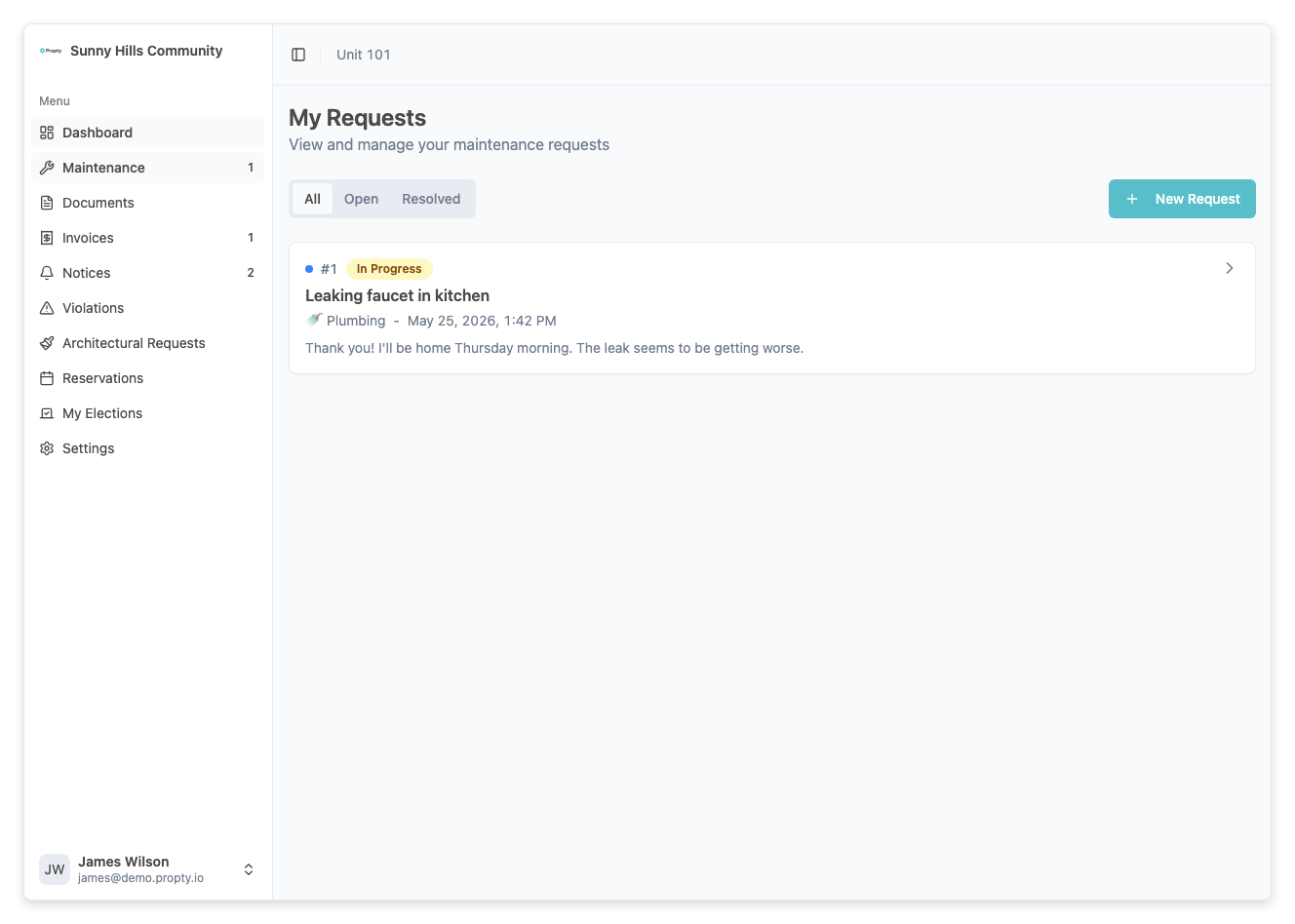
After you submit a request:
- New — Your request is created and your property manager is notified
- In Progress — A team member has been assigned and is working on it
- Pending — The team is waiting for something (parts, scheduling, your availability)
- Closed — The issue has been resolved
You will receive notifications as your request moves through these stages.
Troubleshooting
I can't find the right category
If none of the categories match your issue, select Other and describe the problem clearly in the description field.
I submitted a request by mistake
Contact your property manager and ask them to close the request. You can also add a message to the request explaining the situation.
How long until my request is addressed?
Response times depend on your property manager's policies and the priority of your issue. Urgent issues (like water leaks or safety hazards) are typically addressed sooner. You can track the status in your requests list.
Can I add photos to my request?
If your portal supports file attachments on requests, you can attach photos when creating or messaging about your request. Photos help your property manager understand the issue quickly.