Communicate About Your Request
After submitting a maintenance request, you can exchange messages with your property manager directly from the request detail page. Use messages to provide updates, ask questions, or share additional photos.
What You'll Need
- A Propty resident account with access to the portal
- An existing maintenance request that is not closed
Steps
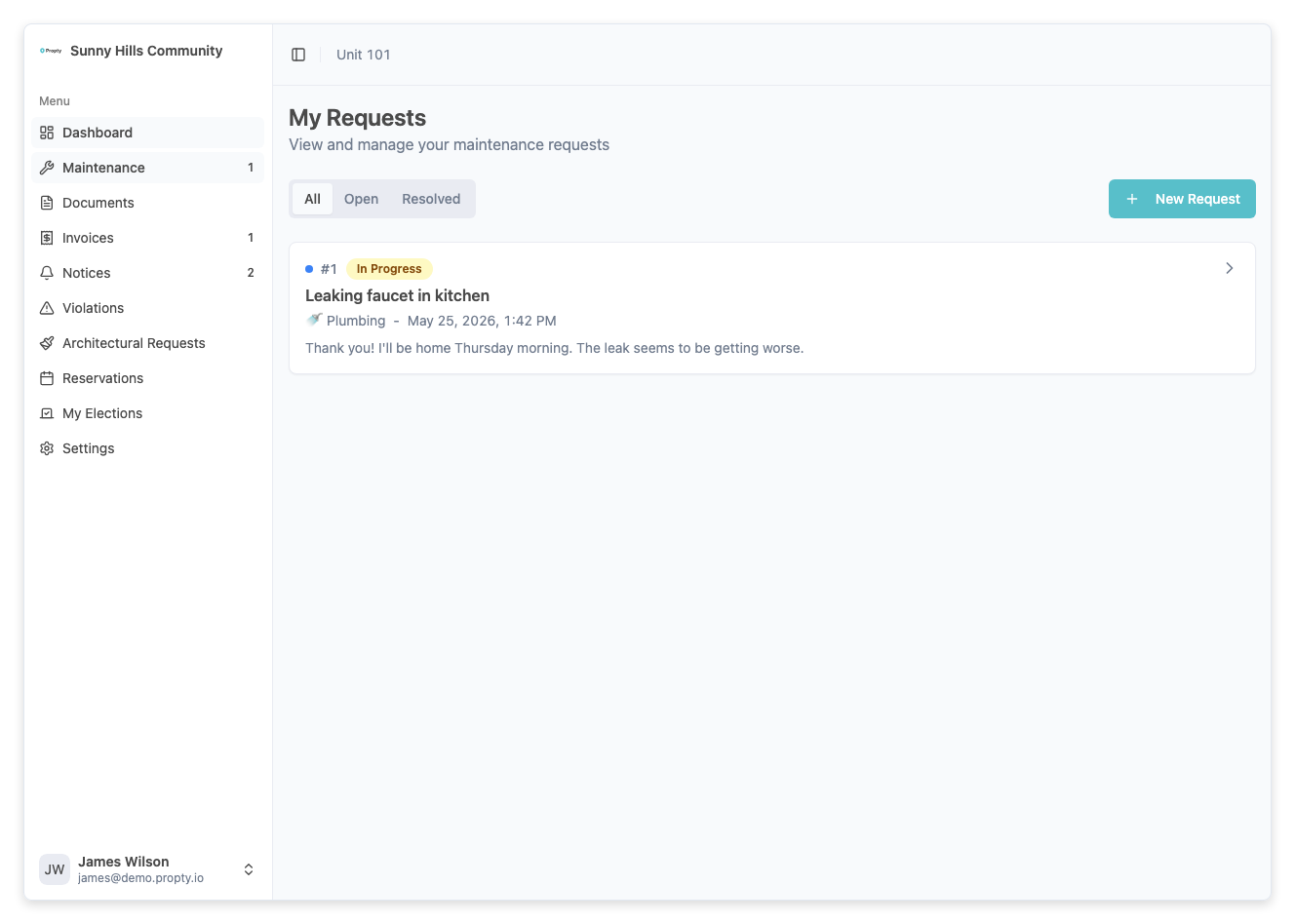
1. Open Your Request
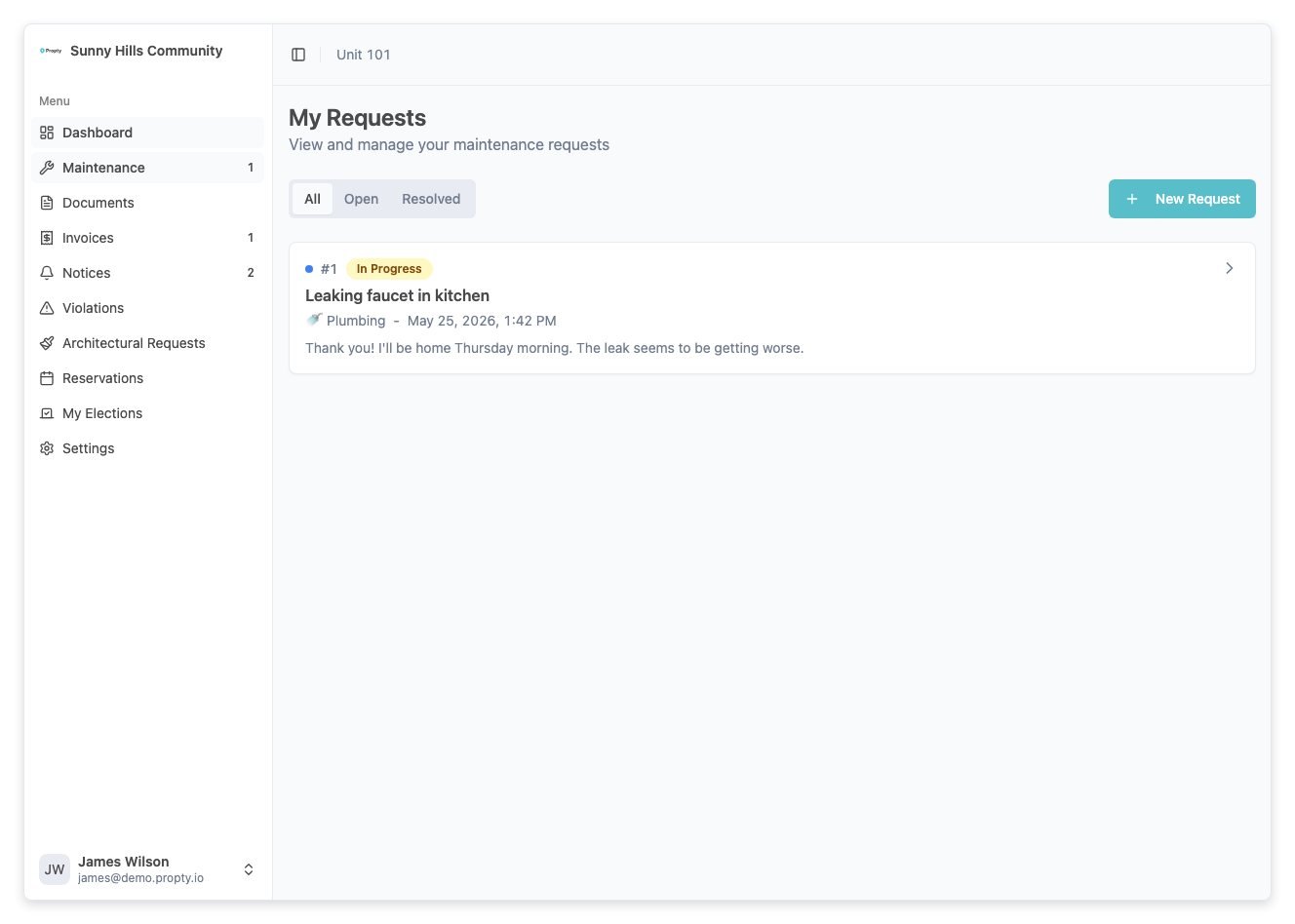
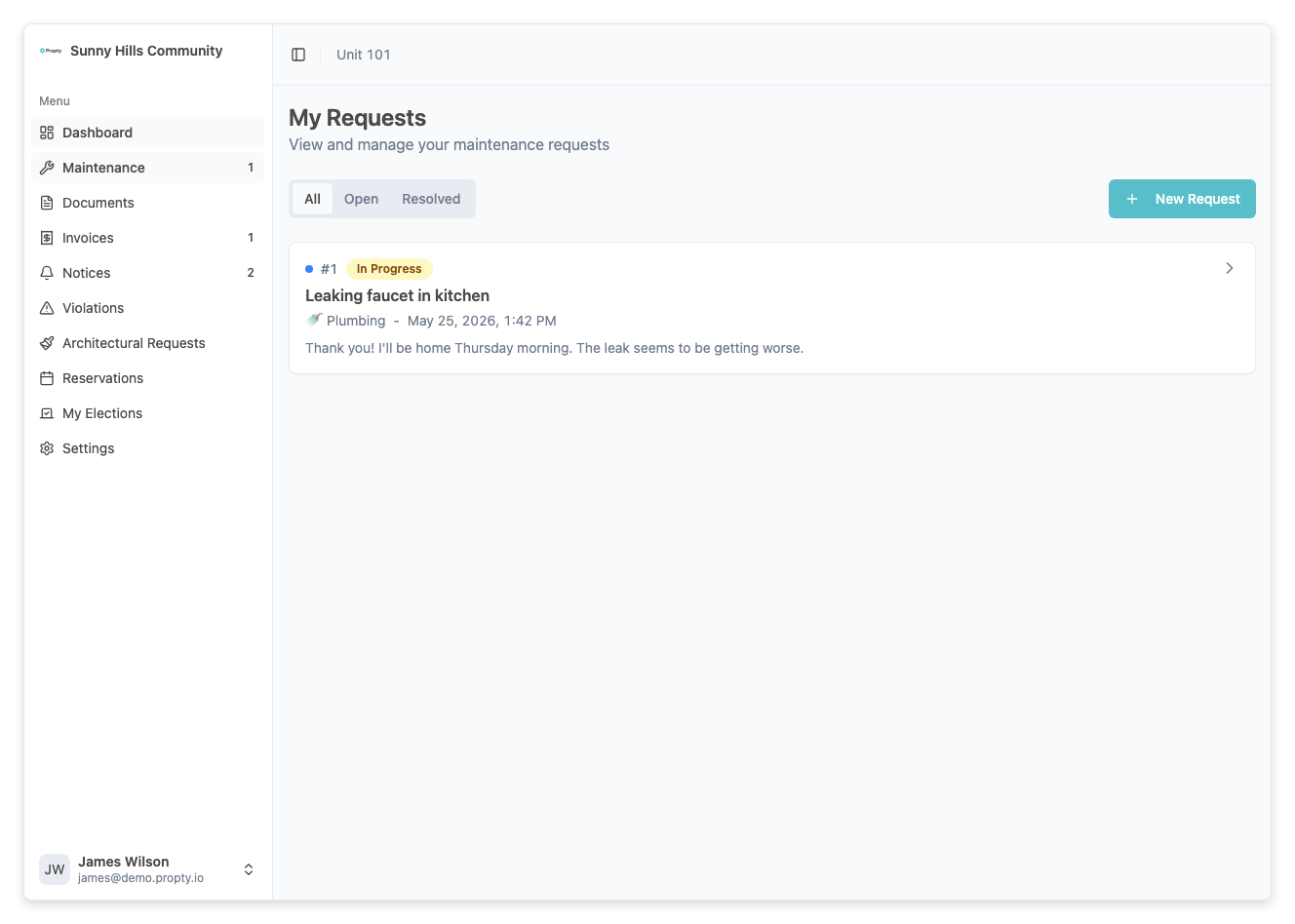
From the portal sidebar, click Requests. Then click on the request you want to communicate about.
2. View the Activity Timeline
The request detail page shows an Activity section with a timeline of all messages and status changes. You can see:
- Messages from your property manager
- Your own previous messages
- Status updates (e.g., "Status changed to In Progress")
- Assignment changes
3. Write Your Message
At the bottom of the activity section, you will see a text area where you can type your message.
Type your message in the text field. Be specific — include any new details, photos, or questions that will help your property manager resolve the issue.
4. Send the Message
Click the Send button to submit your message. Your property manager will be notified.
Tips for effective communication
- Be specific — describe exactly what has changed or what additional information you have
- Include timing — let the manager know when you are available for maintenance access
- Attach photos — if the issue has worsened, a photo helps the team understand the current state
- Check for updates — your property manager may reply with scheduling details or follow-up questions
Troubleshooting
I can't send a message
- The request may be Closed. Closed requests do not accept new messages. Contact your property manager if you need to reopen the request.
I don't see a reply from my property manager
- Your property manager may not have responded yet. You will receive a notification when they reply.
- Some messages may be marked as "internal" by the property manager and are not visible to residents.
Can I delete a message I sent?
- Messages cannot be deleted once sent. If you sent something in error, add a follow-up message explaining the correction.