Organization Setup
Your organization is the top-level account in Propty. It holds your properties, team members, billing, and branding — everything that makes your HOA or management company run. As an admin, you'll configure your organization once during initial setup and revisit it occasionally to update branding or manage your subscription.
- Organization manager access
- Your organization's name and logo (optional)
What Your Organization Controls
| Setting | Where It Appears |
|---|---|
| Organization name | Emails, resident portal header, invoices |
| Logo / avatar | Portal header, email templates |
| Team members | Who can access the dashboard and manage properties |
| Billing & subscription | Your Propty plan and payment method |
Getting Started
1. Set your organization name and branding
Go to Settings > Organization to update your organization's display name and upload a logo. These appear in all resident-facing communications, so make sure they match your official branding.
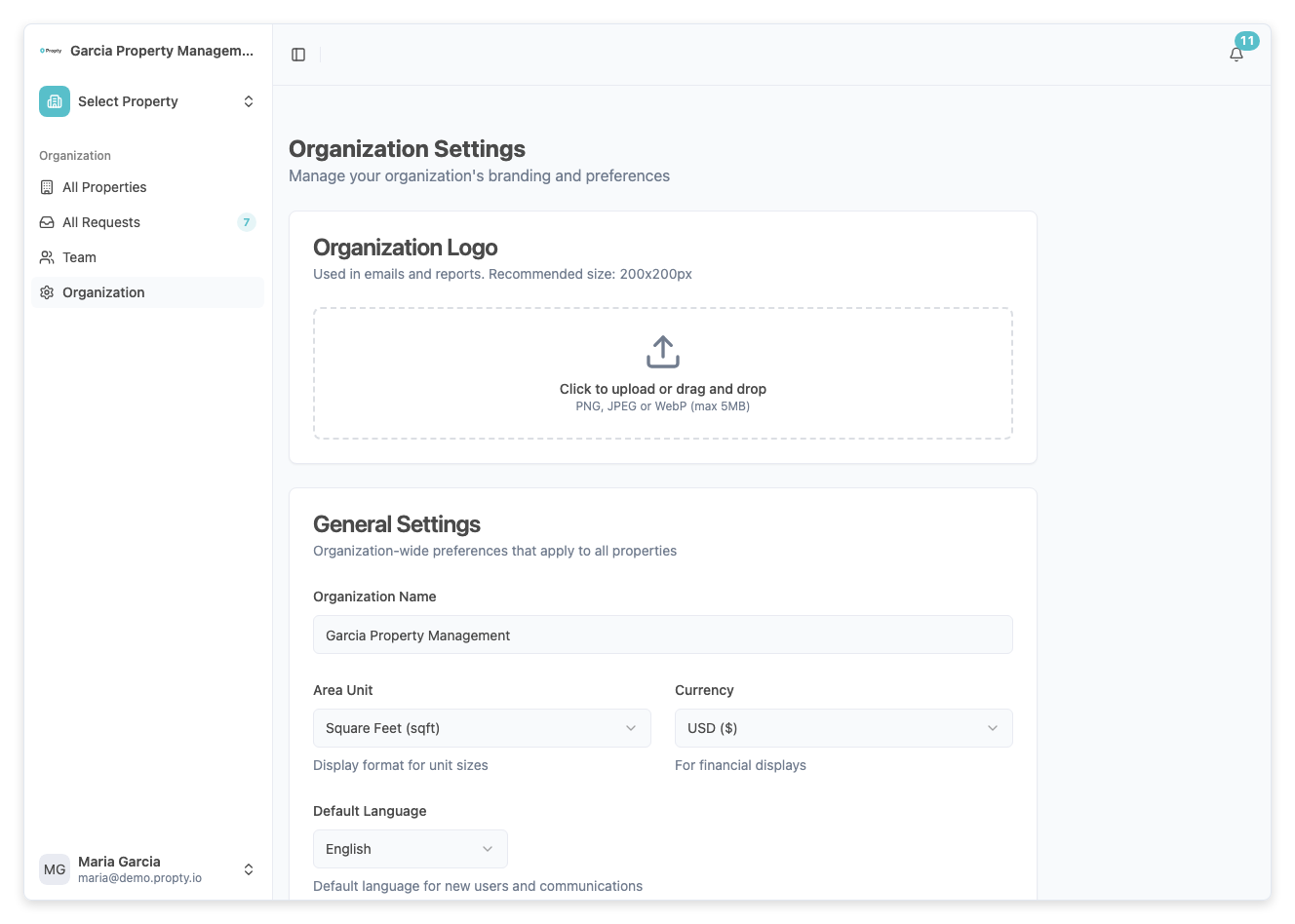
Tip: Use a square logo (at least 200×200 pixels) for the best results across emails and the portal.
For step-by-step instructions, see Set Up Organization Details.
2. Invite your team
From the Organization tab, you can see all team members and invite new ones. Each person gets a role that controls what they can access:
- Organization Manager — Full access to everything, including billing and team management.
- Property Manager — Access only to assigned properties.
See Manage Team Members for details on inviting staff and assigning roles.
3. Review your subscription
Click the Billing tab to see your current plan. From there you can:
- View what's included in your tier
- Open the Stripe billing portal to update your payment method
- Upgrade or change your plan
Ongoing Administration
Once your organization is set up, here are the tasks you'll return to:
- Adding or removing team members as your staff changes — see Manage Team Members
- Updating branding if your logo or organization name changes — see Organization Settings
- Reviewing billing before renewals or to change plans
- Managing roles and permissions to control who can do what — see Roles & Permissions
Key Concepts
Organization vs. Property
Your organization is your company or association. It can contain multiple properties (buildings, communities, complexes). Settings at the organization level — like team members and billing — apply across all your properties. Settings at the property level — like timezone, office hours, and feature toggles — are specific to each property.
Who Can Edit Organization Settings?
Only Organization Managers can change the organization name, logo, billing, and team membership. If you need access and don't have it, ask your current organization manager to update your role.
Troubleshooting
| Problem | Solution |
|---|---|
| Can't see the Organization tab | You need Organization Manager access. Ask your manager to check your role. |
| Logo looks blurry | Upload a higher-resolution image (at least 200×200 pixels, PNG or SVG preferred). |
| Need to change billing | Go to Settings > Billing and click the portal button to access Stripe's billing portal. |
| Not sure which plan you're on | The Billing tab shows your current plan and what's included. |