Managing Units
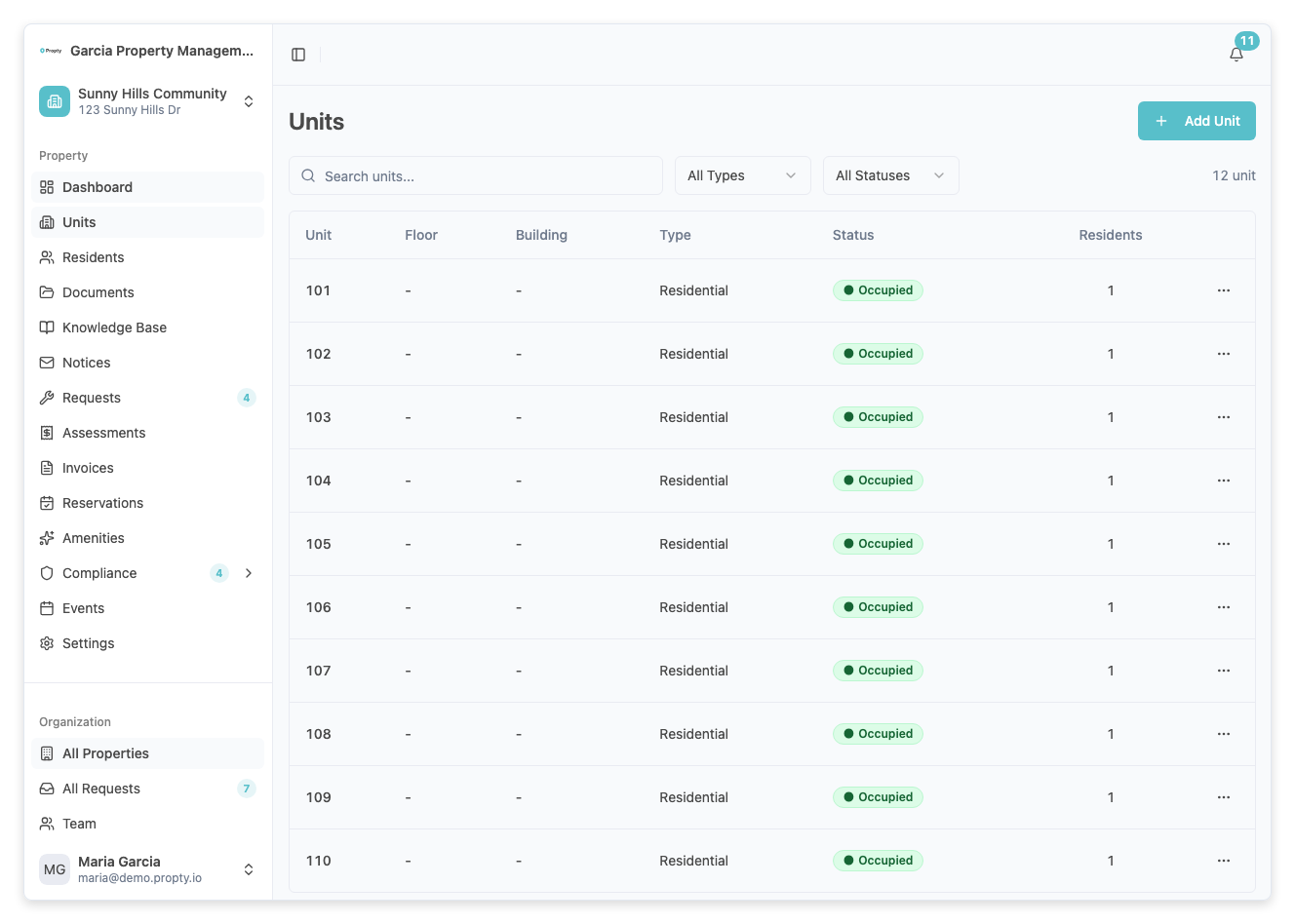
Units are the individual spaces within your property — apartments, condos, townhouses, parking spots, and storage areas. Setting up your units is one of the first things you'll do after creating a property, because you need units before you can add residents or create invoices.
- A property already created in Propty
- A list of your unit numbers and types
Unit Types
Propty supports several unit types to match your community's layout:
| Type | Use For |
|---|---|
| Residential | Standard living units — condos, apartments, townhouses |
| Commercial | Retail or office spaces in mixed-use buildings |
| Parking | Parking spots or garage spaces |
| Storage | Storage lockers or units |
| Common | Common areas (lobbies, gyms) — cannot be assigned to residents |
Adding Units
One at a time
Use the Add Unit button on the Units page to create units individually. This is best when you're adding a few units or when each unit has unique details (different floors, buildings, or types).
For step-by-step instructions, see Add Property Units.
In bulk via CSV import
If you have many units to add, use the Import feature to upload a CSV file. This is the fastest way to set up a property with dozens or hundreds of units.
Tip: When importing, prepare your CSV with columns for
unit_number,floor,building, andtype. Each unit number must be unique within the property.
Understanding Unit Status
Each unit has a status that updates automatically based on its residents:
| Status | Meaning |
|---|---|
| Vacant | No residents are assigned to this unit |
| Occupied | At least one resident is assigned |
| Maintenance | Unit is temporarily unavailable |
You can filter the units table by status to quickly see which units are vacant or need attention.
Organizing Your Units
Buildings and floors
If your property has multiple buildings, use the Building field to group units (e.g., "Tower A", "Building 2"). The Floor field helps further organize within a building. These fields are optional but make it much easier to find units in larger properties.
Searching and filtering
The units table supports:
- Text search — Search by unit number
- Status filter — Show only vacant, occupied, or maintenance units
- Type filter — Show only residential, parking, storage, etc.
Editing and Deleting Units
- Edit — Click the three-dot menu (...) on any unit row and select Edit. A panel slides in with all the unit's details.
- Delete — Click the three-dot menu and select Delete. You must remove all residents from a unit before you can delete it.
For more details, see Add Property Units.
What's Next?
Once your units are set up:
- Add residents — Assign owners and tenants to their units
- Create invoices — Bill residents for assessments and fees
- Configure settings — Fine-tune property settings
Troubleshooting
| Problem | Solution |
|---|---|
| "Unit number already exists" error | Each unit number must be unique within a property. Check if it was already added. |
| Can't delete a unit | Remove all residents assigned to the unit first, then delete. |
| Need to change a unit's type | Edit the unit from the three-dot menu and change the type. |
| Adding many units is slow | Use the CSV import feature instead of adding units one at a time. |