Managing Properties
A property in Propty represents a single community, building, or complex that you manage. Each property has its own units, residents, invoices, and settings. As an admin, you'll create a property for each location you manage and configure it to match that community's needs.
- Organization manager or property manager access
- The property's address and contact information
What Is a Property?
Think of a property as a container for everything related to one physical location:
| Component | Example |
|---|---|
| Units | Apartments 101–410, Parking P1–P50 |
| Residents | The owners and tenants who live there |
| Invoices | Monthly dues, special assessments |
| Requests | Maintenance tickets from residents |
| Compliance | Violations and ARC requests |
Each property operates independently — it has its own timezone, office hours, feature settings, and payment configuration.
Setting Up a New Property
1. Create the property
When you first add a property, you'll provide the basics: name, address, and timezone. Propty will auto-detect the timezone if you enter a US ZIP code.
2. Configure property details
Go to Settings in the property sidebar to fill in:
- Contact information — Name, phone, emergency phone, office hours
- Description — Community details visible to residents
- Internal notes — Private notes for your management team only
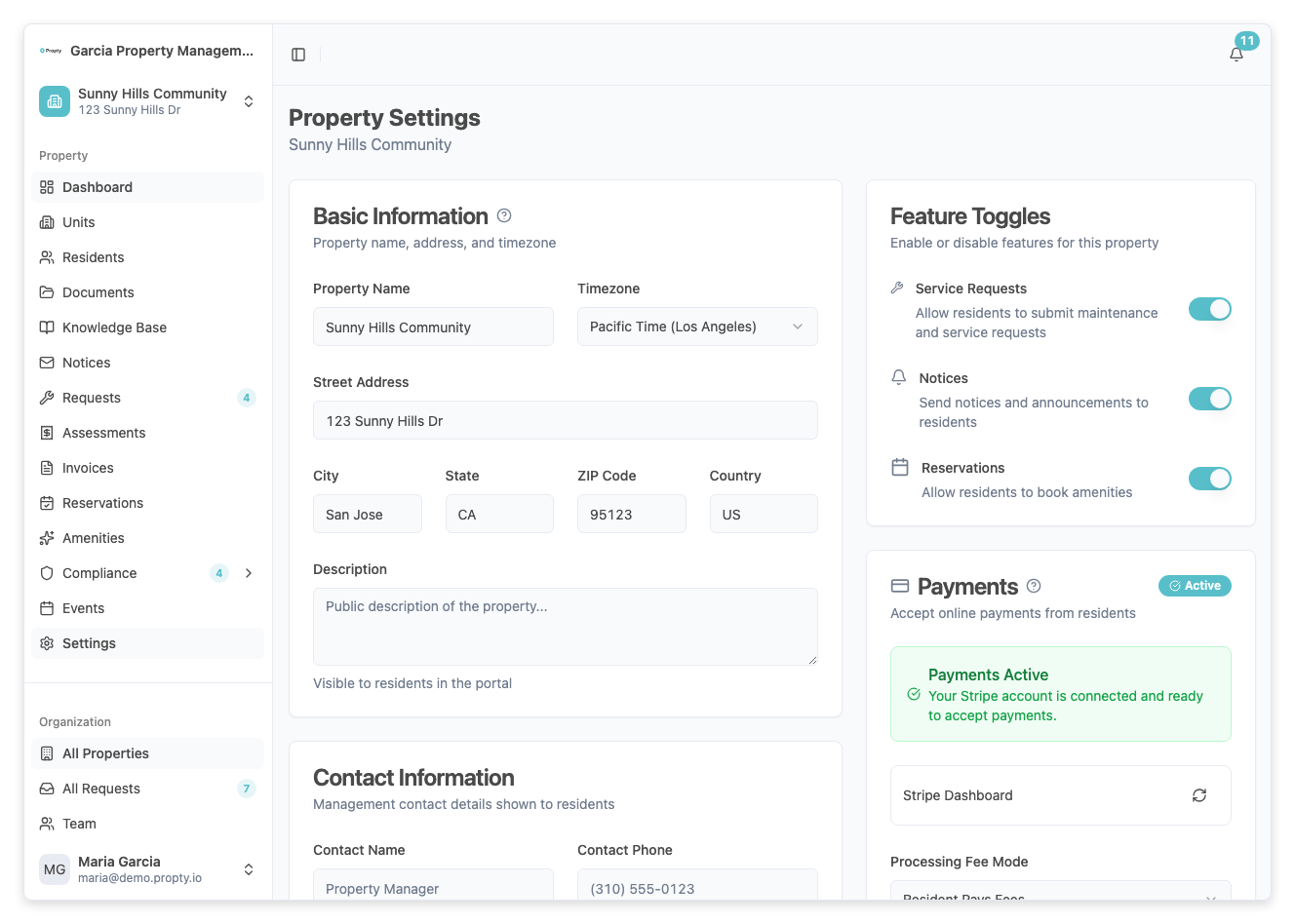
For detailed instructions on each field, see Configure Property Details.
3. Enable features
On the Settings page, use the Feature Toggles card to turn on the features your property needs:
- Reservations — Amenity booking for residents
- Service Requests — Maintenance request submissions
- Notices — Community notices and announcements
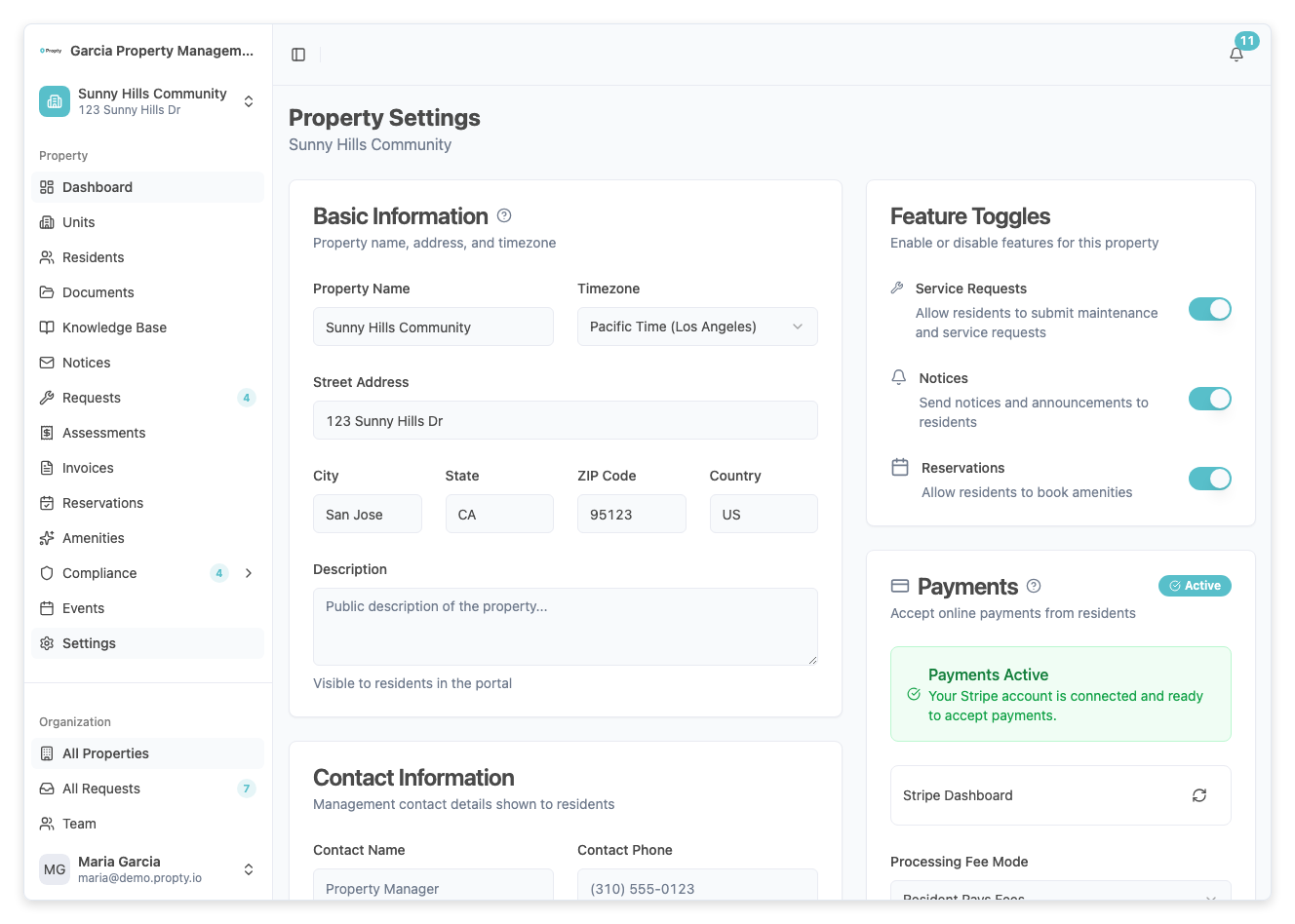
Tip: You can enable features at any time. Start with the basics and turn on additional features as your community is ready.
4. Connect payments
Before you can invoice residents, you'll need to connect a Stripe account for the property. See Payment Configuration for the full setup process.
Day-to-Day Property Management
Once a property is configured, most of your daily work happens within its sections:
- Units — Add and manage the spaces in your property
- Residents — Invite owners and tenants, track occupancy
- Assessments — Create invoices and manage billing
- Compliance — Track violations and ARC requests
Managing Multiple Properties
If your organization manages more than one property, you can switch between them using the sidebar. Each property is completely independent — changes to one property don't affect another.
Tip: When setting up multiple properties, complete one property fully (units, residents, payments) before moving on to the next. This helps you catch any issues early.
Property Settings Reference
| Setting | Description | Who Can Edit |
|---|---|---|
| Name & address | Property display name and location | Property manager, org manager |
| Timezone | Used for scheduling, reports, and notices | Property manager, org manager |
| Contact info | Phone, emergency phone, office hours | Property manager, org manager |
| Feature toggles | Enable/disable reservations, requests, notices | Organization manager only |
| Payment settings | Stripe connection and fee mode | Organization manager only |
Troubleshooting
| Problem | Solution |
|---|---|
| Can't edit property settings | Check your role — only property managers and org managers can edit settings. |
| Feature toggles are grayed out | Only organization managers can change feature toggles. |
| Timezone is wrong after entering address | Select the correct timezone manually from the dropdown. US ZIP codes auto-detect, but you can override. |
| Need to delete a property | Contact support — properties with data cannot be deleted from the dashboard to prevent accidental loss. |