Roles & Permissions
Propty uses a role-based permission system to control who can access what. Understanding roles helps you set up your team correctly and ensure the right people have the right level of access.
- Organization manager access (to manage roles and team members)
Role Hierarchy
Propty has two levels of roles: organization-level and property-level.
Organization Roles
| Role | Description |
|---|---|
| Organization Manager | Full access to everything — all properties, settings, billing, and team management. This is the highest-level role. |
| Property Manager | Access only to properties they've been assigned to. Cannot change organization settings or billing. |
What Each Role Can Do
| Action | Org Manager | Property Manager |
|---|---|---|
| View all properties | Yes | Assigned only |
| Create new properties | Yes | No |
| Edit property settings | Yes | Yes (assigned) |
| Change feature toggles | Yes | No |
| Connect Stripe / payment settings | Yes | No |
| Add/remove team members | Yes | No |
| Manage billing | Yes | No |
| Add/edit units | Yes | Yes (assigned) |
| Add/edit residents | Yes | Yes (assigned) |
| Create/publish invoices | Yes | Yes (assigned) |
| Manage violations & ARC | Yes | Yes (assigned) |
| Send notices | Yes | Yes (assigned) |
| View reports | Yes | Yes (assigned) |
Setting Up Your Team
Typical team structures
Small HOA (self-managed):
- 1–2 board members as Organization Managers
- That's it — a small board can manage everything directly
Mid-size HOA with management company:
- Management company staff as Organization Managers
- Board president as Organization Manager (for oversight)
- On-site staff as Property Managers
Large management company (multiple properties):
- Company principals as Organization Managers
- Regional managers as Organization Managers
- On-site property managers as Property Managers (assigned to their buildings)
Inviting team members
To add someone to your team, go to Settings > Organization > Members and click Invite Member. Choose their role and, for property managers, select which properties they can access.
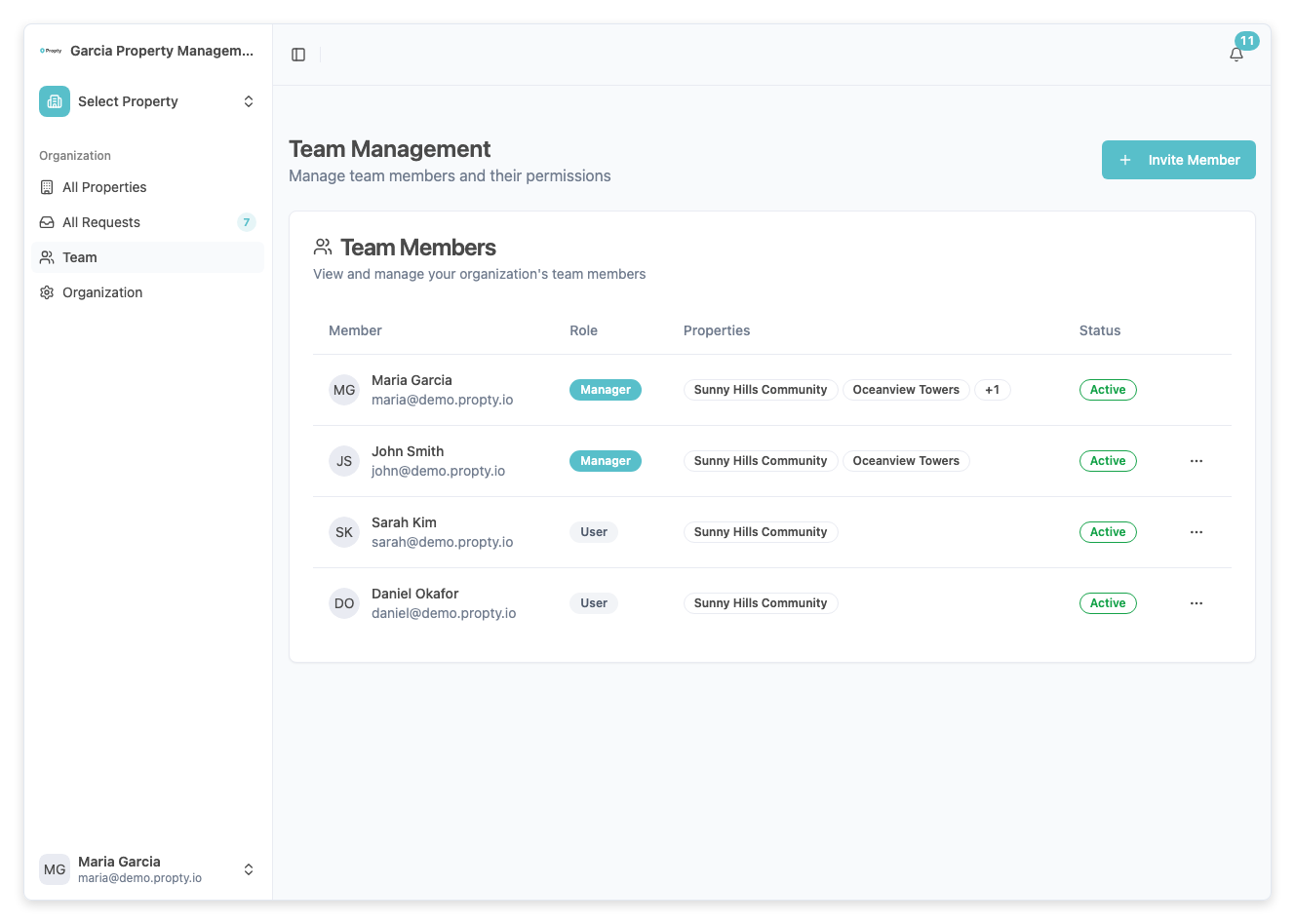
For step-by-step instructions, see Manage Team Members.
Resident Roles (Portal Access)
Residents have their own set of roles that control what they see in the resident portal:
| Role | Portal Access |
|---|---|
| Owner | View invoices, submit requests, vote in elections, view notices |
| Tenant | View invoices, submit requests, view notices |
| Occupant | Limited — submit requests, view notices (no billing access) |
Resident roles are assigned when you add a resident to a unit.
Best Practices
- Limit Organization Managers — Only give this role to people who need full access. Most staff should be Property Managers.
- Assign properties explicitly — Property Managers can only see properties they've been assigned to. Double-check assignments when onboarding new staff.
- Review access regularly — When staff leave or change roles, update their permissions promptly.
- Use the right role for the task — If someone only needs to manage one building, make them a Property Manager, not an Organization Manager.
Troubleshooting
| Problem | Solution |
|---|---|
| Team member can't see a property | They need to be a Property Manager assigned to that property, or an Organization Manager. |
| Can't invite team members | Only Organization Managers can invite new members. Check your role. |
| Property Manager can't change feature toggles | Feature toggles are Organization Manager–only. Ask an org manager to make the change. |
| Need to remove someone's access | Go to the Members list, find them, and click Remove. Access is revoked immediately. |
| Board member needs read-only access | Currently all roles have edit access. For read-only oversight, share reports or dashboards directly. |
Property-Level Roles
In addition to organization-wide roles, Propty supports four property-level roles. These roles control what a team member can do within a specific property, independent of their organization role.
The Four Property-Level Roles
| Role | Capabilities | Common Use Case |
|---|---|---|
| Admin | Full access: create/edit/delete all records, change property settings, view all reports | Property manager, on-site manager |
| Manager | Create/edit most records (residents, invoices, violations, requests), cannot delete or change settings | Manager assistant, staff coordinator |
| Staff | View all records, create/submit requests, cannot access financials or delete anything | Maintenance staff, custodian |
| Read-Only | View-only access; no edits or actions allowed | Board member oversight, auditor |
What Each Role Can Do
| Action | Admin | Manager | Staff | Read-Only |
|---|---|---|---|---|
| View properties and records | ✓ | ✓ | ✓ | ✓ |
| Add/edit residents | ✓ | ✓ | ||
| Add/edit units | ✓ | ✓ | ||
| Create/publish invoices | ✓ | ✓ | ||
| Record payments | ✓ | ✓ | ||
| Access collections | ✓ | ✓ | ||
| Create/edit violations | ✓ | ✓ | ||
| Submit service requests | ✓ | ✓ | ✓ | |
| Manage service requests | ✓ | ✓ | ||
| Access financial reports | ✓ | ✓ | ||
| Change property settings | ✓ | |||
| Delete records | ✓ | |||
| View reports (read-only) | ✓ | ✓ | ✓ |
Changing a Team Member's Property Role
If you need to change someone's role within a specific property:
- Go to Settings → Organization → Team Members.
- Find the team member in the list.
- Click on their name to open their detail.
- You'll see a list of properties they have access to.
- Next to each property, find the Role dropdown.
- Select a new role (Admin, Manager, Staff, or Read-Only).
- Click Save.
The new role takes effect immediately.
Multiple Roles per Person
A team member can have different roles on different properties. For example:
- Jane is Admin on Property A (where she's the on-site manager)
- Jane is Read-Only on Property B (where she's a board member)
- Jane is Manager on Property C (where she assists the property manager)
This flexibility allows you to customize access per person per property.
Organization Role vs. Property Role
These are independent:
- Organization role (Manager or Admin) determines whether you can access multiple properties and manage billing
- Property role (Admin, Manager, Staff, Read-Only) determines what you can do within each specific property
An Organization Manager with a Property-Level Read-Only role would:
- See the property and all its records
- Not be able to edit anything
- But still have access to organization settings and billing
Best Practices for Property Roles
- Start restrictive. Give new staff the minimum role they need; you can always escalate later.
- Use Staff for resident-facing roles. If someone only submits requests and doesn't manage the property, Staff role is appropriate.
- Use Read-Only for oversight. Board members who want to stay informed without making changes should have Read-Only access.
- Rotate admin duties. If only one person is Admin, consider having a backup Admin in case they're unavailable.
- Document role assignments. Keep a spreadsheet or record of who has which role on which property for audit purposes.
- Review roles annually. When staff change or roles change, review and update permissions.