Notification Settings
Notifications keep your team and residents informed about important property activity — new payments, maintenance requests, overdue invoices, and more. As an admin, you control which notifications you receive and how residents are notified.
- Property manager or organization manager access
Manager Notifications
As a property manager, you receive notifications for key events so you can respond quickly:
| Event | Description |
|---|---|
| New payment received | A resident has paid an invoice |
| New maintenance request | A resident submitted a service request |
| Request update | A resident added a message to an existing request |
| New ARC request | A resident submitted an architectural review request |
| Invoice overdue | An invoice has passed its due date |
Configuring your notifications
- Go to Settings in the property sidebar
- Find the notification settings section
- For each event type, choose how you want to be notified:
- Email — Receive a notification by email
- In-app — See a notification in your Propty dashboard
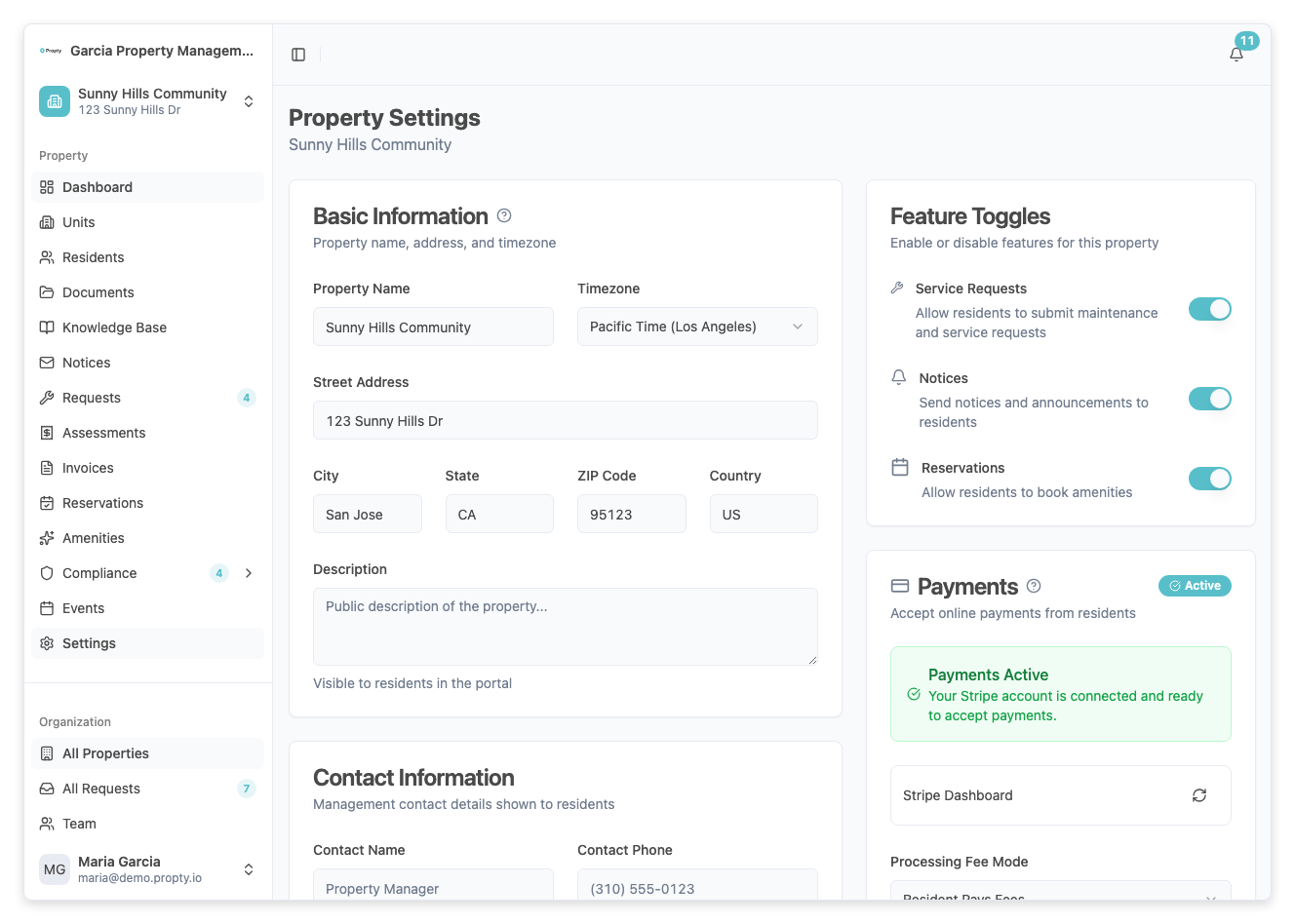
For detailed setup instructions, see Notification Preferences.
Tip: Enable email notifications for time-sensitive events like new maintenance requests. Use in-app only for things you'll review during your regular dashboard check-ins.
Resident Notifications
Residents receive notifications based on actions you take and their own preferences:
| Action You Take | What the Resident Receives |
|---|---|
| Publish an invoice (with email enabled) | Email with invoice details and a link to pay |
| Send a notice | Email delivery of the notice |
| Send a portal invitation | Email with a link to set up their account |
| Make an ARC decision | Visible in the resident portal |
Resident language preference
Each resident has a language preference — English or French. All automated communications are sent in the resident's chosen language. You can set this when adding a resident or by editing their profile.
SMS notifications
Residents can opt in to SMS notifications. This is managed per-resident in the edit panel. SMS consent must be explicitly enabled — it is off by default to comply with messaging regulations.
Communication Best Practices
- Be consistent — Set up your notification preferences once and stick with them. Inconsistent communication confuses residents.
- Use email for important notices — Not all residents check the portal daily. Email ensures they see time-sensitive information.
- Respect language preferences — If you have French-speaking residents, make sure their profiles are set to French so they receive communications in their language.
- Don't over-notify — Residents who receive too many emails may start ignoring them. Focus email notifications on things that require action (invoices, requests).
Email Delivery
Propty sends emails on your behalf using your organization's name as the sender. To ensure emails reach residents' inboxes:
- Ask residents to add Propty's email address to their contacts
- If a resident reports not receiving emails, check their spam/junk folder first
- Verify the resident's email address is correct in their profile
- Only Active residents receive email notifications
Troubleshooting
| Problem | Solution |
|---|---|
| Not receiving manager notifications | Check your notification preferences in Settings. Verify your email is correct. |
| Resident didn't get an invoice email | Check that "Send email notification" was enabled when publishing. Verify the resident's email and status. |
| Resident getting emails in the wrong language | Edit the resident's profile and update their language preference. |
| Too many email notifications | Adjust your notification preferences — switch low-priority events to in-app only. |
| SMS not working for a resident | Verify that SMS consent is explicitly enabled on the resident's profile. |