Payment Processing
Propty uses Stripe to handle all payment processing. Once connected, residents can pay invoices online through the resident portal using ACH bank transfers or credit/debit cards. As an admin, you'll set up the Stripe connection, choose how fees are handled, and monitor incoming payments.
- Organization manager access
- A bank account for receiving payments
- Business information for Stripe verification (address, tax ID)
Setting Up Payments
1. Connect your Stripe account
Each property needs its own Stripe connection. Go to Settings for your property and find the Payment Settings card. Click Connect Stripe to begin the onboarding process.
Stripe will ask for your business type, details, identity verification, and bank account. This takes about 5–10 minutes.
For the full walkthrough, see Payment Configuration.
2. Choose your fee mode
Once Stripe is active, decide who pays the service fee that Propty charges for online payments — 3.5% + $0.50 for card payments, or 1% (capped at $5.95) for ACH bank transfers:
| Fee Mode | How It Works |
|---|---|
| Pass to Resident | The service fee is added on top of the invoice amount. Residents see the fee at checkout. |
| Absorb Fees | Your organization pays the fee. Residents pay the exact invoice amount. |
Tip: Most HOAs pass the service fee to residents, since it is tied to the payment method, not the assessment itself. However, some boards choose to absorb the fee as a convenience benefit.
How Residents Pay
Once payments are active, residents see a Pay button on their open invoices in the portal. They can pay using:
- ACH bank transfer — Lower service fee (1%, capped at $5.95), takes 3–5 business days to settle
- Credit or debit card — Higher service fee (3.5% + $0.50), settles faster
Residents enter their payment details through Stripe's secure checkout — Propty never stores card or bank numbers.
Stripe Account Status
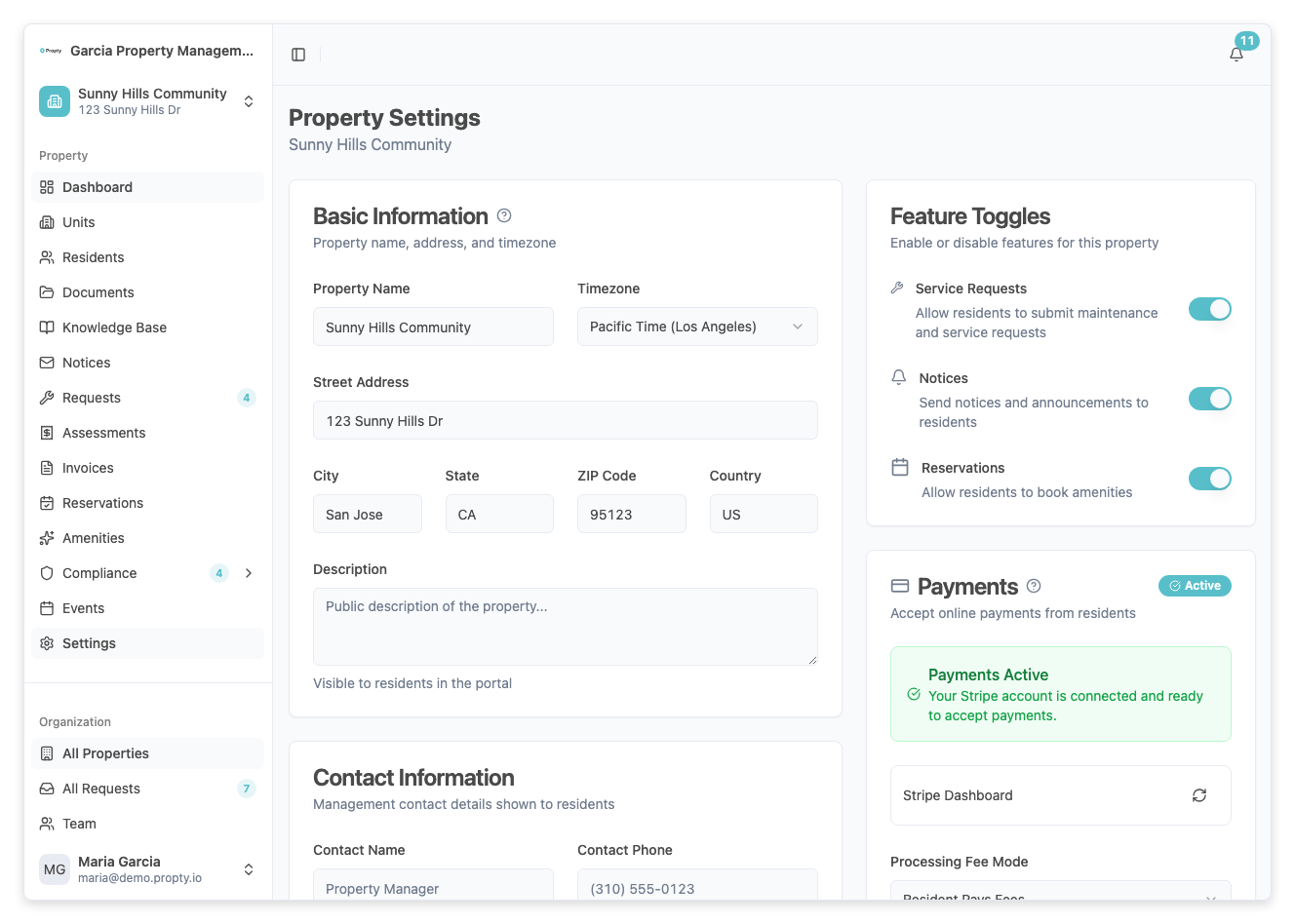
The Payment Settings card shows your current Stripe connection status:
| Status | What to Do |
|---|---|
| Not Connected | Click Connect Stripe to begin setup. |
| Onboarding Started | You started setup but didn't finish. Click Continue Setup. |
| Pending Verification | Stripe is reviewing your information (1–2 business days). No action needed. |
| Active | You're all set. Residents can pay online. |
| Restricted | Stripe needs additional information. Click Continue Setup to provide it. |
| Disabled | Contact support for assistance. |
Monitoring Payments
In Propty
The Invoices page shows payment status for each invoice. The summary cards at the top give you a quick view of Total, Open, Overdue, and Paid amounts.
In the Stripe Dashboard
Click Open Dashboard in the Payment Settings card to access your Stripe dashboard. From there you can:
- View individual transactions and payouts
- Check payout schedules (when funds hit your bank account)
- Update your bank account or business details
- Download transaction reports for your records
Tip: Stripe typically deposits funds to your bank account on a rolling basis (2–7 business days depending on your account). Check your Stripe dashboard for your specific payout schedule.
Reconciliation
To reconcile payments with your accounting:
- Export from Propty — Use the invoices list to see which invoices are paid, open, or overdue
- Cross-reference with Stripe — The Stripe dashboard shows the exact amounts deposited after fees
- Match to bank deposits — Stripe payouts appear in your bank account with a Stripe reference
Best Practices
- Complete Stripe setup early — Don't wait until invoices are due. Stripe verification can take 1–2 days.
- Check for Restricted status — If Stripe requests additional info, provide it promptly to avoid payment interruptions.
- Review payouts regularly — Confirm that Stripe deposits match your expectations.
- Communicate the fee policy — Let residents know whether fees are passed through or absorbed so there are no surprises at checkout.
Troubleshooting
| Problem | Solution |
|---|---|
| Residents can't see the Pay button | Verify that Stripe status is Active on the Settings page. |
| Stripe setup keeps asking for more info | Complete all required fields. Stripe may need additional documents for verification. |
| Payment received but invoice still shows Open | Payments may take a moment to process. Refresh the page or check the Stripe dashboard. |
| Want to change the bank account | Open the Stripe Dashboard from Payment Settings and update bank details there. |
| Need to refund a payment | Process refunds through the Stripe Dashboard. The invoice status in Propty will update accordingly. |