Assessment Management
Assessments are the regular dues and fees that fund your community — monthly HOA dues, quarterly maintenance fees, and special assessments for capital projects. Propty helps you create invoices, track payments, and follow up on overdue balances.
- Payments enabled for your property (see Payment Configuration)
- Units and residents set up (see Managing Units and Managing Residents)
How Assessments Work in Propty
Propty handles assessments through the invoicing system. Here's the typical workflow:
- Create invoices — Generate invoices for your residents (individually or in bulk)
- Review drafts — Invoices start as drafts so you can double-check before publishing
- Publish — Make invoices visible to residents and optionally send email notifications
- Collect payments — Residents pay online through the portal via ACH or credit card
- Track & follow up — Monitor overdue invoices and take action on delinquent accounts
Creating Invoices
One-time invoices
For individual charges — a special assessment, a one-off fee, or a charge for a specific unit — create a single invoice.
See Create and Send Invoices for step-by-step instructions.
Bulk invoicing
For recurring assessments that apply to many or all units (like monthly HOA dues), you can create invoices for multiple units at once:
- Go to the Invoices page
- Click Create Invoice
- Select multiple units or choose "All units"
- Set the title, amount, and due date
- Review the draft invoices, then publish
Tip: Use a clear, consistent title for recurring assessments (e.g., "Monthly HOA Dues — March 2026"). This helps residents identify charges and makes your records easier to search.
Invoice Lifecycle
Every invoice moves through these statuses:
| Status | What It Means |
|---|---|
| Draft | Created but not visible to residents. Use this to review before publishing. |
| Open | Published and awaiting payment. Resident can see and pay it. |
| Paid | Fully paid. |
| Overdue | Past the due date with an unpaid balance. |
| Void | Cancelled — no longer collectible. |
Publishing invoices
Draft invoices are invisible to residents until you publish them. When publishing, you can choose to send an email notification. See Publish Invoices for details.
Tracking Payments
The Invoices page shows summary cards at the top:
- Total — Total amount invoiced
- Open — Unpaid invoices awaiting payment
- Overdue — Past-due invoices needing follow-up
- Paid — Successfully collected payments
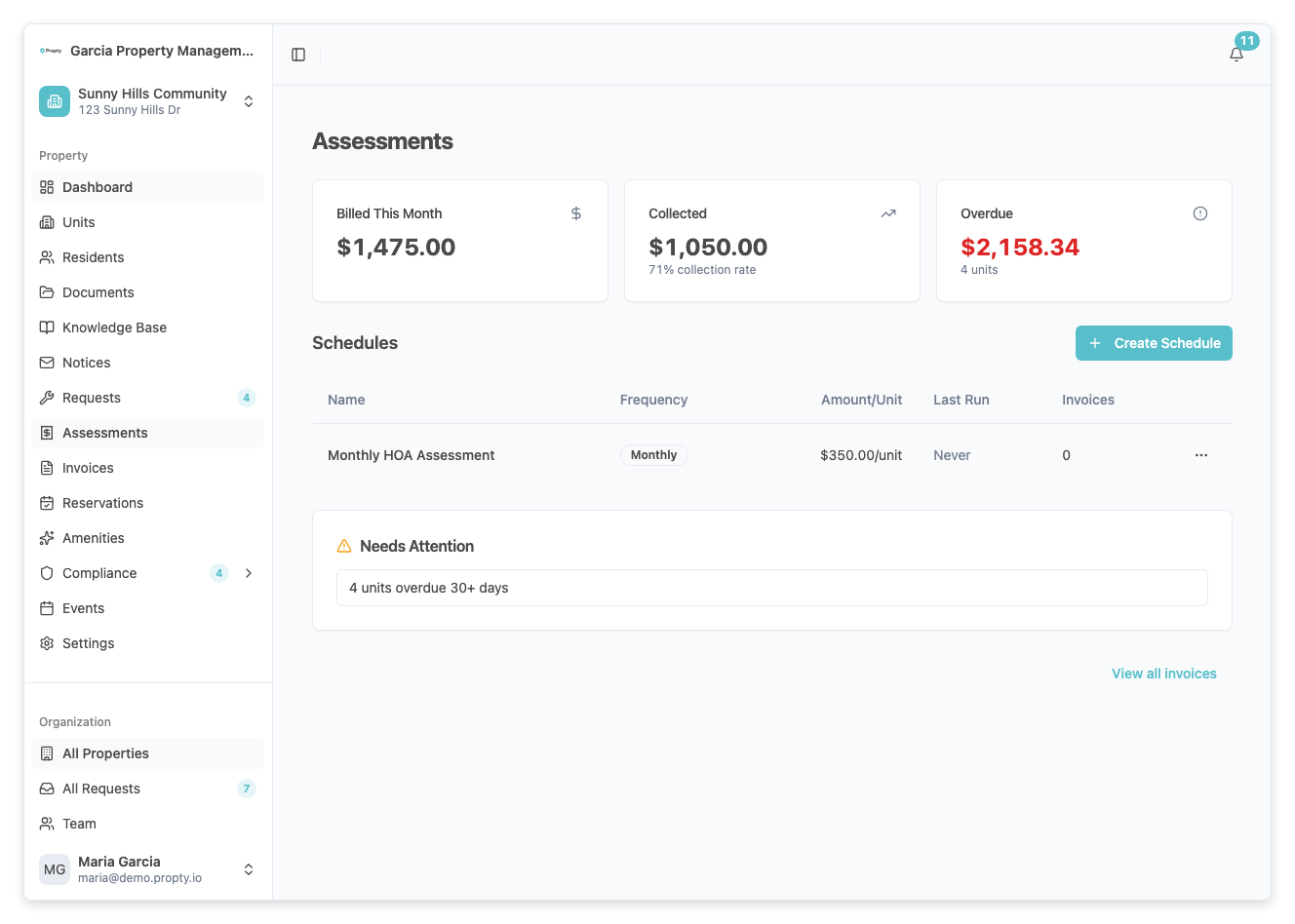
Use these to get a quick snapshot of your community's financial health.
Managing Overdue Assessments
When invoices go past their due date, they automatically move to Overdue status. Here's a practical approach for managing delinquent accounts:
- Filter by Overdue — On the Invoices page, filter by the Overdue status to see all past-due invoices
- Review balances — Check which units have outstanding balances and how long they've been overdue
- Send reminders — Use the notices feature to communicate with residents about past-due balances
- Void if needed — If an invoice was created in error, void it instead of leaving it overdue
Tip: Check overdue invoices weekly. The earlier you follow up, the easier collections tend to be.
Best Practices
- Use draft mode — Always review invoices as drafts before publishing. It's much easier to void and recreate a draft than to deal with a published invoice error.
- Set consistent due dates — Pick a standard due date (e.g., the 1st of each month) so residents know when to expect their bill.
- Invoice in advance — Create and publish invoices a few days before the due date to give residents time to pay.
- Keep titles descriptive — Clear titles reduce confusion and support calls from residents.
Troubleshooting
| Problem | Solution |
|---|---|
| Can't create invoices | Make sure payments are enabled — see Payment Configuration. |
| Resident says they can't see an invoice | Check if the invoice is still in Draft status. Only published invoices are visible to residents. |
| Invoice has the wrong amount | If it's a draft, void it and create a new one. If published with no payments, you can still void it. |
| Resident paid but invoice still shows Open | Payments can take a moment to process. If it persists, check the Stripe dashboard for the transaction status. |