Publish Invoices to Residents
When you create an invoice, it starts as a Draft. Draft invoices are not visible to residents. You must publish an invoice to make it visible in the resident portal and enable online payment.
- One or more invoices in Draft status
- The resident should have an email address on file (for email notifications)
Publish a single invoice
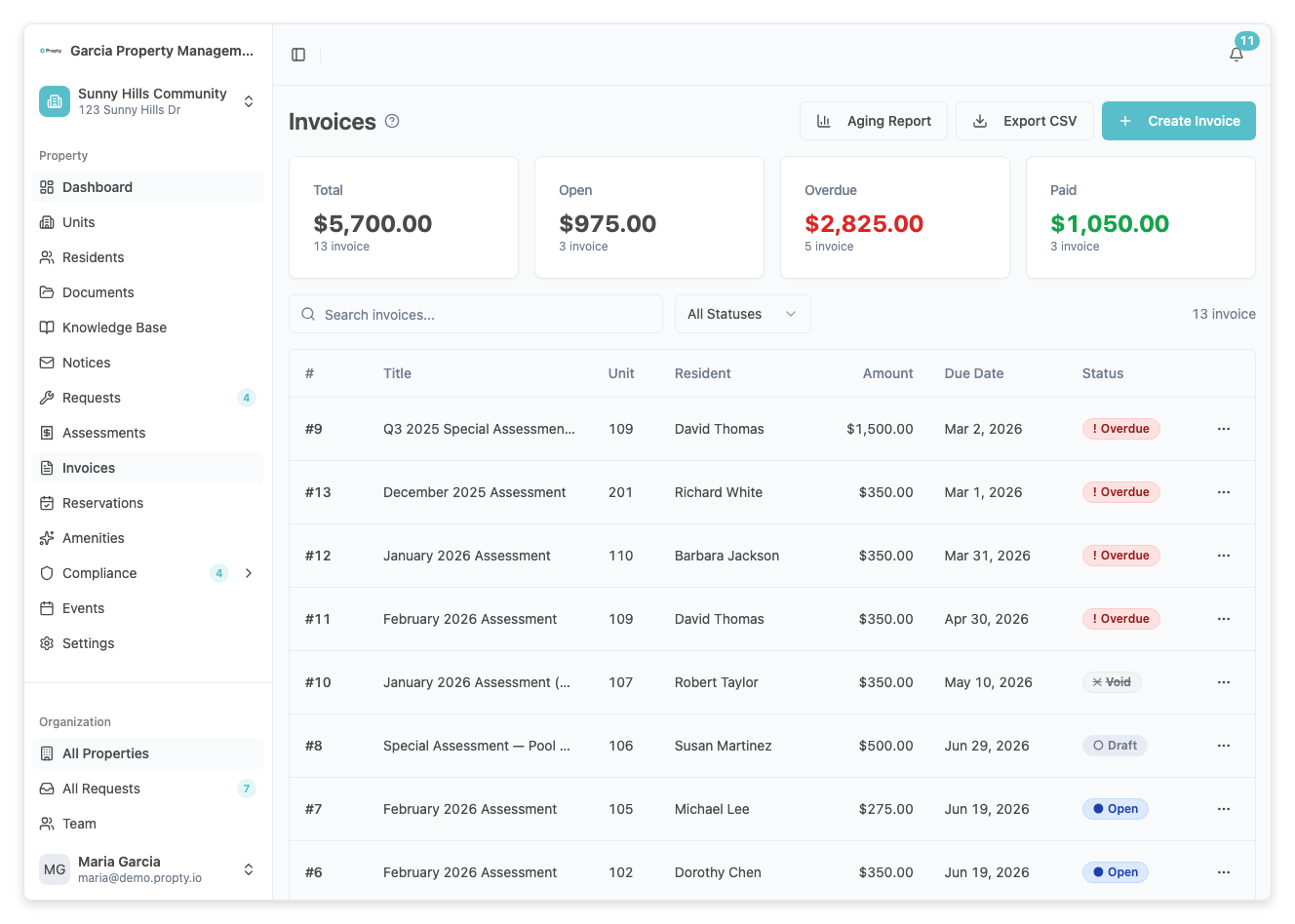
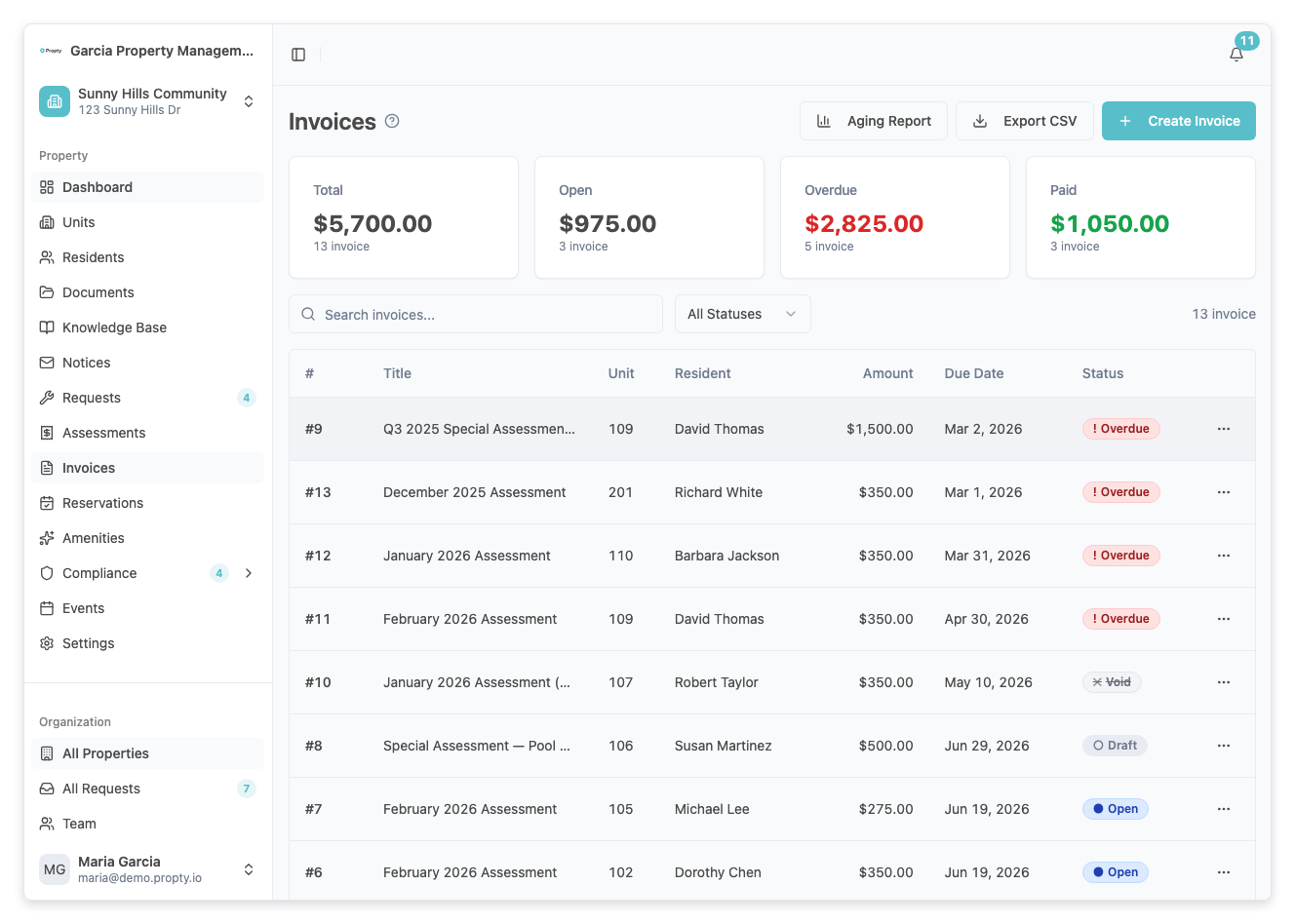
1. Open the invoice
From the Invoices page, click on the invoice row to open its detail page.
2. Open the actions menu
Click the three-dot menu (⋮) in the top-right corner of the invoice detail page.
3. Click "Publish"
Select Publish from the dropdown menu. A confirmation dialog will appear.
The dialog shows:
- The invoice number and amount
- The resident name who will receive the invoice
- A checkbox to send an email notification (checked by default if the resident has an email)
4. Confirm and publish
Review the details, then click the Publish Invoice button.
The invoice status changes from Draft to Open, and the resident can now see and pay it in their portal.
Publish all draft invoices at once
If you have multiple draft invoices (for example, after generating monthly assessments), you can publish them all in one step.
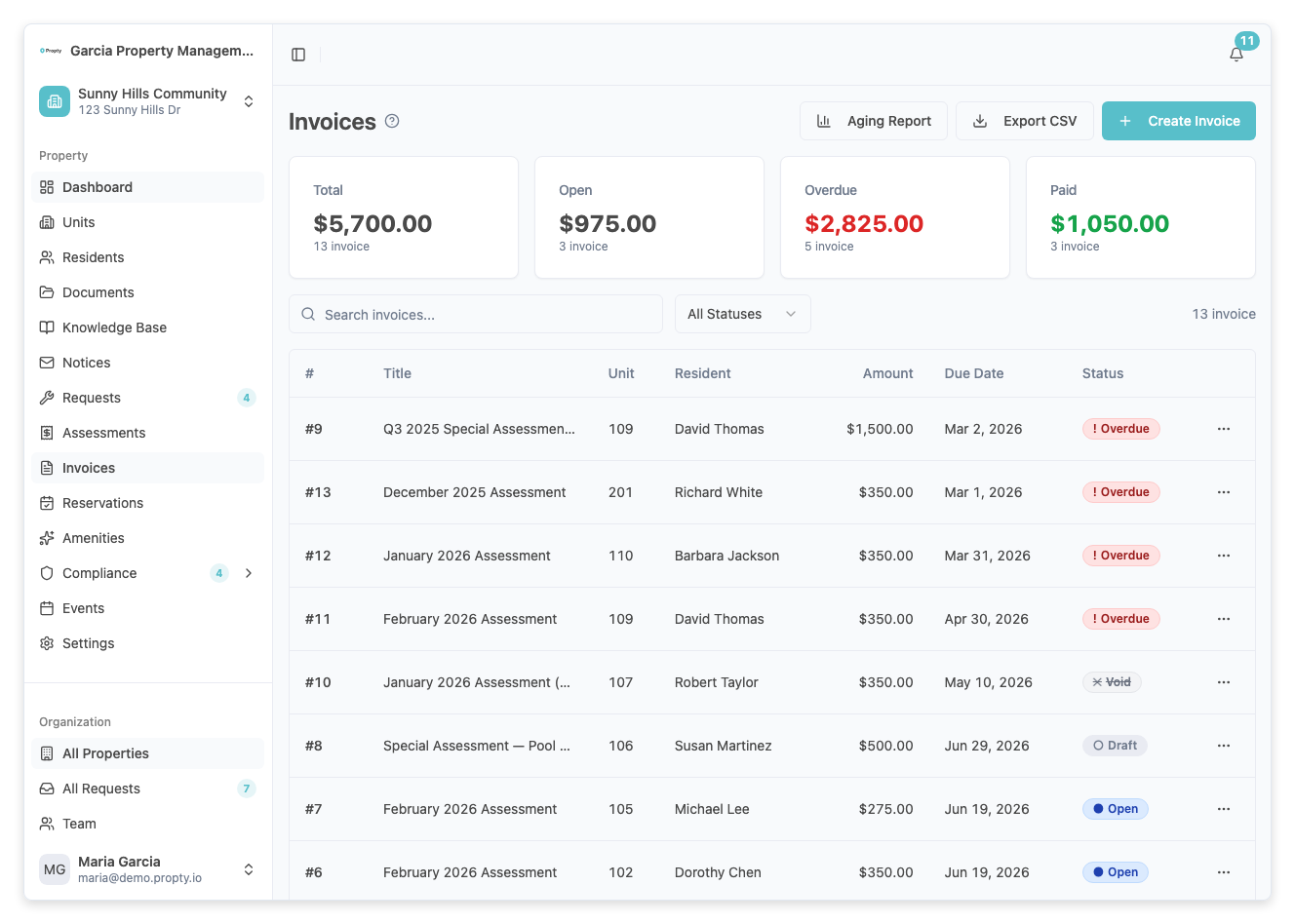
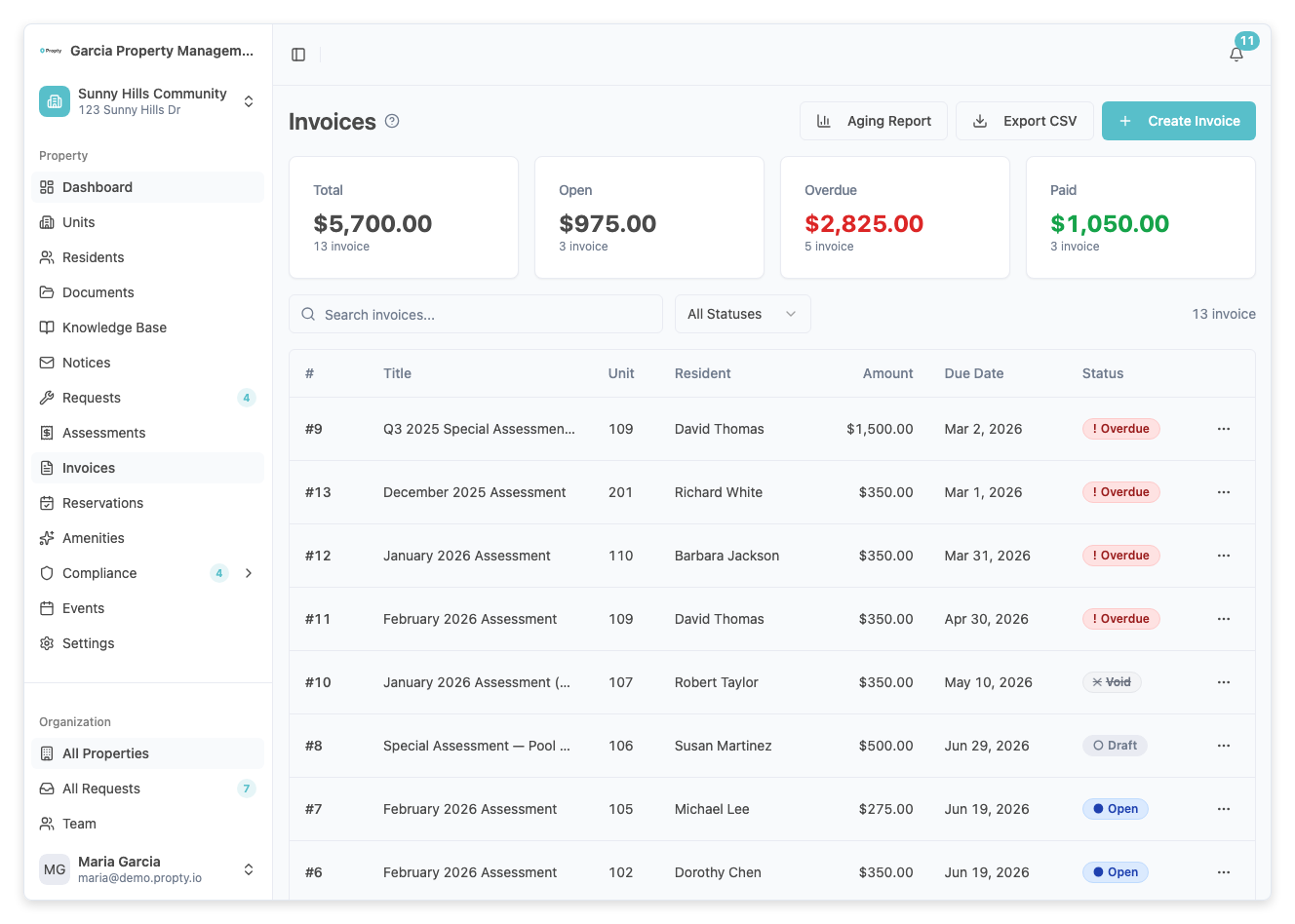
1. Go to the Invoices page
From your property dashboard, click Invoices in the left sidebar.
2. Click "Publish All Drafts"
When draft invoices exist, a Publish All Drafts button appears in the top-right area (showing the count of drafts, e.g., "Publish All (12)").
3. Confirm the bulk publish
A confirmation dialog appears showing how many invoices will be published. Click Publish All to confirm.
All draft invoices will be changed to Open status and email notifications will be sent to residents with email addresses on file.
What happens when you publish
- The invoice status changes from Draft to Open
- The invoice appears in the resident's portal under Invoices
- If email notification was enabled, the resident receives an email with the invoice details and a Pay Now link
- The resident can now pay the invoice online via credit card or bank transfer
Troubleshooting
The "Publish" option is not available
- Only Draft invoices can be published. Check the invoice status.
- Invoices that are already Open, Paid, Overdue, or Void cannot be published.
The resident did not receive an email
- Check that the send email notification checkbox was checked when publishing.
- Verify the resident has a valid email address. Go to Residents to check their profile.
- If the resident has no email, the checkbox will be disabled. You may need to notify them another way.
I published an invoice by mistake
- You can void the invoice if no payments have been made. Open the invoice detail page and select Void from the actions menu.
- If a payment has already been made, contact the resident directly to resolve the issue.