Record Resident Payments
When a resident pays by cash, check, or another offline method, you can manually record the payment in Propty. This keeps all payment records in one place and automatically updates the invoice balance.
- An invoice in Open or Overdue status (not Draft or Void)
- The payment details: amount, method, and date received
Steps
1. Open the invoice
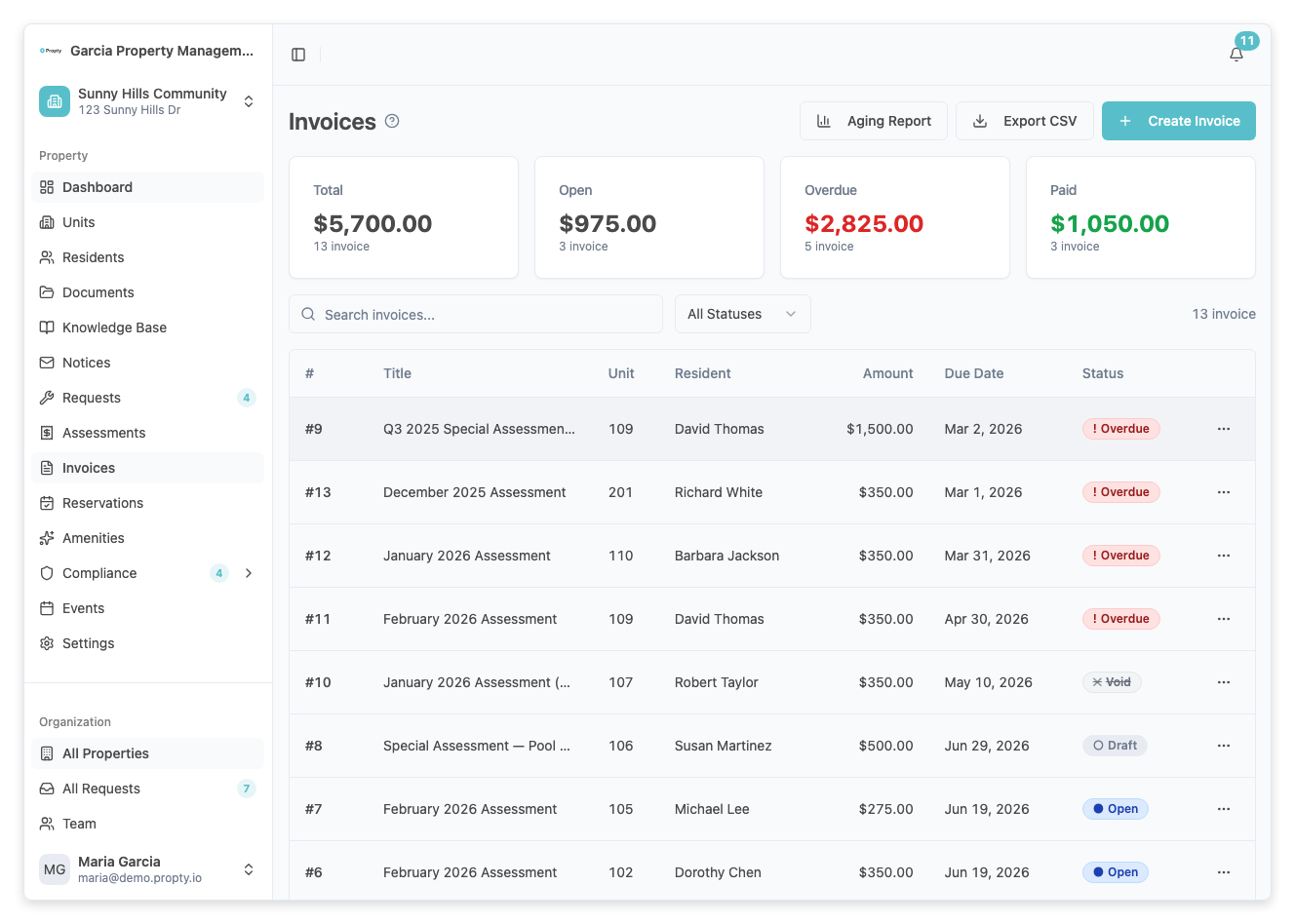
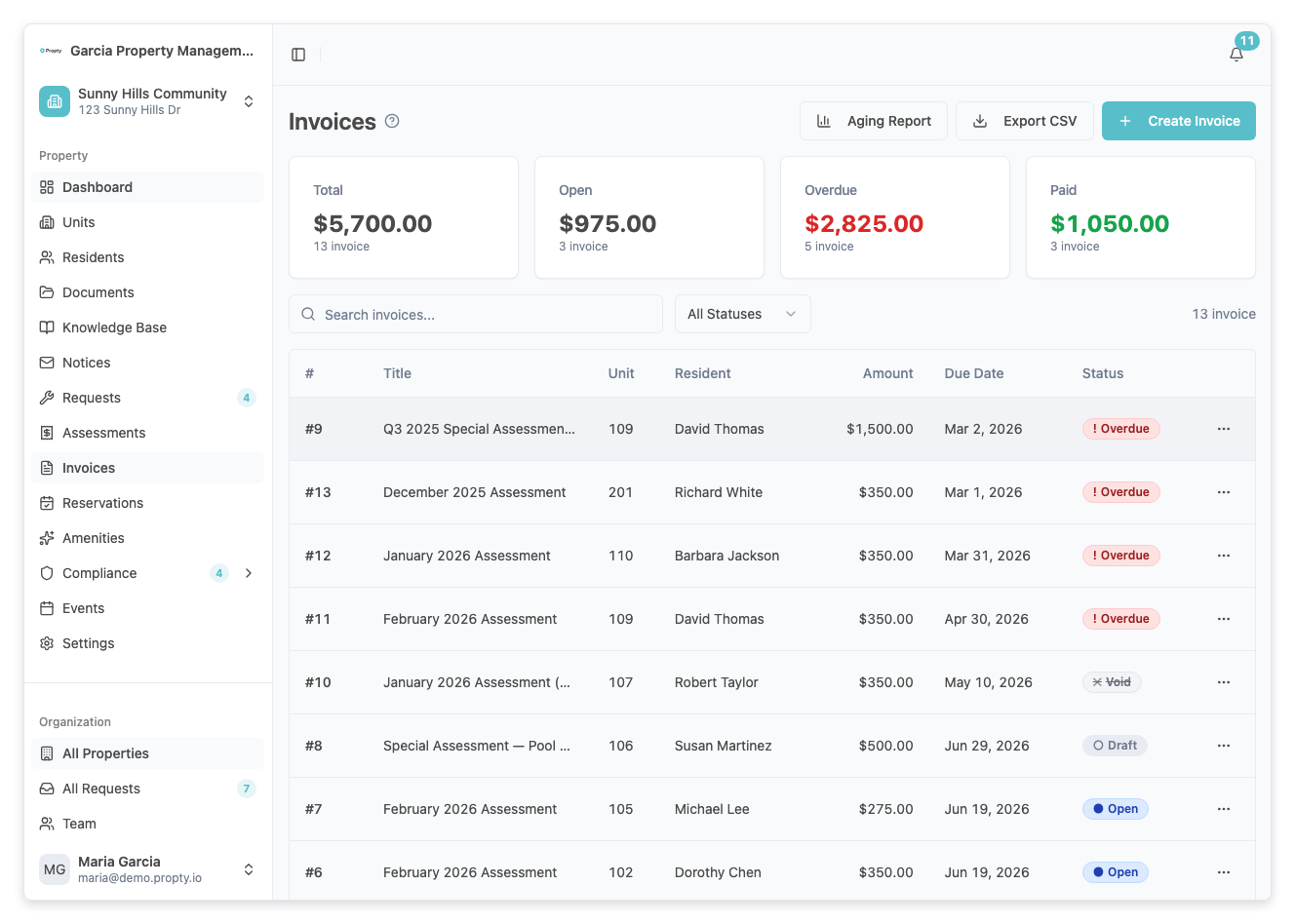
From the Invoices page, click on the invoice row to open its detail page.
You will see two cards:
- Invoice Details — showing the unit, resident, due date, and description
- Payment Summary — showing the original amount, amount paid, and balance due
2. Click "Record Payment"
You can access the Record Payment dialog in two ways:
- Click the Record Payment button in the Payment Summary card
- Or click the three-dot menu (⋮) and select Record Payment
3. Enter the payment amount
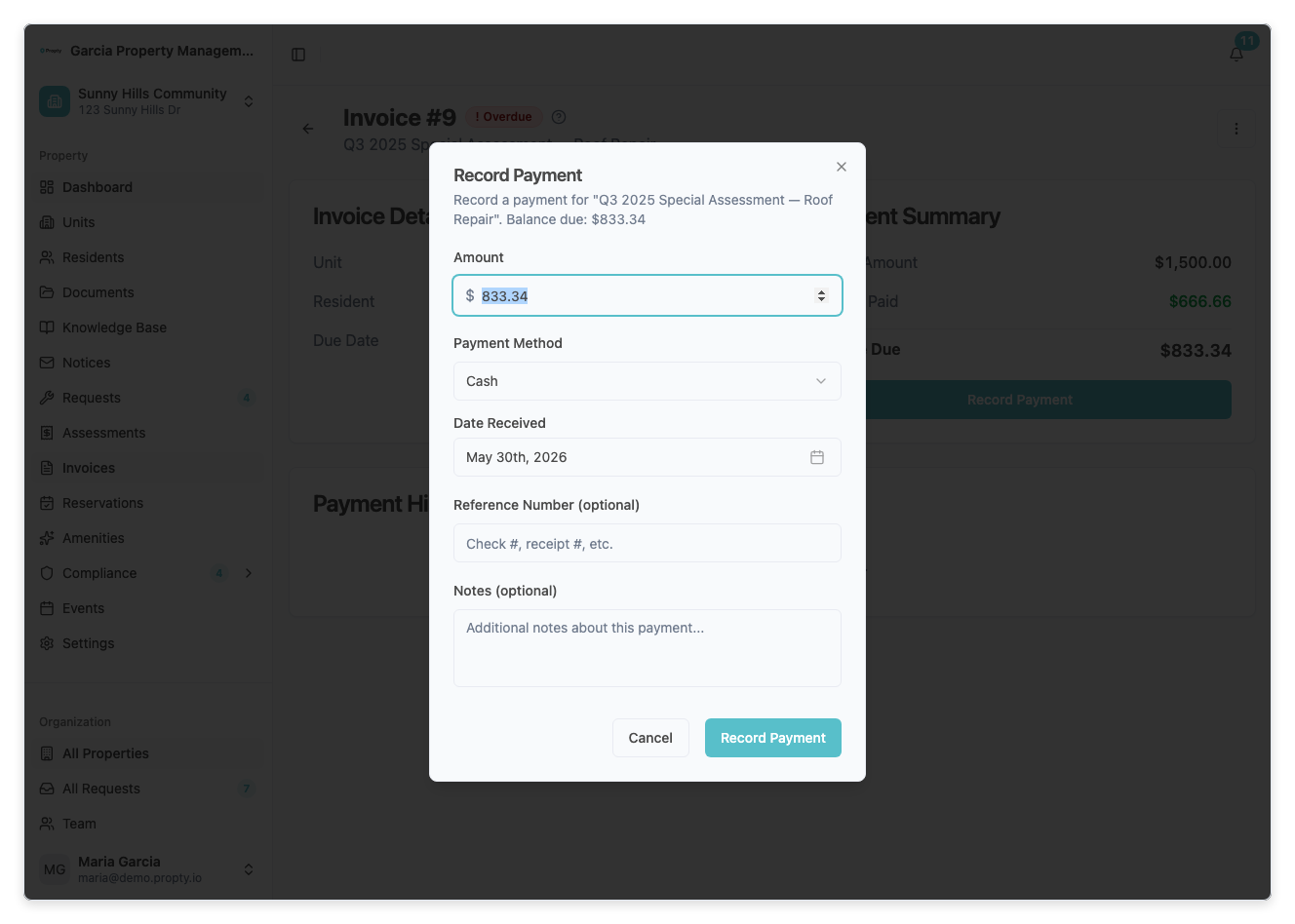
The Amount field is pre-filled with the remaining balance. You can change it if the resident made a partial payment.
- The amount must be greater than $0
- The amount cannot exceed the remaining balance
4. Select the payment method
Choose from the Payment Method dropdown:
- Cash — for cash payments
- Check — for check payments
- Other — for money orders or other methods
5. Set the date received
Click the Date Received field to open the calendar. Select the date when you received the payment. You cannot select a future date.
6. Add reference number (optional)
If recording a check, enter the check number in the Reference # field. This helps with reconciliation.
7. Add notes (optional)
Use the Notes field for any additional details, such as "Check received via mail" or "Cash payment at office."
8. Click "Record Payment"
Click the Record Payment button to save. A success message will confirm the payment was recorded.
What happens after recording
- The Amount Paid on the invoice increases by the recorded amount
- The Balance Due decreases accordingly
- The payment appears in the Payment History section at the bottom of the invoice detail page
- If the payment covers the full remaining balance, the invoice status changes to Paid
- If a partial payment was recorded, the invoice remains Open (or Overdue if past due)
Recording partial payments
You can record multiple partial payments against the same invoice. Each payment is tracked separately in the payment history.
Example: An invoice for $350.00
- Resident drops off a $200 check on January 15 — record $200, status stays Open
- Resident pays remaining $150 in cash on January 28 — record $150, status changes to Paid
Troubleshooting
The "Record Payment" button is not available
- The invoice must be in Open or Overdue status. Draft invoices must be published first.
- The invoice must have a remaining balance. Fully paid invoices cannot accept more payments.
- Void invoices cannot accept payments.
I recorded the wrong amount
- Manual payments cannot be edited after recording. If you made an error, contact your system administrator.
- You may need to void the invoice and create a new one if the error is significant.
The invoice status didn't change to Paid
- Check that the total of all payments equals or exceeds the invoice amount.
- Partial payments keep the invoice in Open or Overdue status until the full balance is covered.