View Aging Report
The aging report shows all overdue invoices grouped by how long they have been past due. Use it to identify delinquent accounts and prioritize collection efforts.
- A Propty account with Property Manager or Property Admin access
- At least one overdue invoice in your property
Steps
1. Go to the Aging Report page
From the Invoices page, click Aging Report (or navigate directly to the aging report from your property dashboard).
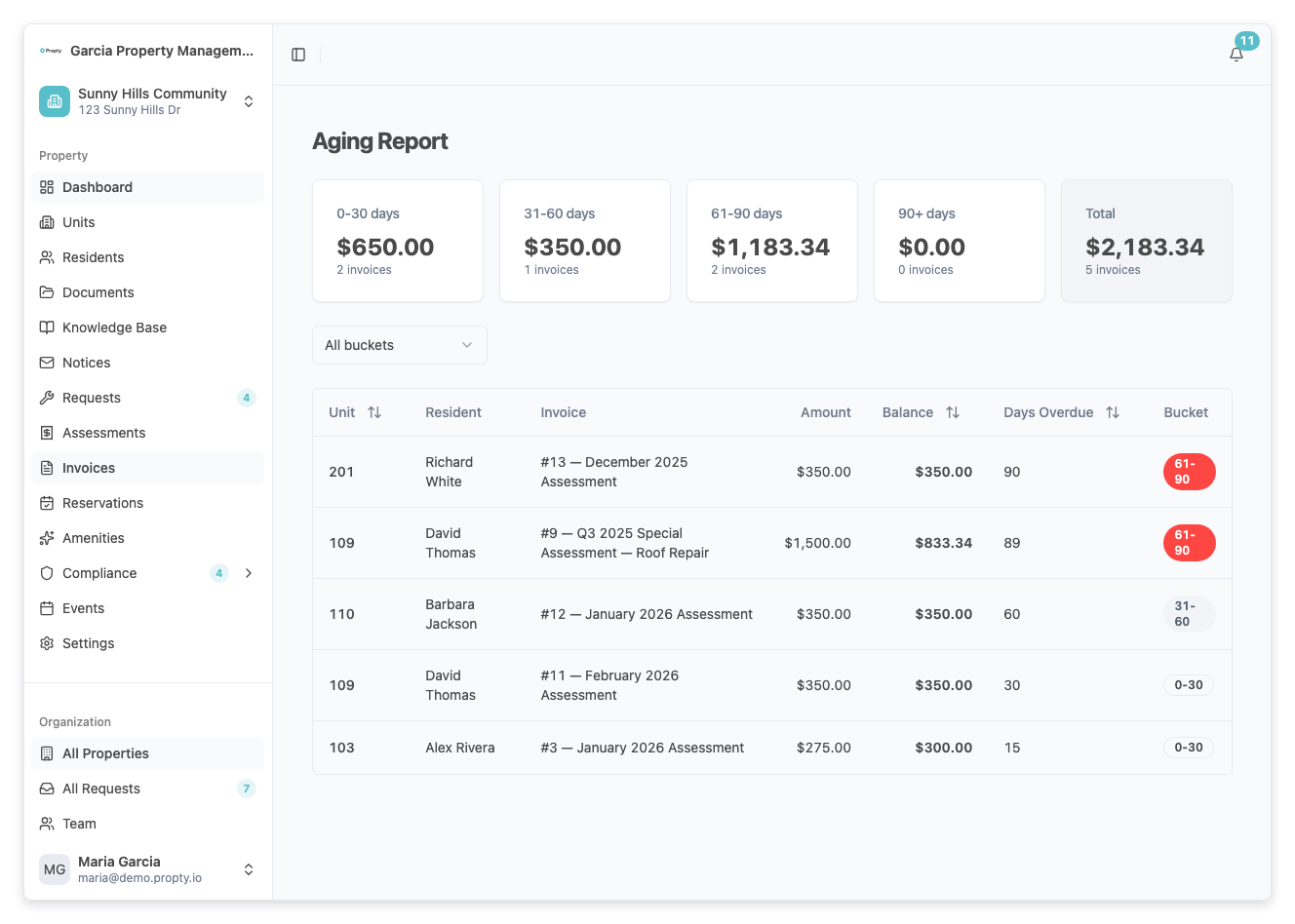
2. Review the bucket summary
At the top of the page, you will see summary cards for each aging bucket:
| Bucket | Meaning |
|---|---|
| 0-30 days | Recently overdue |
| 31-60 days | Moderately overdue |
| 61-90 days | Significantly overdue |
| 90+ days | Severely overdue |
| Total | Sum of all overdue balances |
Each card shows the total dollar amount and the number of invoices in that bucket. Click on a bucket card to filter the table below to show only invoices in that range.
3. Filter by bucket
Use the bucket dropdown above the table to filter by a specific aging range, or select All buckets to see everything.
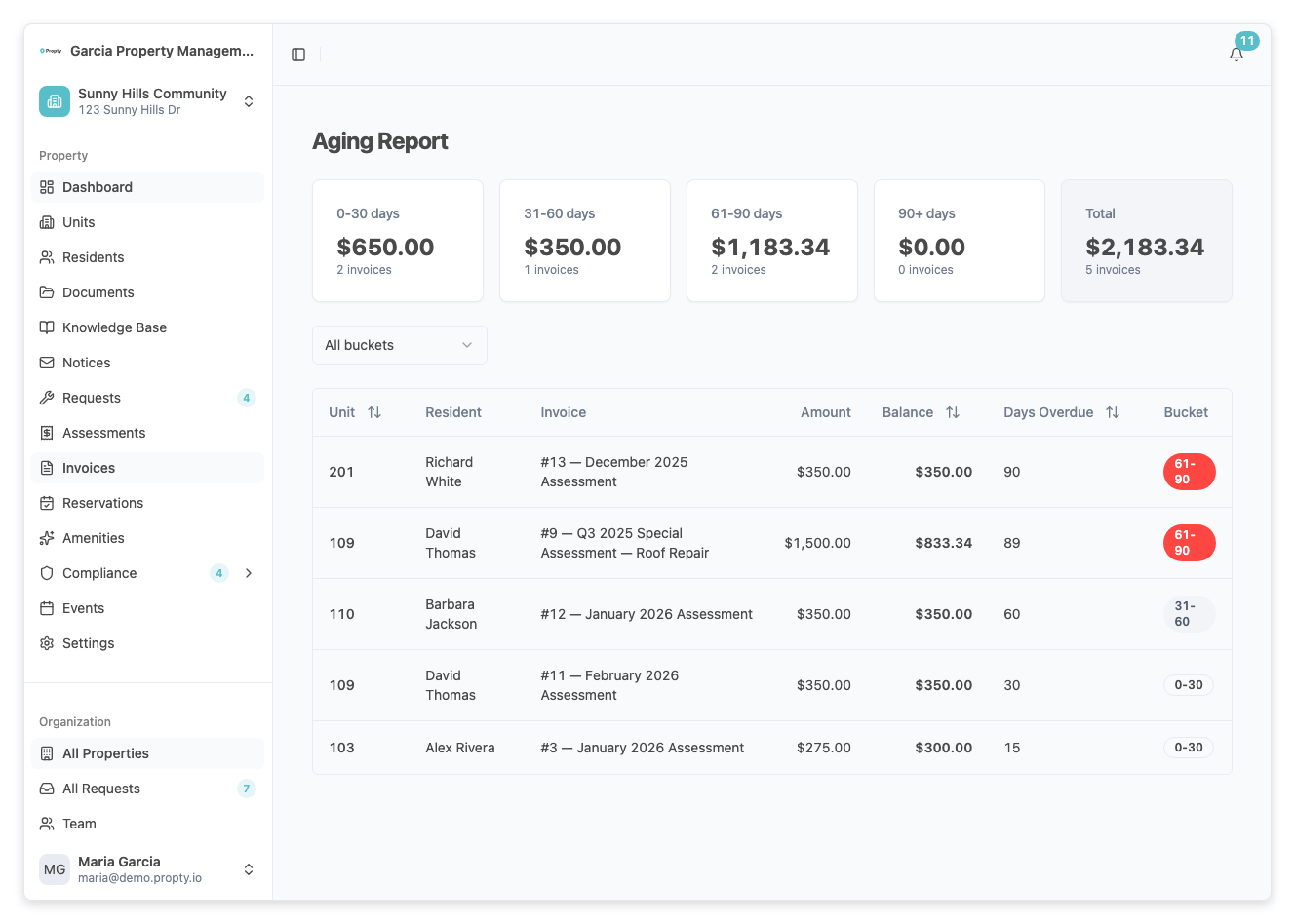
4. Sort the table
Click the column headers to sort by:
- Unit — sort alphabetically by unit number
- Balance — sort by outstanding balance amount
- Days Overdue — sort by how many days past due
Click the same column header again to toggle between ascending and descending order.
5. View invoice details
Click on any row in the table to open the full invoice detail page, where you can record a payment, void the invoice, or contact the resident.
Understanding the table columns
| Column | Description |
|---|---|
| Unit | The unit number associated with the invoice |
| Resident | The resident's name |
| Invoice | Invoice number and title |
| Amount | Original invoice amount |
| Balance | Remaining unpaid balance |
| Days Overdue | Number of days past the due date |
| Bucket | The aging range (color-coded badge) |
Troubleshooting
The aging report shows no data
- You may not have any overdue invoices. Invoices only appear here after their due date has passed and they are not fully paid.
- Make sure invoices have been published — draft invoices do not appear in the aging report.
The balances don't match my expectations
- Partial payments reduce the balance shown. The Amount column shows the original invoice total, while the Balance column shows what remains unpaid.
- Voided invoices are excluded from the aging report.
I can't find a specific resident
- Use the bucket filter to narrow the list, or sort by unit number to find the resident quickly.