Add Property Units
Units are the individual spaces within your property — apartments, condos, townhouses, parking spots, or storage areas. You must add units before you can assign residents to them.
- A property already created in Propty
- A list of your unit numbers (for example: 101, 102, 103, PH-1)
Adding a Single Unit
Step 1: Go to the Units page
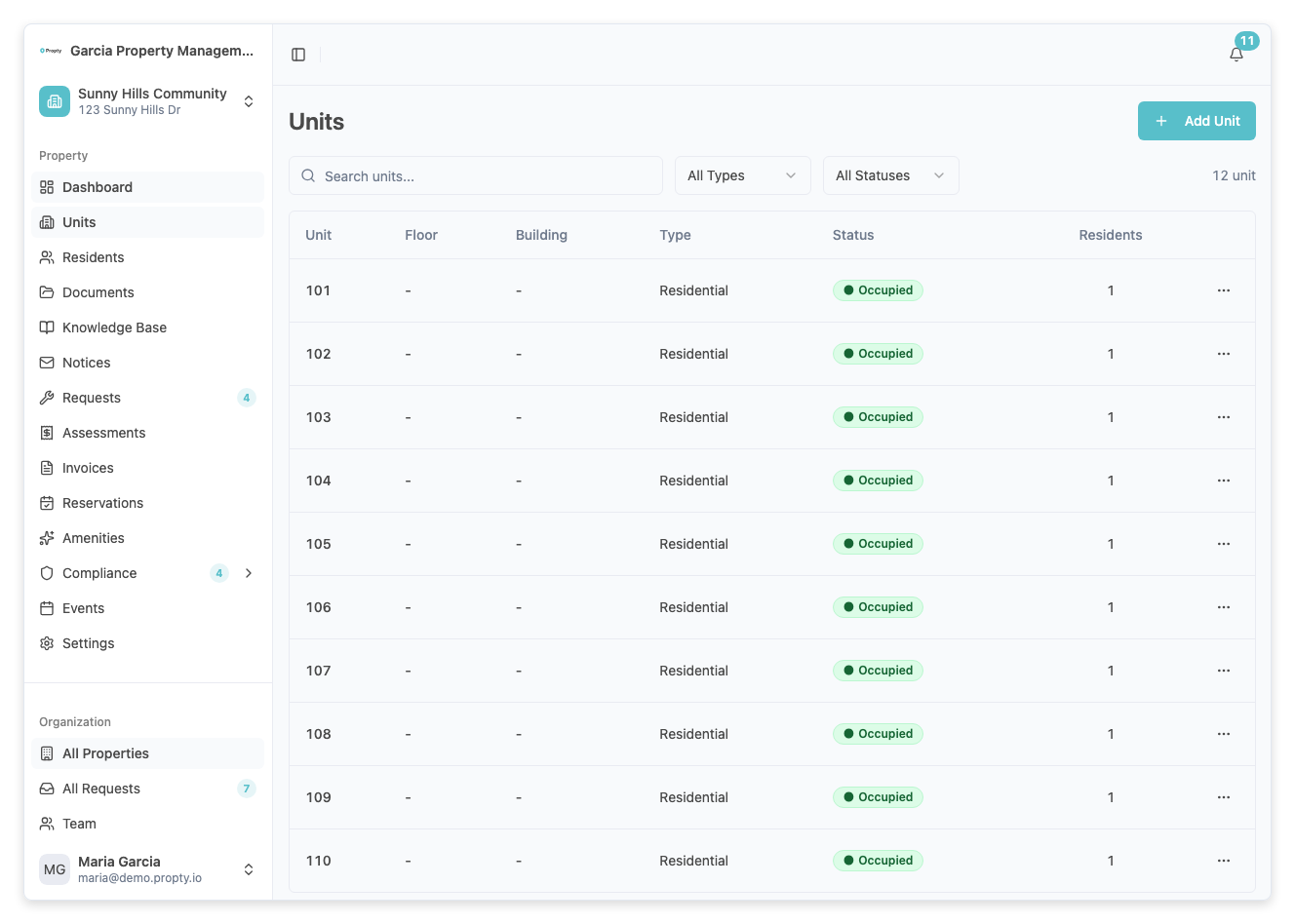
In the sidebar, click Units under your property name.
Step 2: Click "Add Unit"
Click the Add Unit button in the top-right corner of the page.
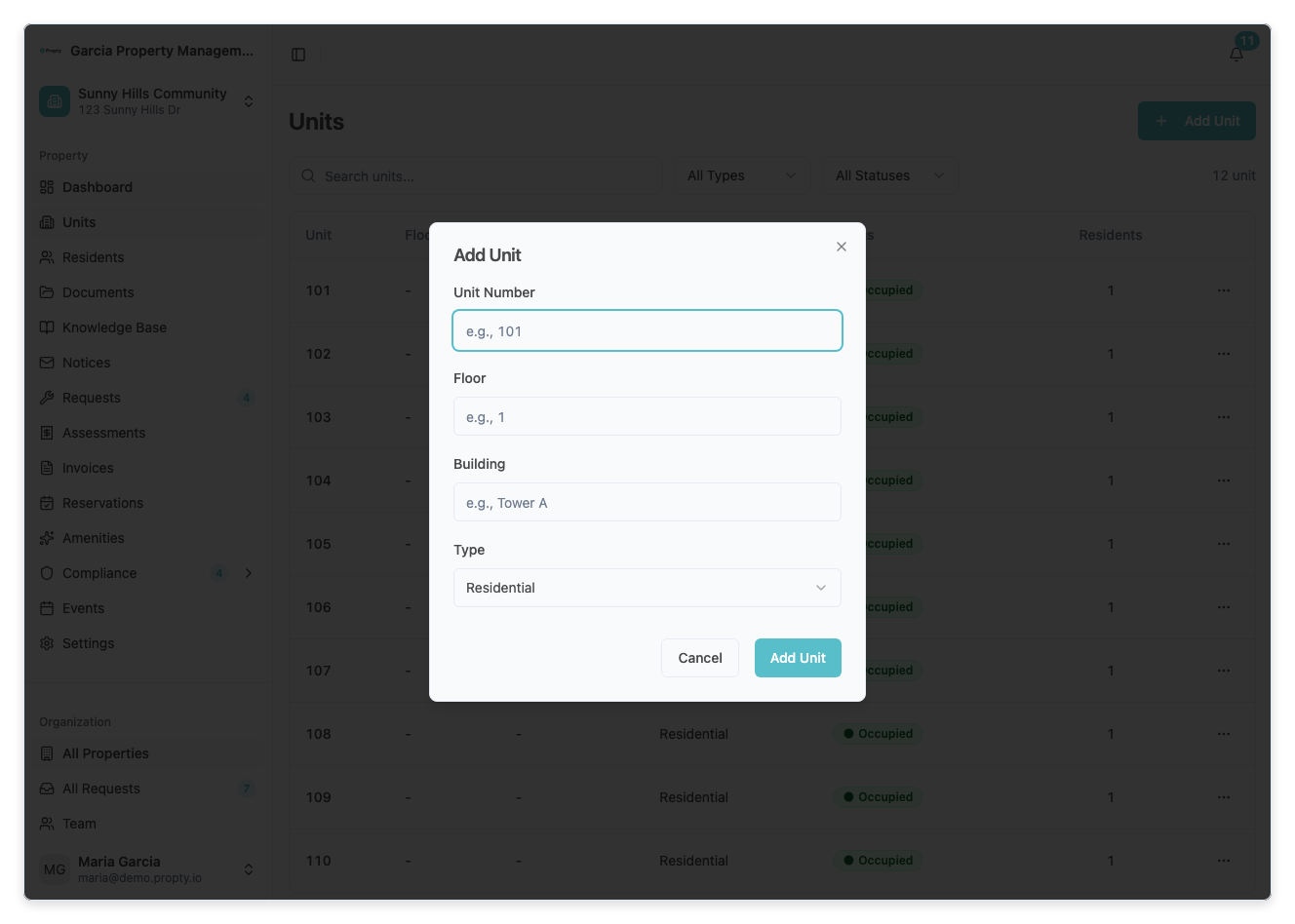
A dialog will appear with the unit form.
Step 3: Fill in the unit details
Enter the following information:
- Unit Number (required) — The identifier for this unit. This can be a number like "101" or a label like "PH-A" or "Unit 5". Must be unique within the property.
- Floor (optional) — The floor number or name (for example, "1", "Ground", "Penthouse").
- Building (optional) — If your property has multiple buildings, enter the building name (for example, "Tower A", "Building 2").
- Type — Select the unit type:
- Residential — Standard living unit (default)
- Commercial — Commercial or retail space
- Parking — Parking spot
- Storage — Storage unit
- Common — Common area (cannot be assigned to residents)
Step 4: Save the unit
Click the Add Unit button at the bottom of the dialog. A confirmation message will appear, and the new unit will be added to the list.
Repeat these steps for each unit in your property.
Understanding the Units Table
The units table shows the following columns:
| Column | Description |
|---|---|
| Unit | The unit number |
| Floor | The floor number or name |
| Building | The building name (if applicable) |
| Type | Residential, Commercial, Parking, Storage, or Common |
| Status | Vacant (no residents), Occupied (has residents), or Maintenance |
| Residents | The number of residents assigned to this unit |
You can search for units by number, and filter by status or type using the filter controls above the table.
Editing a Unit
- Click the three-dot menu (...) on the right side of a unit's row.
- Select Edit.
- A panel will slide in from the right with all the unit's details.
- Make your changes and click Save.
Deleting a Unit
- Click the three-dot menu (...) and select Delete.
- A confirmation dialog will appear. Click Delete to confirm.
Note: You cannot delete a unit that has residents assigned to it. Remove the residents first.
Troubleshooting
| Problem | Solution |
|---|---|
| "Unit number already exists" error | Each unit number must be unique within a property. Check if this unit was already added. |
| Can't see the Add Unit button | You may not have manager access to this property. Contact your organization manager. |
| Need to add many units at once | Use the Import feature on the Residents page or contact support for bulk unit import. |
| Wrong unit type selected | Edit the unit using the three-dot menu and change the type. |