Book an Amenity
Amenities are shared spaces at your property — pools, gyms, clubhouses, tennis courts, and more. You can reserve time slots for these amenities directly through the resident portal.
- A Propty resident account with portal access
- Knowledge of the amenity's booking rules and hours
- An available time slot
Steps
1. Open the Amenities page
Log in to the resident portal at app.propty.io and click Amenities in the left sidebar. You'll see a list of all available amenities at your property.
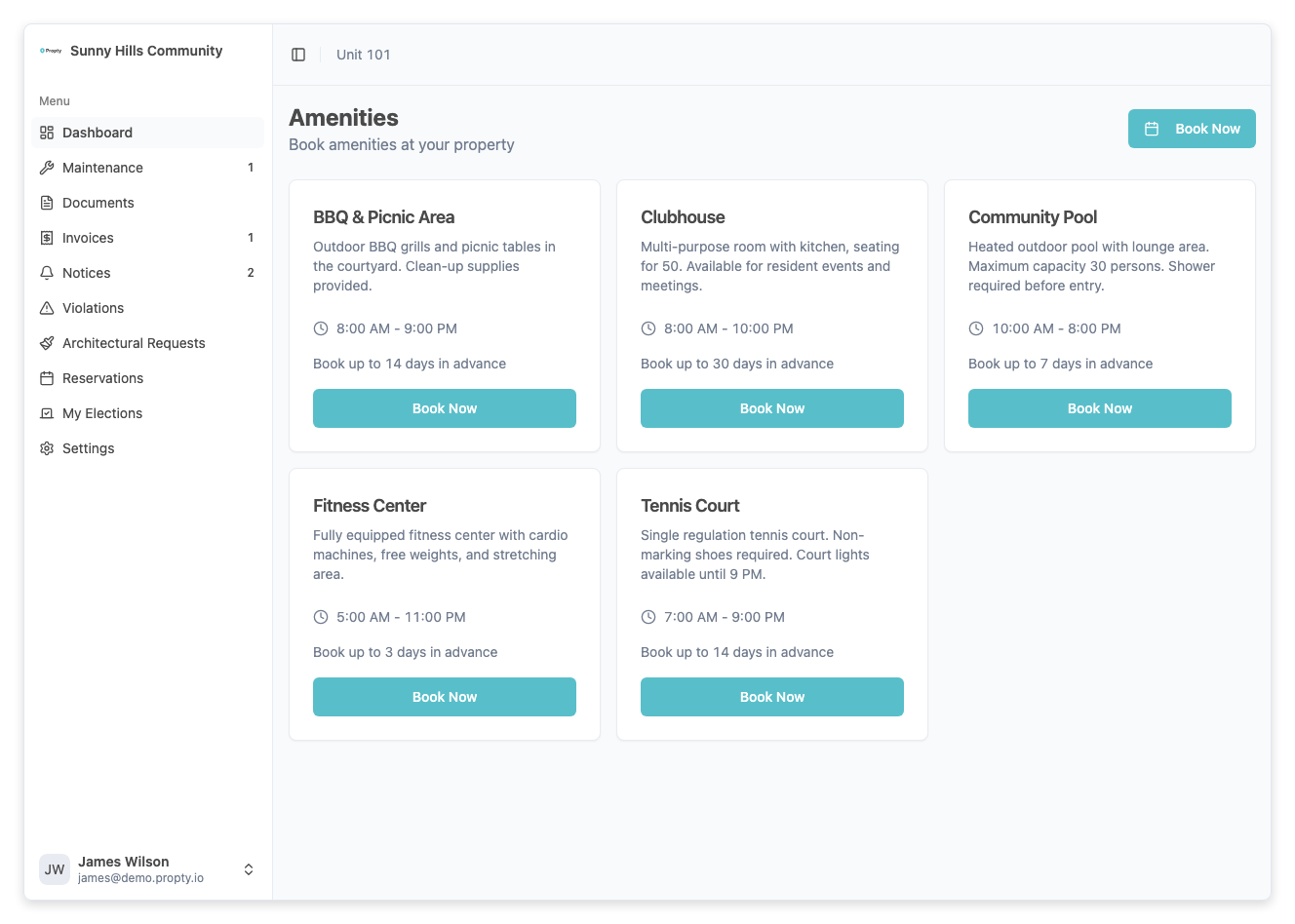
Each amenity card displays:
- Amenity name — Pool, Gym, Clubhouse, etc.
- Operating hours — When the amenity is open
- Booking slot duration — How long each reservation lasts (e.g., 1 hour, 2 hours)
- Availability — A quick indicator if slots are available today
2. Click the amenity you want to book
Click on the amenity card to open the booking calendar and view available time slots.
3. Select a date
On the amenity detail page, select the date you want to reserve. The calendar shows:
- Green/available — Time slots with open availability
- Gray/unavailable — Slots that are fully booked or outside operating hours
- Your bookings — Highlighted in a different color so you can see your reservations at a glance
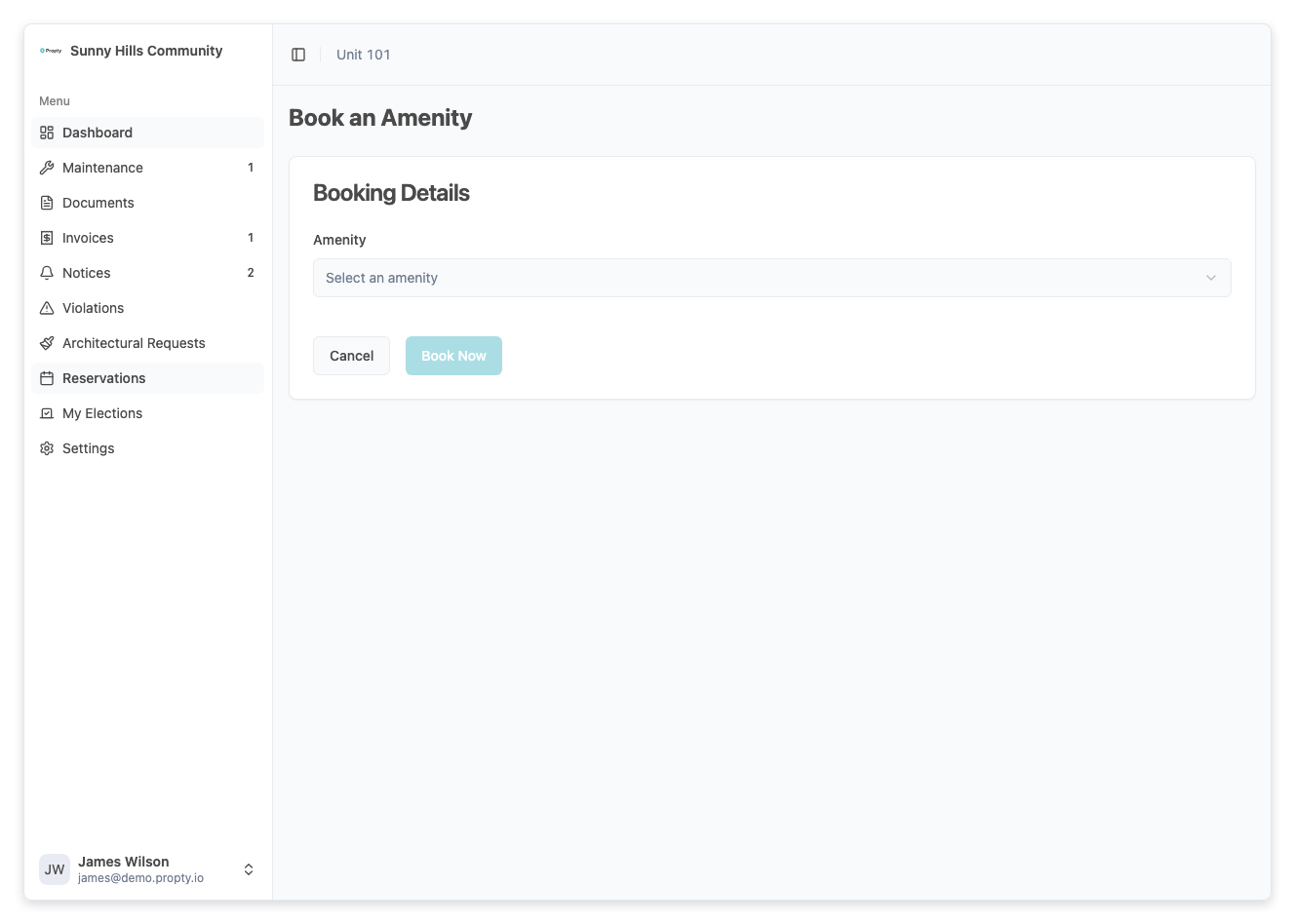
4. Select a time slot
Click on an available time slot. A popup appears with:
- Date and time — The exact reservation details
- Duration — How long the slot lasts
- Slot limit — How many concurrent bookings are allowed in this slot
5. Confirm the booking
Click Book to confirm your reservation. Your booking is confirmed immediately.
You'll receive a confirmation email with your booking details. Save it for your records.
Managing Your Bookings
View your upcoming bookings
Your upcoming amenity bookings appear on the Amenities page, listed under each amenity. You can also view all your reservations on your account page by clicking your profile icon and selecting My Bookings.
Cancel a booking
To cancel a reservation:
- Open the Amenities page
- Find the amenity with the booking you want to cancel
- Click the booking in your upcoming list
- Click Cancel Booking
- Confirm the cancellation
Check with your property manager for the property's cancellation policy. Most properties allow cancellations up to 24 hours before the booking start time.
When you cancel, the time slot becomes available for other residents, and you'll receive a cancellation confirmation email.
Booking Rules & Limitations
Your property manager sets rules for how amenities can be booked:
| Rule | What it means |
|---|---|
| Advance booking limit | You can only book up to a certain number of days in advance (e.g., 30 days) |
| Concurrent bookings | Only a certain number of people can book the same slot at the same time |
| One booking per resident | You cannot book the same time slot twice |
| Capacity override | If a slot is full, you'll see a "waitlist" or "fully booked" message |
Troubleshooting
| Problem | Solution |
|---|---|
| Can't see the amenity | The amenity may not be active or may require special access. Contact your property manager. |
| No available time slots | Check if the amenity is open on your preferred date, or try a different time or date. |
| Can't book beyond a certain date | Your property limits advance bookings. Try booking within the allowed window. |
| Slot is showing as full | The concurrent booking limit has been reached. Try a different time slot or date. |
| Didn't receive confirmation email | Check your spam folder. If the booking appears in your portal, it was successful. |
Related Articles
- Cancel a Reservation — How to cancel your amenity bookings
- Manage Bookings — For property managers: view and manage all resident bookings
- Resident Overview — Everything you can do in the resident portal