Manage Bookings
As a property manager, you can view all amenity bookings across your property, create reservations on behalf of residents, and cancel bookings when needed. This gives you full control over amenity scheduling and the ability to troubleshoot booking issues.
- Admin or manager permissions on the property
- At least one amenity configured with booking rules
- Residents assigned to units with portal access
Viewing All Bookings
1. Go to the Reservations page
From your property dashboard, click Reservations in the left sidebar. This page shows all upcoming and past bookings across all amenities.
2. Filter and sort bookings
Use the filtering options to narrow down the list:
Filter by amenity — Select a specific amenity (Pool, Gym, Clubhouse, etc.) to see only its bookings.
Filter by date range — Use the date picker to view bookings within a specific period.
Filter by resident — Search for a specific resident's bookings by name or unit number.
Sort by — Arrange bookings by date, amenity, resident, or creation date.
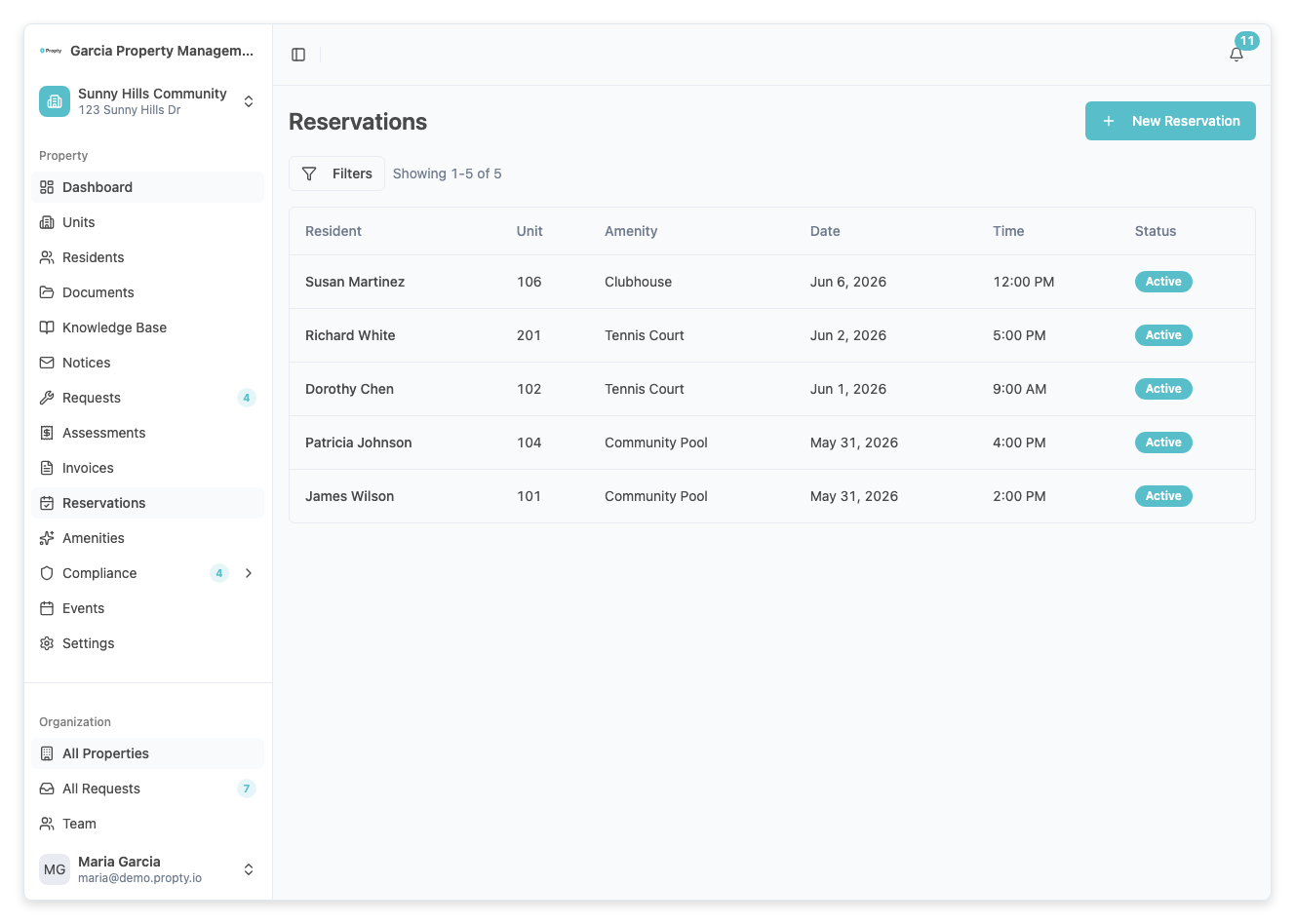
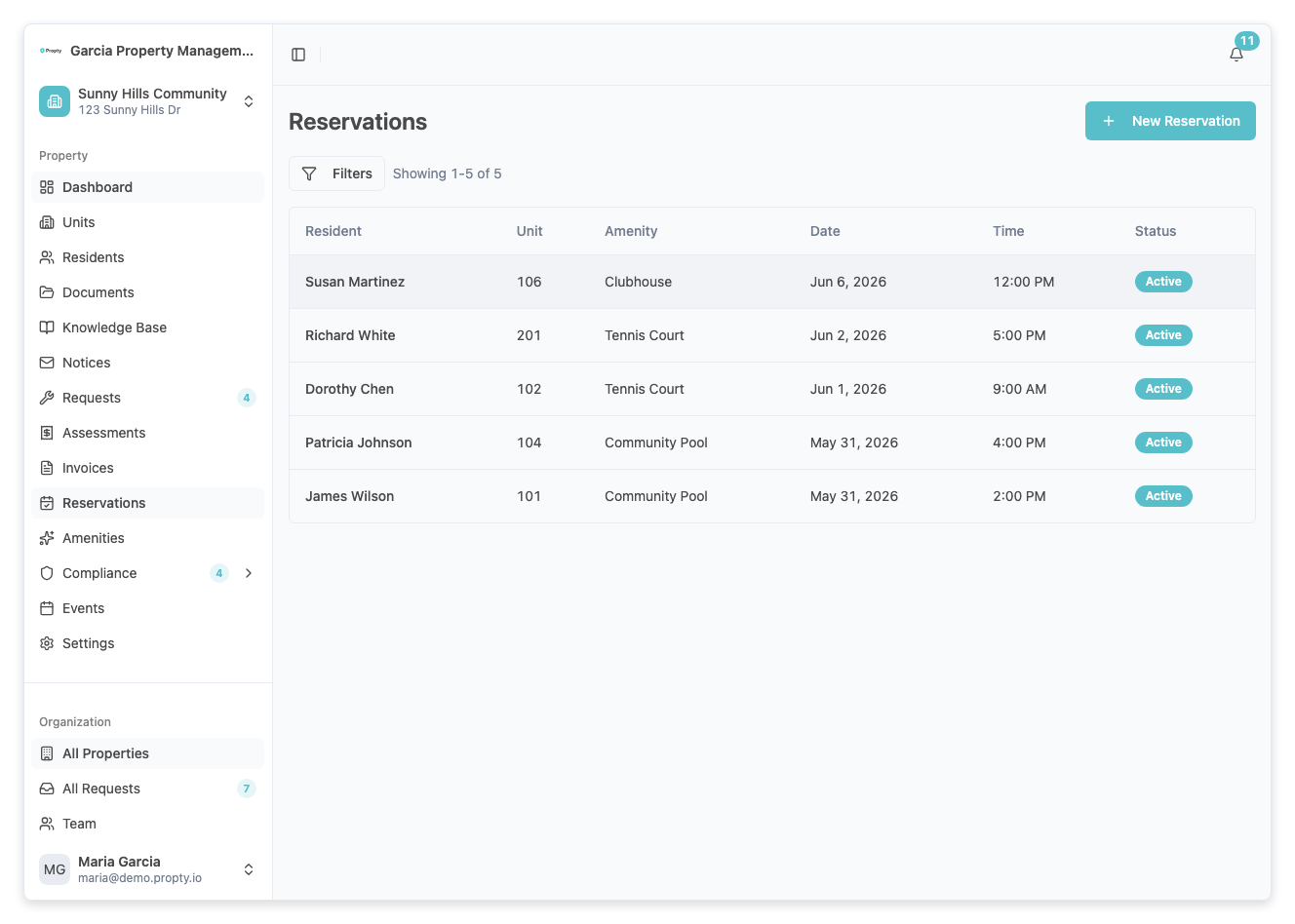
Each booking in the list shows:
- Resident name — Who made the booking
- Unit — The resident's unit number
- Amenity — Which amenity was booked
- Date and time — The reservation details
- Status — Confirmed, cancelled, or pending
- Created by — Whether the resident or an admin made the booking
Creating a Booking on Behalf of a Resident
You can create bookings for residents who need help scheduling, have limited portal access, or need immediate availability.
1. Click "Add Booking"
From the Reservations page, click Add Booking.
2. Fill in the booking details
Resident (required) — Select the resident from the dropdown. The list shows all residents assigned to units at your property.
Unit (required) — The resident's unit number (auto-filled if they're assigned to one unit).
Amenity (required) — Select which amenity to book.
Date (required) — The date of the reservation.
Time slot (required) — Select from available time slots. Only slots within the amenity's operating hours are shown.
Capacity override (optional) — Check this box to bypass the concurrent booking limit and create a booking even if the slot is at capacity. Use this carefully — only override when necessary (e.g., for maintenance staff during business hours).
- A key resident needs urgent access to the amenity
- You're blocking off time for maintenance or staff work
- A resident needs an exception for accessibility reasons
3. Save the booking
Click Book to create the reservation. The resident will receive a confirmation email with their booking details.
Managing Existing Bookings
Open a booking
From the Reservations list, click on any booking to open its details page. Here you can see:
- Full resident information
- Amenity and time slot details
- Who created the booking (resident or admin)
- Cancellation history (if applicable)
Send a reminder
Click Send Reminder to email the resident about their upcoming booking. This is helpful for bookings happening in the next few days, especially for residents who may have forgotten.
Cancelling a Booking
1. Find the booking
From the Reservations page, locate the booking you want to cancel.
2. Open the booking details
Click on the booking to open its detail page.
3. Click "Cancel"
Click the Cancel button. A dialog appears where you can optionally enter a cancellation reason.
4. Confirm the cancellation
Click Confirm Cancellation to remove the booking. The time slot is now available for other residents.
The resident will receive an email notification with:
- Confirmation that their booking was cancelled
- The cancellation reason (if provided)
- The date and time of the cancelled slot
No advance notice required — Unlike residents, managers can cancel bookings at any time, even immediately before the scheduled time. Use this power thoughtfully — consider giving residents advance notice when possible.
Common Admin Tasks
Block off time for maintenance
- Click Add Booking
- Create a booking for yourself or a staff member
- Select the maintenance time period
- Optionally enable Capacity Override if you need to fill all available slots
- Save the booking
The amenity is now blocked for residents during that time.
Allow a resident to book outside the advance limit
- Click Add Booking
- Select the resident and desired date
- Even if the date is beyond the property's normal advance booking limit, admin bookings are not subject to that restriction
Cancel multiple bookings for a single amenity
For example, if an amenity needs to close for emergency maintenance:
- Go to the Reservations page
- Filter by the amenity
- Select all upcoming bookings (checkbox on each row)
- Click Cancel Selected to remove them all at once
- Add a cancellation reason like "Emergency maintenance scheduled"
Troubleshooting
| Problem | Solution |
|---|---|
| Resident says they can't book a time | Check the Reservations page to see if the slot is at capacity. If so, consider creating a booking for them or adjusting the amenity's concurrent booking limit. |
| Can't find a resident in the dropdown | The resident must be assigned to a unit at your property. Check their profile in the Residents section. |
| Need to see all bookings for a specific date | Use the date range filter to select just that date. |
| A resident booked a slot twice | One-booking-per-slot rules are enforced. If they did book twice, one booking may be pending cancellation. Contact the resident to clarify. |
| Override didn't work | Capacity overrides only apply to admin bookings. If a resident tries to override, they'll still see the capacity limit. |
Related Articles
- Book an Amenity — For residents: how to make their own bookings
- Cancel a Reservation — For both residents and admins
- Configure Amenities — Set up amenity booking rules and hours