Cancel a Reservation
You can cancel your amenity bookings at any time. The process is different depending on whether you're a resident or a property manager.
For Residents
How to Cancel Your Booking
1. Open the Amenities page
Log in to the resident portal at app.propty.io and click Amenities in the sidebar.
2. Find the booking you want to cancel
Scroll to the amenity where you made your booking and look for it in the Your Upcoming Bookings section.
3. Click "Cancel Booking"
Click the Cancel Booking button next to your reservation. A confirmation dialog will appear.
4. Confirm the cancellation
Click Confirm to cancel. The booking is removed immediately.
- Your booking is removed from the system
- The time slot becomes available for other residents to book
- You'll receive a confirmation email with the cancellation details
- You'll also see the cancellation reflected on your My Bookings page
Cancellation Policy
Cancellation policies vary by property. Most properties allow cancellations up to 24 hours before the booking start time. However, your property may have a different policy.
Cancelling too close to your booking time:
- If you cancel less than 24 hours before (or within your property's notice window), the booking is still cancelled, but you may forfeit any deposit or fee associated with the reservation
- Contact your property manager if you have questions about refunds
Cancelling well in advance:
- If you cancel more than 24 hours before your booking, you'll typically receive a full refund or credit (if applicable)
Cancellation Reasons (Optional)
When you cancel, you have the option to provide a reason:
- Personal scheduling conflict
- Change of plans
- Need to reschedule
- Other
If you need to move your booking to a different time or date, just cancel the current booking and then book a new slot. No need to contact your property manager.
Troubleshooting
| Problem | Solution |
|---|---|
| Can't find the cancellation button | The booking must be upcoming (in the future). You cannot cancel past bookings. Refresh the page to see the most current status. |
| Cancelled but slot still shows as booked | The cancellation may not have processed. Wait a moment and refresh the page. If it still shows after a few minutes, contact your property manager. |
| Need to cancel multiple bookings | Cancel each booking individually. Go to your My Bookings page to see all your reservations across all amenities. |
| Want to cancel without a reason | You don't have to provide a reason. The cancellation reason is optional. |
For Property Managers
How to Cancel a Resident's Booking
1. Go to the Reservations page
From your property dashboard, click Reservations in the left sidebar. This shows all bookings across all amenities.
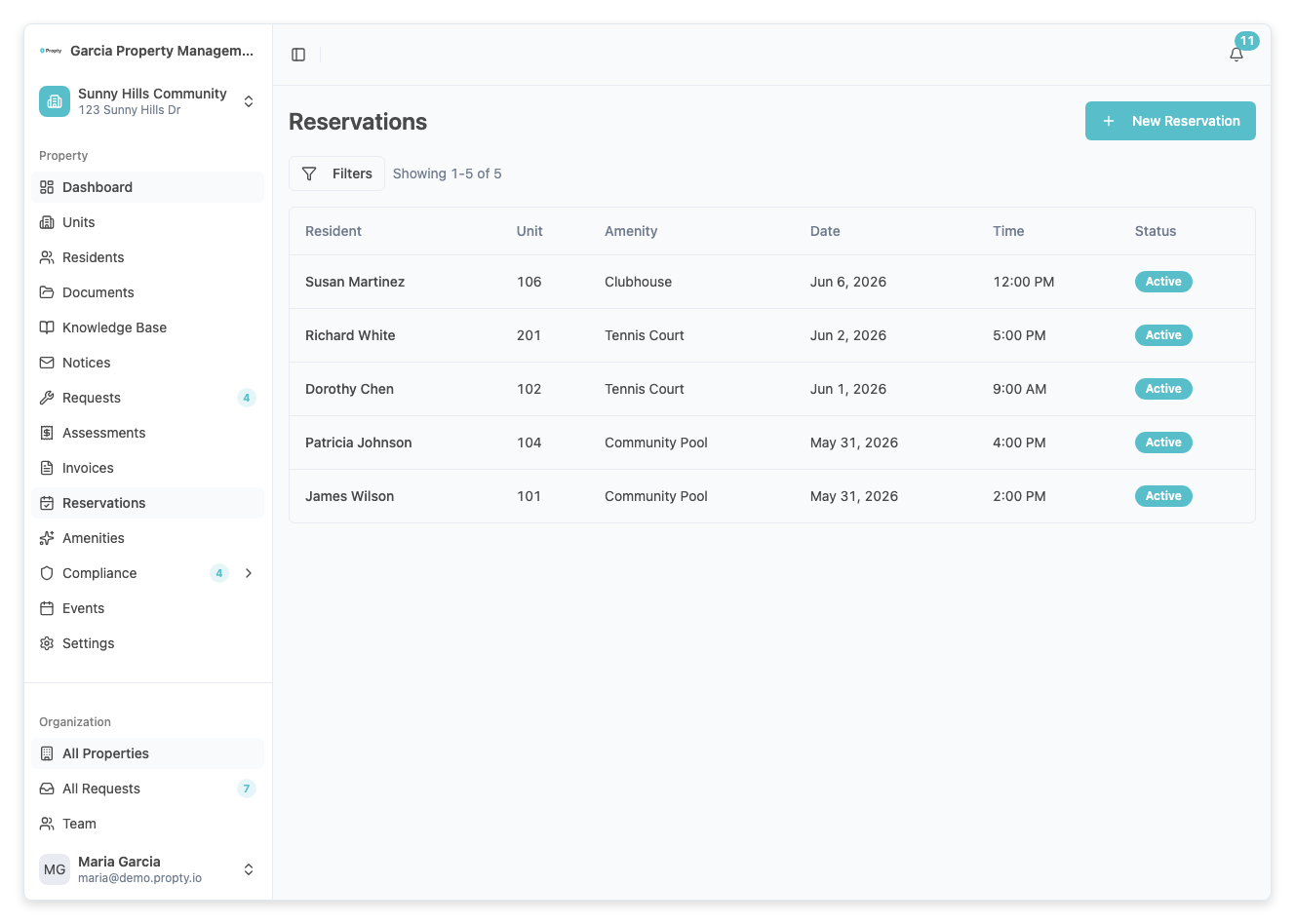
2. Find the booking you want to cancel
Use the filters (by amenity, date, resident) to locate the booking. Click on it to open the booking details.
3. Click "Cancel"
Click the Cancel button on the booking details page. A dialog appears where you can optionally enter a cancellation reason.
4. Enter a cancellation reason (optional)
Provide a reason for the cancellation that will be visible to the resident in their notification email:
- Amenity maintenance scheduled
- Maintenance staff override
- Resident request
- Other reason...
5. Confirm the cancellation
Click Confirm Cancellation to remove the booking. The time slot is now available for other residents.
The resident will receive an email notification immediately upon cancellation, including:
- Confirmation that their booking was cancelled
- The cancellation reason (if you provided one)
- The date and time of the cancelled slot
- A link to rebook if desired
Key Differences: Admin vs. Resident Cancellations
| Factor | Residents | Managers |
|---|---|---|
| Advance notice required | Yes (typically 24 hours) | No — can cancel anytime |
| Cancellation reason | Optional | Optional, but recommended |
| Refund policy | Varies (check your property policy) | Not applicable |
| Slot availability | Limited to advance booking window | No restrictions — can book any time |
| Capacity overrides | Not allowed | Allowed (can override booking limits) |
When to Cancel a Resident's Booking
Legitimate reasons to cancel:
- The resident requested the cancellation
- The amenity needs emergency maintenance
- You need to block the time for staff use (e.g., cleaning, repairs)
- The resident no longer has access to the amenity (moved out, account suspended)
- Scheduling conflict with a company event
Best practices:
- Always provide a cancellation reason so the resident understands why
- Give advance notice when possible, even though it's not required
- Send a reminder message explaining the situation if the cancellation is unexpected
Cancelling Multiple Bookings
If an entire amenity needs to close (e.g., for major maintenance):
1. Go to the Reservations page
Filter by the affected amenity and future date range.
2. Select multiple bookings
Check the checkboxes for all affected bookings, or click Select All to select all bookings for that amenity.
3. Click "Cancel Selected"
A bulk cancellation dialog appears. Enter a reason like "Amenity closed for maintenance — see notice on property board."
4. Confirm
Click Confirm to cancel all selected bookings. Each resident receives a notification email.
Related Articles
- Book an Amenity — For residents: how to make a booking
- Manage Bookings — For managers: full booking management guide
- Configure Amenities — Set up amenity booking rules and hours
- Property Notices — Send a notice to residents about amenity closures