Configure Amenities
Amenities are shared spaces and facilities at your property — pools, gyms, clubhouses, BBQ areas, and more. Configuring amenities in Propty lets residents book time slots through the portal and helps you manage availability and usage.
- A property set up in Propty
- Details about each amenity: name, hours of operation, and booking rules
Adding an Amenity
1. Go to the Amenities page
From your property dashboard, navigate to Amenities in the left sidebar.
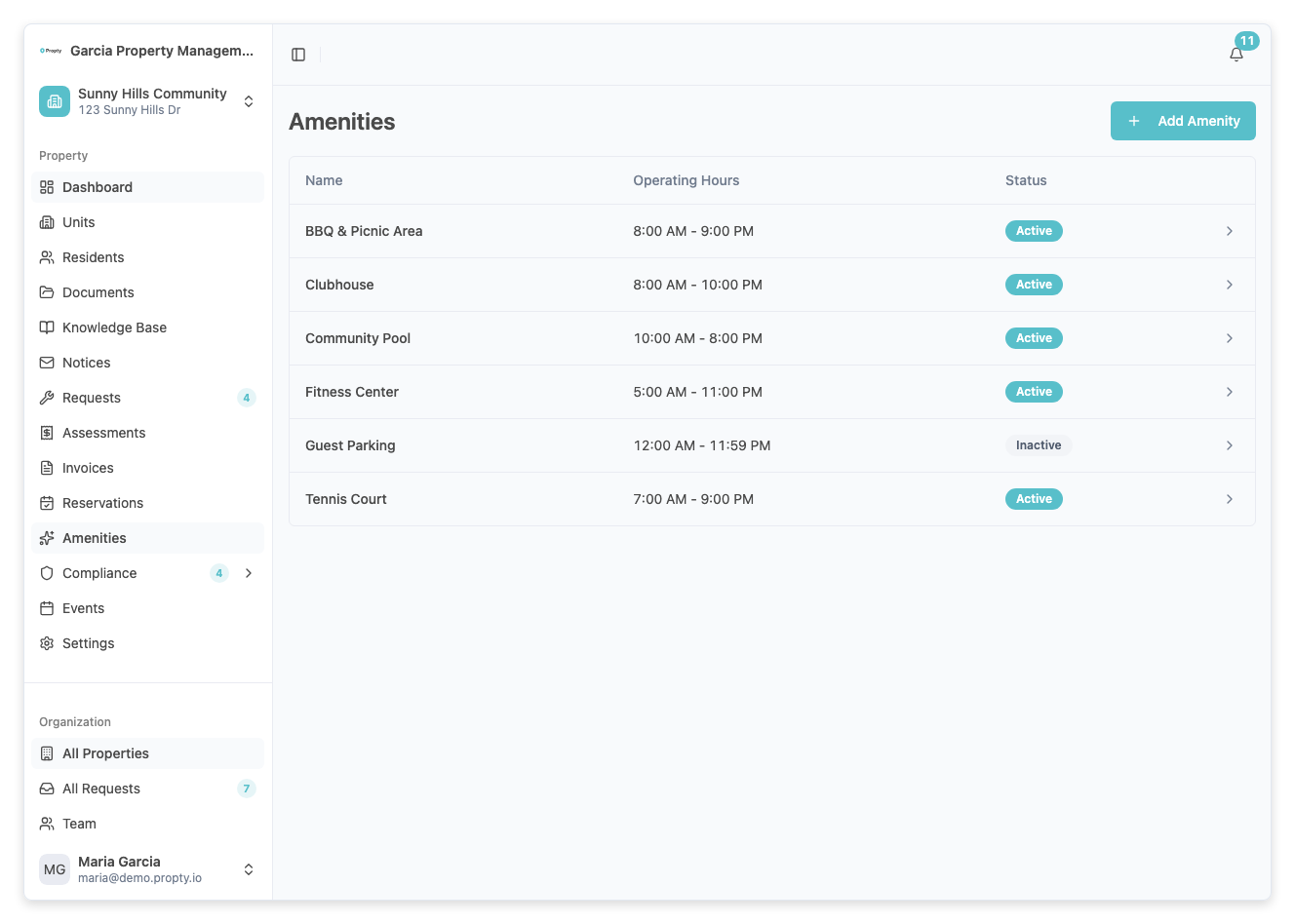
2. Click "Add Amenity"
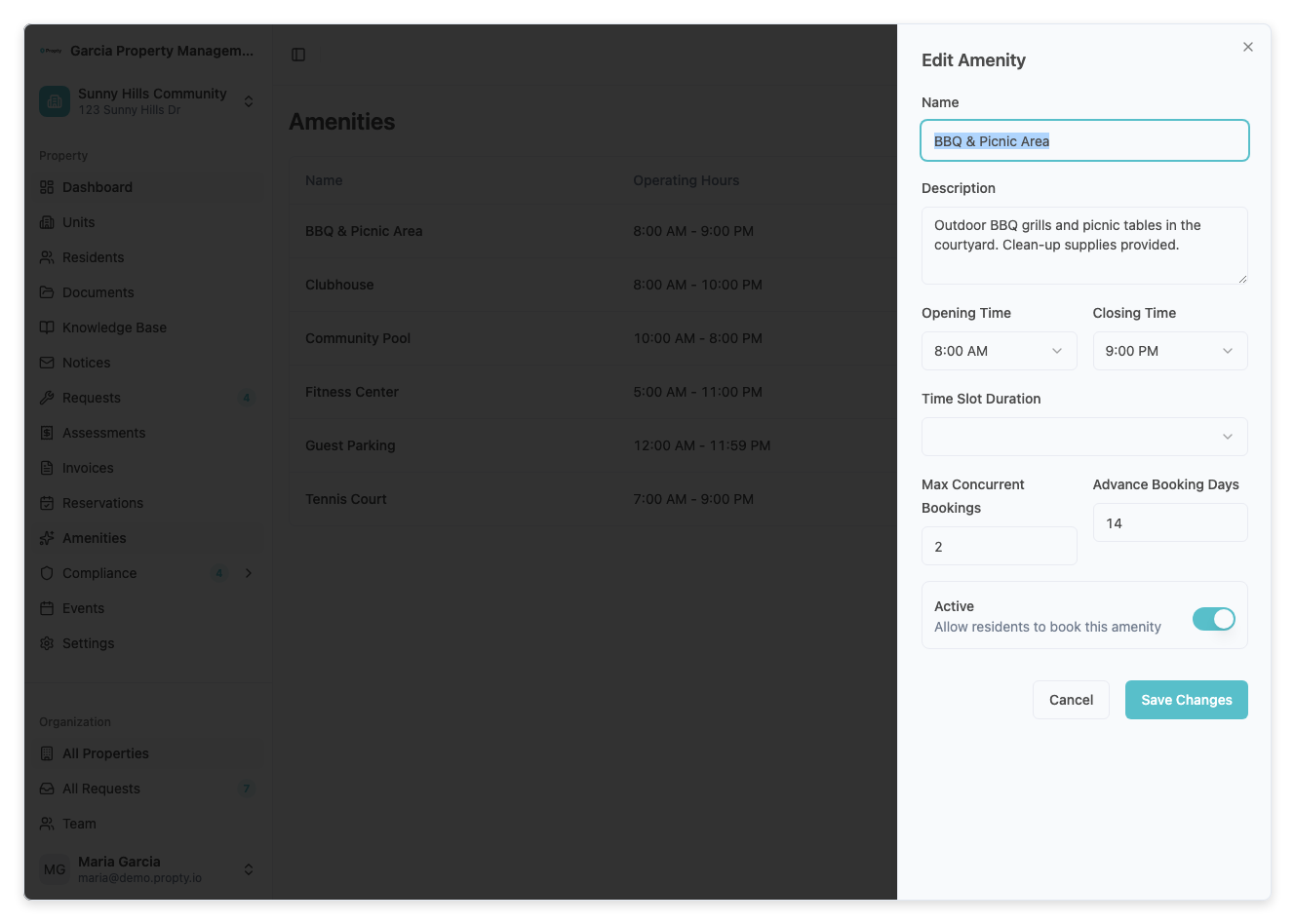
Click the Add Amenity button. A form will appear with the following fields:
- Name (required) — The amenity name (for example, "Pool", "Clubhouse", "Fitness Center"). Maximum 50 characters.
- Description (required) — A description of the amenity, including any rules or guidelines residents should know.
- Opening Time (required) — When the amenity opens each day (for example, 6:00 AM).
- Closing Time (required) — When the amenity closes each day (for example, 10:00 PM).
3. Save the amenity
Click Save. The amenity is created in an Active state and appears in the amenities list.
Configuring Booking Rules
After creating an amenity, set up its booking configuration to control how residents can reserve it.
1. Open the amenity detail
From the amenities list, click the amenity you want to configure.
2. Click "Edit Configuration"
Click Edit Configuration to set the booking rules:
- Time Slot Duration (required) — The length of each bookable time slot. Options typically include 15 minutes, 30 minutes, 1 hour, 2 hours, etc.
- Max Concurrent Bookings (required) — How many reservations can overlap in the same time slot. Set to 1 for exclusive use, or higher for shared spaces. Default is 1.
- Advance Booking Days (required) — How far in advance residents can book. For example, 7 means residents can book up to 7 days ahead. Default is 7.
3. Save the configuration
Click Save. The booking rules take effect immediately for new reservations.
Enabling and Disabling Amenities
To temporarily disable an amenity
From the amenity detail page, toggle the Active switch to off. This prevents new bookings while preserving existing reservation data. Residents will see the amenity listed but will not be able to book new time slots.
To re-enable an amenity
Toggle the Active switch back to on. Booking becomes available again immediately.
Understanding Amenity Settings
| Setting | Description | Default |
|---|---|---|
| Time Slot Duration | Length of each bookable slot | — |
| Max Concurrent Bookings | Number of overlapping reservations allowed | 1 |
| Advance Booking Days | How far ahead residents can book | 7 days |
| Active | Whether the amenity is available for booking | Yes |
Troubleshooting
Residents can't see the amenity in the portal
- Make sure the amenity is set to Active.
- Verify the amenity has a booking configuration saved. Amenities without a configuration may not appear in the booking interface.
I need to change the booking rules
- Edit the configuration at any time. Changes apply to new bookings only — existing reservations are not affected.
I need different hours for weekends
- The current configuration supports a single opening and closing time. For different weekend hours, include the weekend schedule in the amenity description so residents are aware.
An amenity is fully booked but I need to add a reservation
- If the Max Concurrent Bookings limit has been reached for a time slot, you can increase the limit temporarily or create a booking with a capacity override from the admin side.