Communication Preferences
Communication settings control how your property sends notifications to residents. You can configure email delivery preferences, notification types, and default communication options from the property settings page.
- Property manager or organization manager permissions
Accessing Communication Settings
1. Go to Property Settings
From your property dashboard, click Settings in the left sidebar.
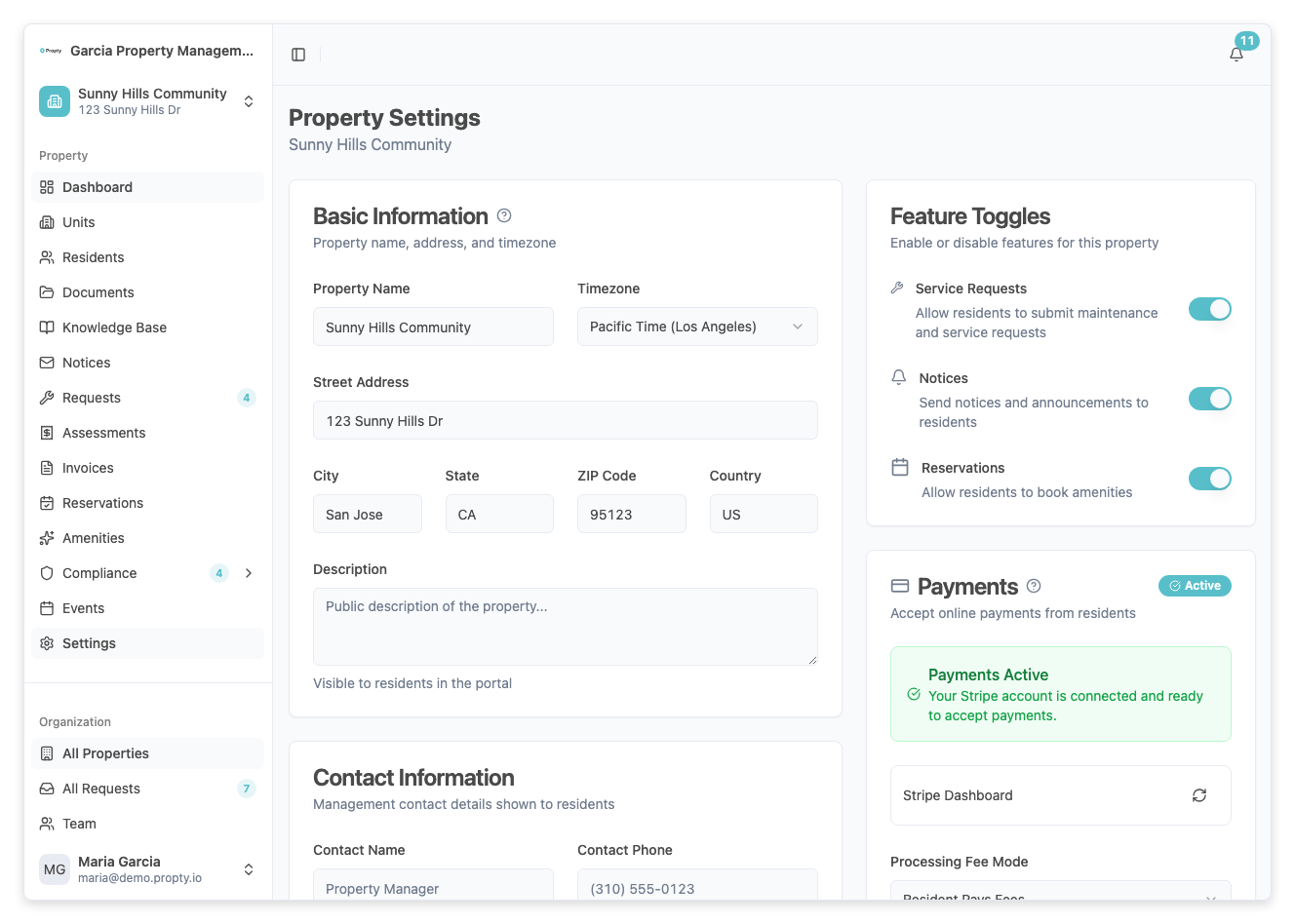
2. Navigate to the Communication section
Scroll to the Communication section of the settings page. This is where you configure how notifications are sent to residents.
Configuring Notification Preferences
Email Notifications
Control which events trigger email notifications to residents:
| Notification Type | Description | Default |
|---|---|---|
| Invoice Published | Email when a new invoice is published | On |
| Payment Received | Confirmation email when a payment is processed | On |
| Payment Reminder | Reminder before an invoice due date | On |
| Notice Sent | Email when a new notice is published | On |
| Request Updated | Email when a maintenance request status changes | On |
| Portal Invitation | Email inviting a resident to the portal | On |
Toggle each notification type on or off based on your property's needs.
Default Notice Delivery
Choose the default delivery method for notices:
- Email Only — Notices are delivered via email
- Portal Only — Notices appear in the resident portal but no email is sent
- Email + Portal — Both email and portal notification (recommended)
Sender Information
Configure the sender details that appear on outgoing emails:
- Reply-To Email — The email address residents see when they reply to a notification. This should be an email that your management team monitors.
- Property Display Name — The name that appears as the sender (for example, "Sunny Hills HOA" or "Sunny Hills Management").
Saving Changes
After making changes, click Save at the bottom of the settings page. Changes take effect immediately for all future notifications.
Troubleshooting
Residents say they're not receiving emails
- Check that the relevant notification type is enabled in communication settings.
- Verify the resident's email address is correct on their profile.
- Ask the resident to check their spam or junk folder.
- Make sure the resident has portal access (invited and active status).
I want to stop all email notifications temporarily
- Toggle off all notification types in the communication settings. Remember to re-enable them when you're ready to resume notifications.
The reply-to email is not working
- Make sure the reply-to email address is valid and monitored. Propty uses this address in the email headers but does not manage the inbox — replies go directly to that email address.
Can residents manage their own notification preferences?
- Residents can manage some notification preferences from their portal account page. Property-level settings act as the default, and individual residents can opt out of certain notification types.