Manage Reservations
When residents book amenity time slots through the portal, their reservations appear in your dashboard. You can view upcoming bookings, see who reserved what, and cancel reservations when needed.
- At least one amenity configured with booking rules (see Configure Amenities)
- Residents assigned to units with portal access
Viewing Reservations
1. Go to the Amenities page
From your property dashboard, click Amenities in the left sidebar.
2. Select an amenity
Click on the amenity whose reservations you want to view. The detail page shows:
- Upcoming Bookings — A list or calendar view of reservations for the next several days.
- Past Bookings — A history of completed reservations.
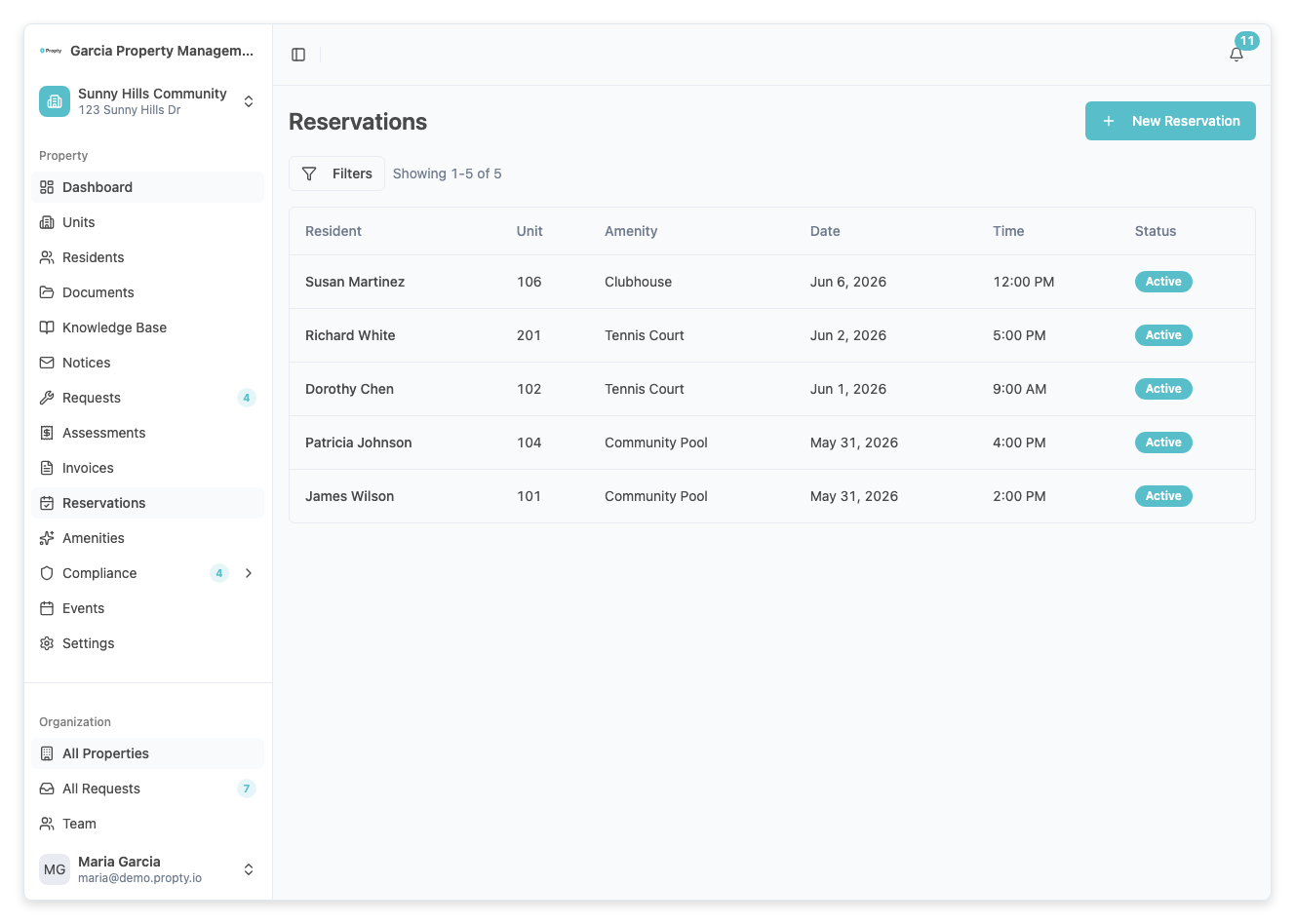
Each reservation shows:
- Resident Name — Who made the booking
- Unit — The resident's unit number
- Date — The reservation date
- Time — The reserved time slot
- Created By — Whether the booking was made by the resident or by an admin
Creating a Reservation (Admin)
Property managers can create reservations on behalf of residents.
1. Click "New Booking"
From the amenity detail page, click New Booking.
2. Fill in the booking details
- Resident (required) — Select the resident from the dropdown.
- Unit (required) — The resident's unit (auto-filled if they are assigned to one unit).
- Date (required) — The reservation date.
- Time (required) — The time slot. Only available slots are shown.
- Capacity Override (optional) — Check this box to bypass the concurrent booking limit for this reservation.
3. Save the booking
Click Book. The reservation is confirmed immediately.
Cancelling a Reservation
1. Find the reservation
From the amenity detail page, locate the reservation in the upcoming bookings list.
2. Click "Cancel"
Click the Cancel button (or the three-dot menu > Cancel Booking). You will be asked to confirm.
3. Confirm the cancellation
Click Cancel Booking to confirm. The reservation is removed and the time slot becomes available again.
Reservation Rules
| Rule | Description |
|---|---|
| Advance booking limit | Residents can only book within the number of advance days configured on the amenity |
| Concurrent bookings | Only the configured number of overlapping bookings are allowed per time slot |
| One booking per slot per resident | A resident cannot double-book the same time slot |
| Cancellation | Both residents and admins can cancel upcoming bookings |
Troubleshooting
A resident says they can't book a time slot
- Check if the amenity is Active.
- Verify the time slot is not already fully booked (at the concurrent booking limit).
- Make sure the booking date is within the Advance Booking Days limit.
- Confirm the amenity's opening and closing times — slots outside those hours are not available.
I need to block off time for maintenance
- Create a booking for the maintenance period using the admin booking feature. If needed, enable Capacity Override to fill the slot even if other bookings exist, or temporarily disable the amenity.
A resident cancelled but the slot still shows as booked
- Refresh the page. If the issue persists, the cancellation may not have completed. Check the booking status in the amenity detail page.
I want to see all reservations across all amenities
- Currently, reservations are viewed per amenity. Visit each amenity's detail page to see its bookings.