Set Up Organization Details
Your organization settings control how your company or association appears across Propty — in emails, documents, and the resident portal. Only organization managers can edit these settings.
- A Propty account with organization manager access
- Your organization's name and logo (optional)
Editing Organization Settings
Step 1: Open Settings
Click Organization in the sidebar, or go directly to app.propty.io/settings/organization.
Step 2: Review the Organization Settings page
The page includes an Organization Logo card and a General Settings card.
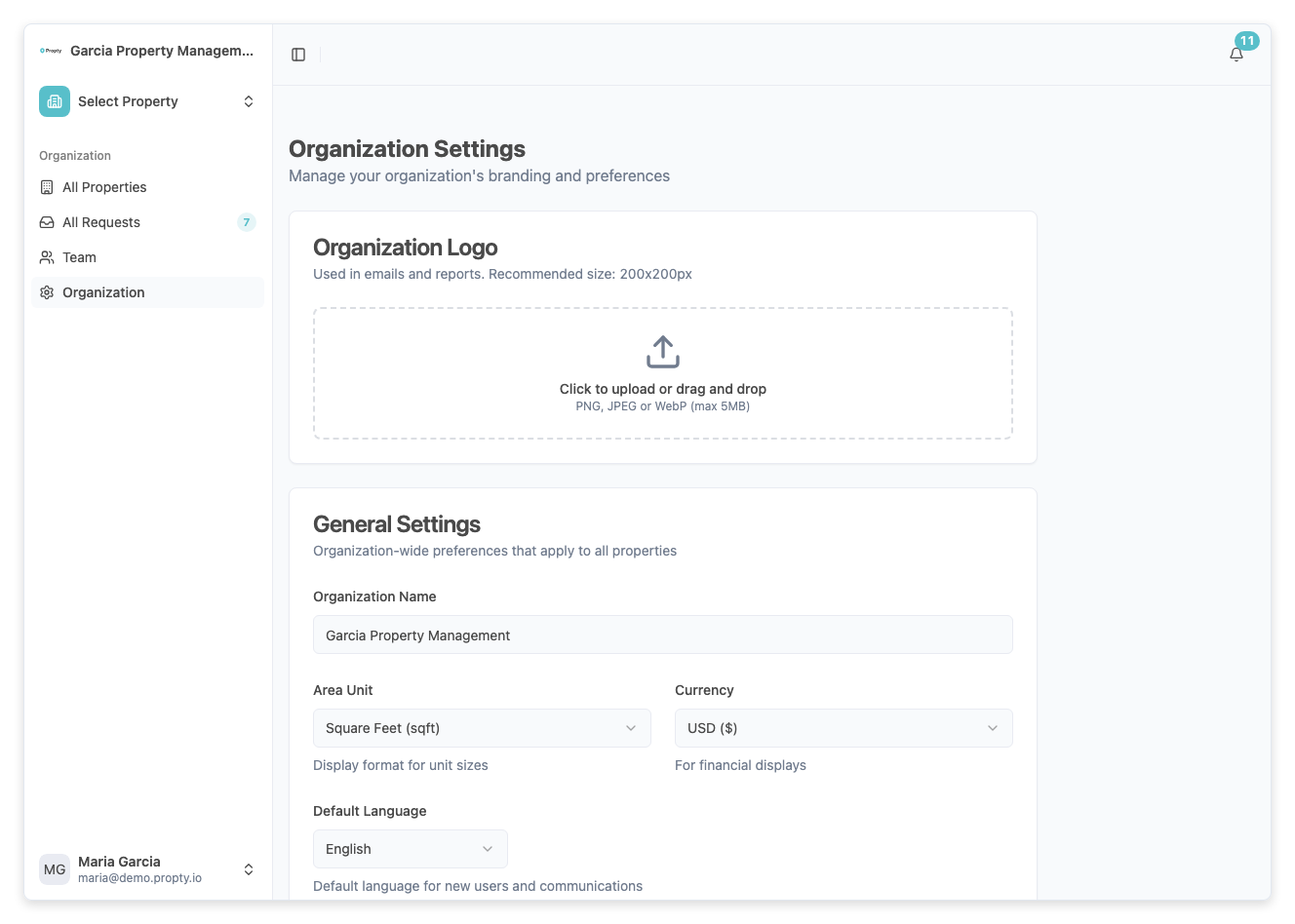
Step 3: Update your organization name
In the Organization Name field, type or edit your organization's name. This name appears in emails sent to residents and in the portal header.
Step 4: Add or change your logo
In the Organization Logo card:
- Click the upload area.
- Select an image file from your computer (JPG, PNG, or SVG).
- The logo will upload and appear as a preview.
The recommended image size is 200x200px.
Step 5: Set organization defaults
Review the remaining fields:
- Area Unit — Square feet or square meters.
- Currency — The currency used for financial displays.
- Default Language — The default language for new users and communications.
Step 6: Save your changes
Click the Save button below the form. A loading indicator will appear while saving.
Managing Team Members
Team members are managed from Settings → Team, not from the Organization Settings page. From there you can:
- View all team members — See who has access to your organization.
- Invite new members — Add staff members who need access to the dashboard.
- Change roles — Promote or demote members between manager and member roles.
For details, see Manage Team Members.
Billing
Use the subscription and billing pages to view your current plan and manage billing.
- View your plan — See which plan you're on and what's included.
- Manage subscription — Click the portal button to access Stripe's billing portal where you can update your payment method or change your plan.
Troubleshooting
| Problem | Solution |
|---|---|
| Can't open Organization Settings | Only organization managers have access. Ask your manager to check your role. |
| Logo upload fails | Make sure the file is an image (JPG, PNG, or SVG) and is under 5 MB. |
| Changes not saving | Check your internet connection and try again. If the problem persists, refresh the page. |
| Need to change the organization name | Edit the name on the Organization Settings page and click Save. The change takes effect immediately. |