Configure Your Profile
Keep your profile information up to date so your team and residents can reach you. You can change your name, email, phone number, language preference, and password.
What you'll need
- A Propty account (property manager or resident)
- Your current password (if you want to change your password)
For Property Managers
Step 1: Open Settings
Click Profile in the top navigation bar, or go to app.propty.io/settings.
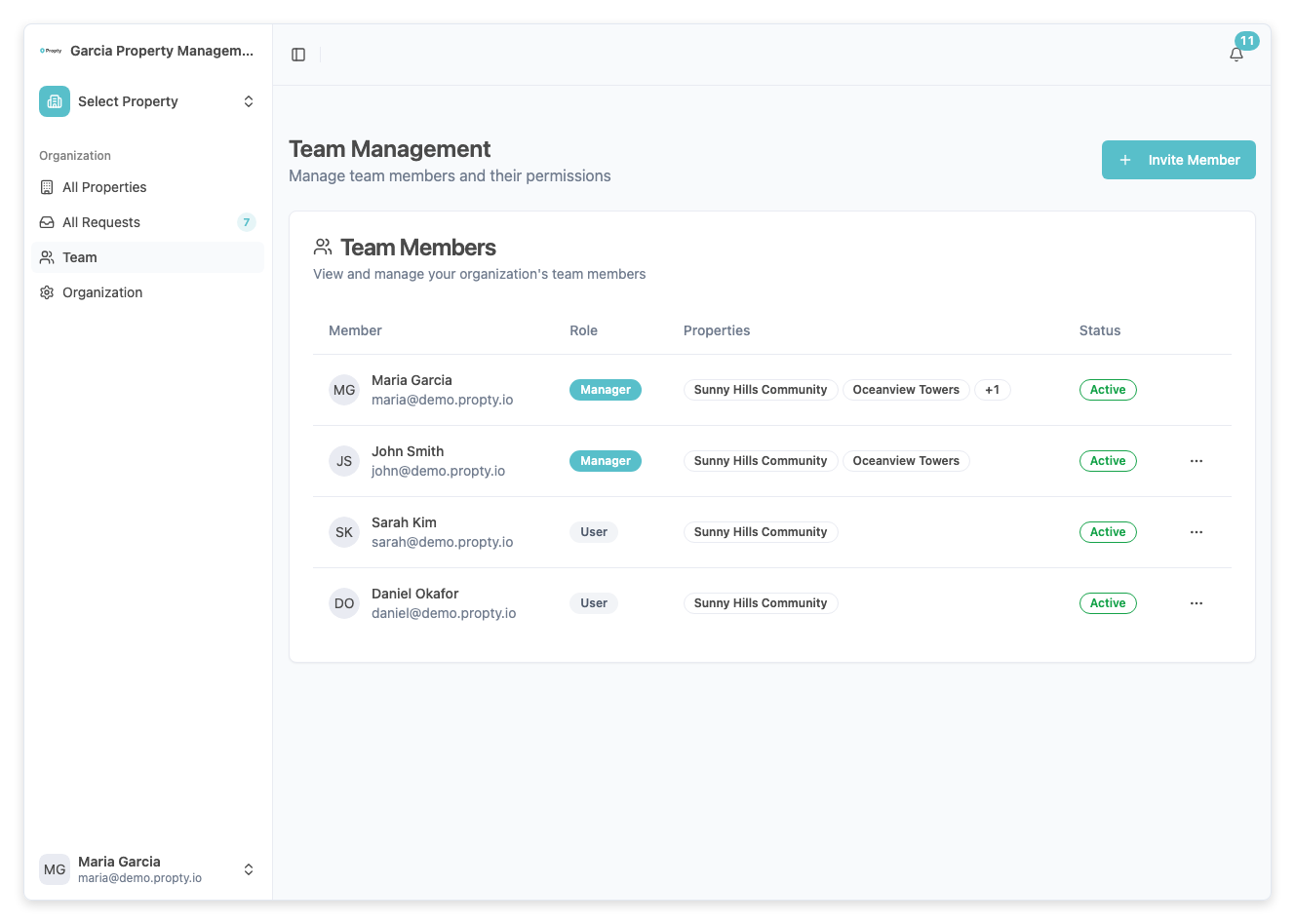
Step 2: Update your profile
You will see the Profile tab with the following fields:
- Name — Your full name as it appears to team members and residents.
- Email — Your login email address.
- Phone — Your phone number (optional).
- Language — Choose between English and Français (French). This changes the language of the entire interface.
- Password — Enter a new password here if you want to change it. Leave it blank to keep your current password.
Step 3: Save your changes
Click the Save button at the bottom. A confirmation will appear when your changes are saved.
For Residents
Step 1: Open your account settings
In the resident portal, click Settings in the sidebar menu, or navigate to your account page.
Step 2: Update your information
Update your name, email, phone number, or language preference.
Step 3: Save your changes
Click Save to apply your changes.
Troubleshooting
| Problem | Solution |
|---|---|
| Can't change my email | Make sure the new email address is not already used by another account in your organization. |
| Language didn't change | After changing the language, the page will reload. If it doesn't, try refreshing your browser. |
| "Save" button is grayed out | You haven't made any changes yet. Modify a field and the button will become active. |
| Forgot my current password | Go to app.propty.io/forgot-password to reset your password via email. |