Set Up Your First Property
After creating your account, the next step is to add your first property. If you registered as a Self-Managed HOA, a property was already created for you during signup — you can skip to the onboarding checklist below.
- Your property name (for example, "Sunny Hills Community")
- The property address
- An idea of how many units are in the property
Adding a Property
Step 1: Go to the Properties page
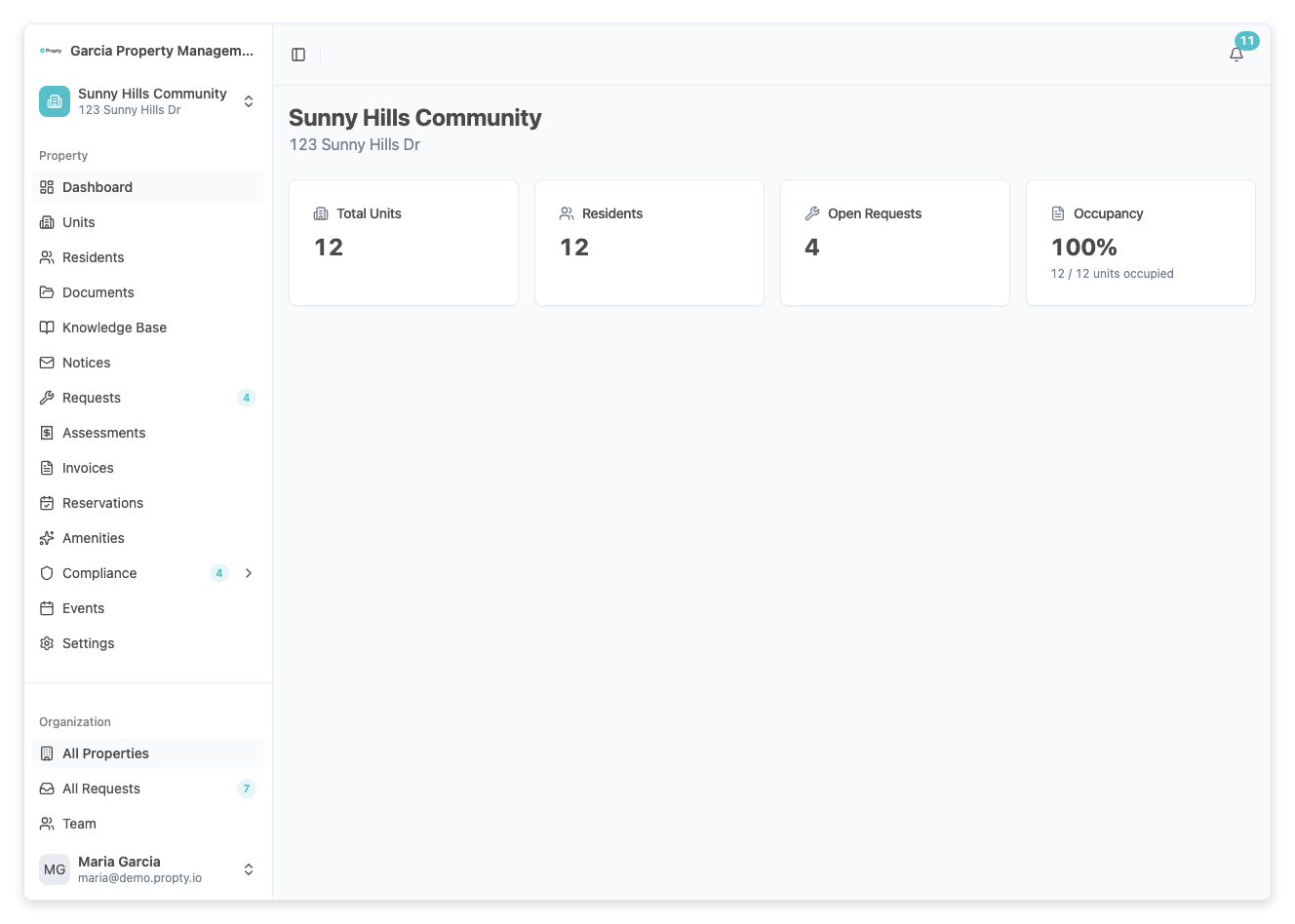
After logging in, you will see the All Properties page. If this is your first time, you'll see a welcome message.
Step 2: Click "Add Property"
Click the Add Property button (or Add My Community if you are a Self-Managed HOA).
Step 3: Fill in the property details
Enter the following information:
- Property Name — The name of your community or building (for example, "Sunset Villas HOA").
- Address — The street address.
- City, State, and Postal Code — The location of the property.
- Country — The country.
Click Save to create the property.
Step 4: You're in!
You will be taken to your new property's dashboard. From here, you can start adding units and residents.
The Onboarding Checklist
When you first open your property, you will see a Getting Started checklist at the top of the dashboard. This checklist guides you through the essential setup steps:
- Property created — Already done!
- Add units — Add the units in your property (apartments, condos, etc.).
- Add residents — Add the people who live in those units.
- Invite a resident — Send a portal invitation to at least one resident.
- Invite team member — Add a staff member to help you manage the property.
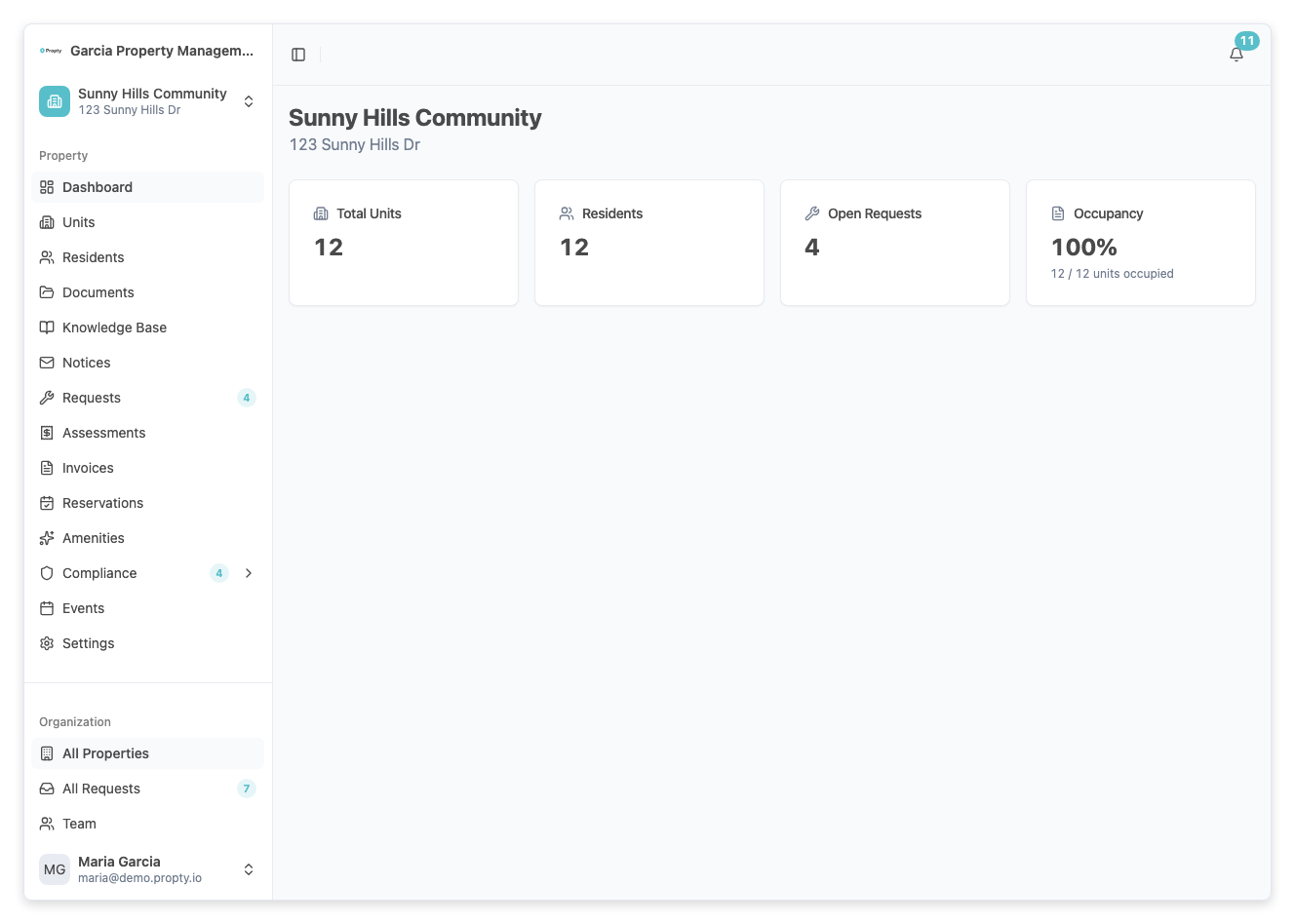
Click on any incomplete step to be taken directly to the relevant page. Each step also has a help icon (?) that links to a detailed guide.
You can dismiss the checklist at any time by clicking the X button. You can always access setup help later in Settings.
Troubleshooting
| Problem | Solution |
|---|---|
| Don't see the "Add Property" button | Only organization managers can add properties. Ask your manager to grant you access. |
| Property created during signup but can't find it | Check the property switcher at the top of the sidebar. Your property should be listed there. |
| Accidentally created the wrong property | Go to Settings for that property and update the name and address, or contact support. |