Set Up Autopay
With autopay, your invoices are paid automatically before they are due. You add a payment method once, and Propty charges it whenever a new invoice is created — so you never miss a payment or incur late fees.
- Access to the Propty resident portal
- A credit card, debit card, or bank account for automatic payments
How autopay works
- When an invoice becomes due, Propty automatically charges your saved payment method
- You receive an email confirmation after each automatic payment
- If a payment fails (e.g., expired card), you are notified immediately and have time to update your payment method
- You can cancel autopay at any time
Set up autopay
1. Go to My Account
Log in to the Propty resident portal and click My Account in the navigation menu.
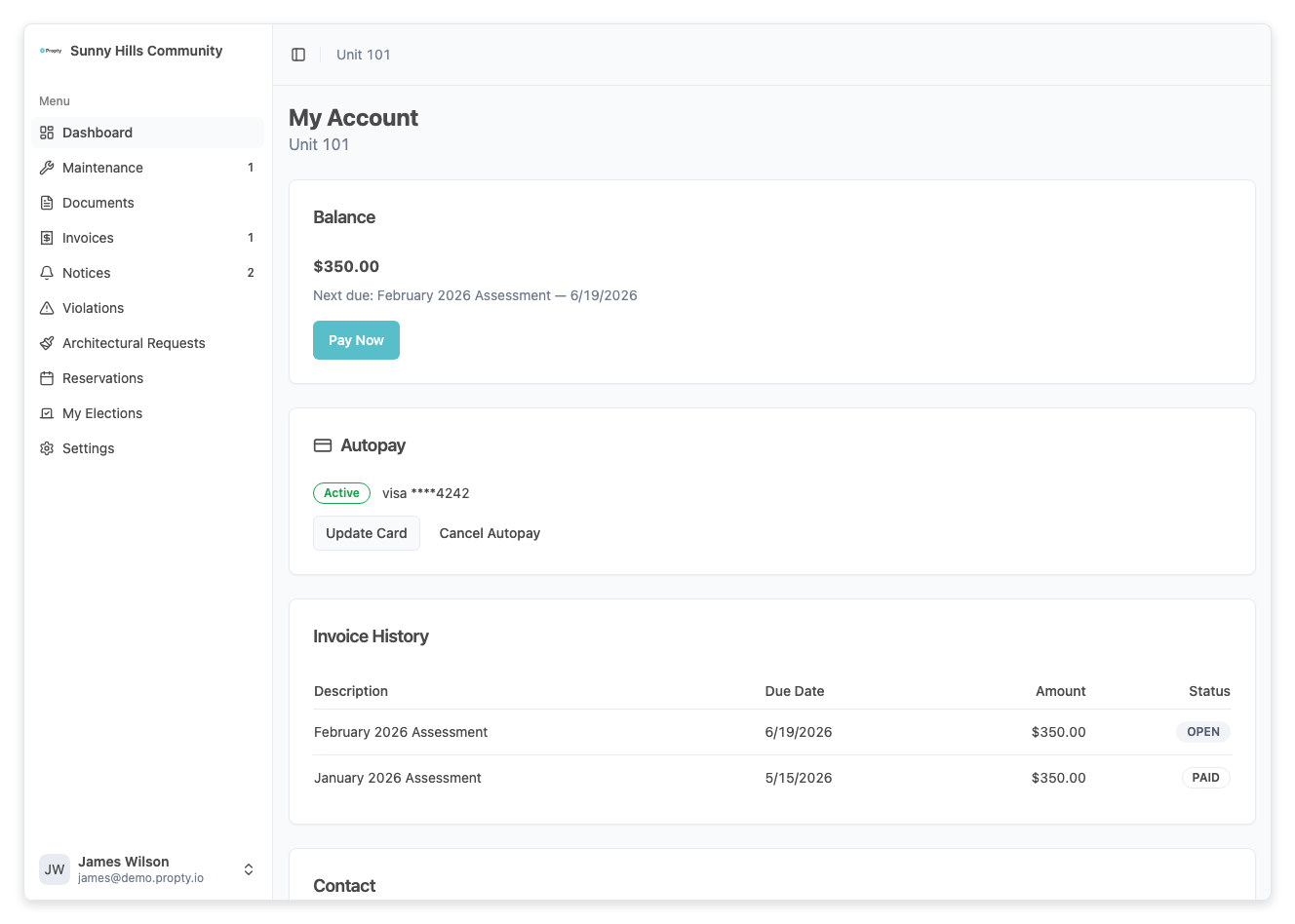
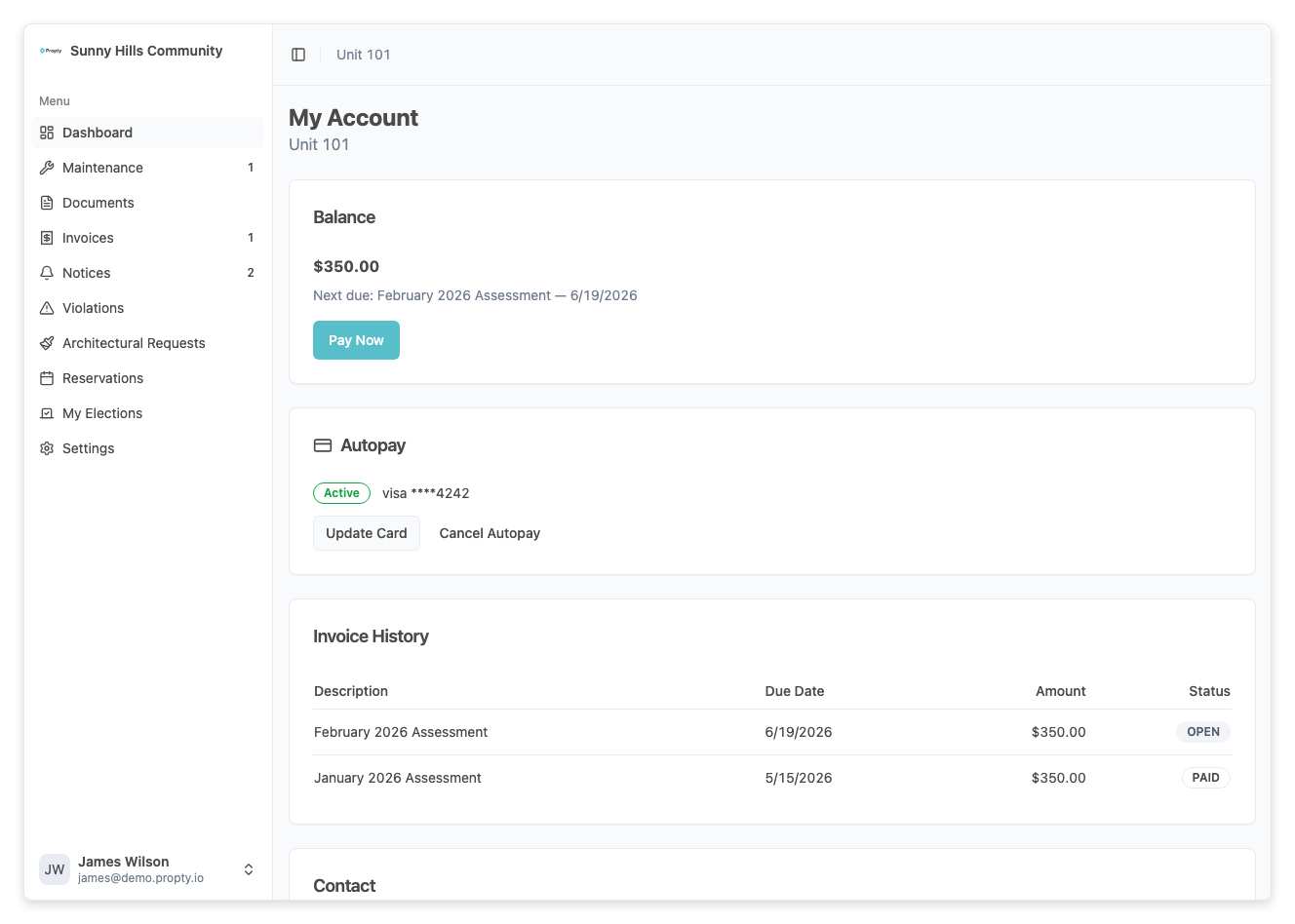
2. Find the Autopay card
Scroll down to the Autopay card. If autopay is not yet set up, you will see a description: "Set up automatic payments so you never miss a due date."
3. Click "Set Up Autopay"
Click the Set Up Autopay button.
A panel slides open from the right side of the screen with the title "Set Up Autopay" and the description: "Your card will be automatically charged when invoices are due."
4. Enter your payment details
Enter your credit card, debit card, or bank account information in the secure payment form. This form is powered by Stripe — your payment details are never stored on Propty's servers.
5. Click "Enable Autopay"
Click the Enable Autopay button to save your payment method and activate automatic payments.
You will see a green checkmark and the message "Autopay Enabled" with confirmation that your card will be automatically charged when invoices are due.
6. Click "Done"
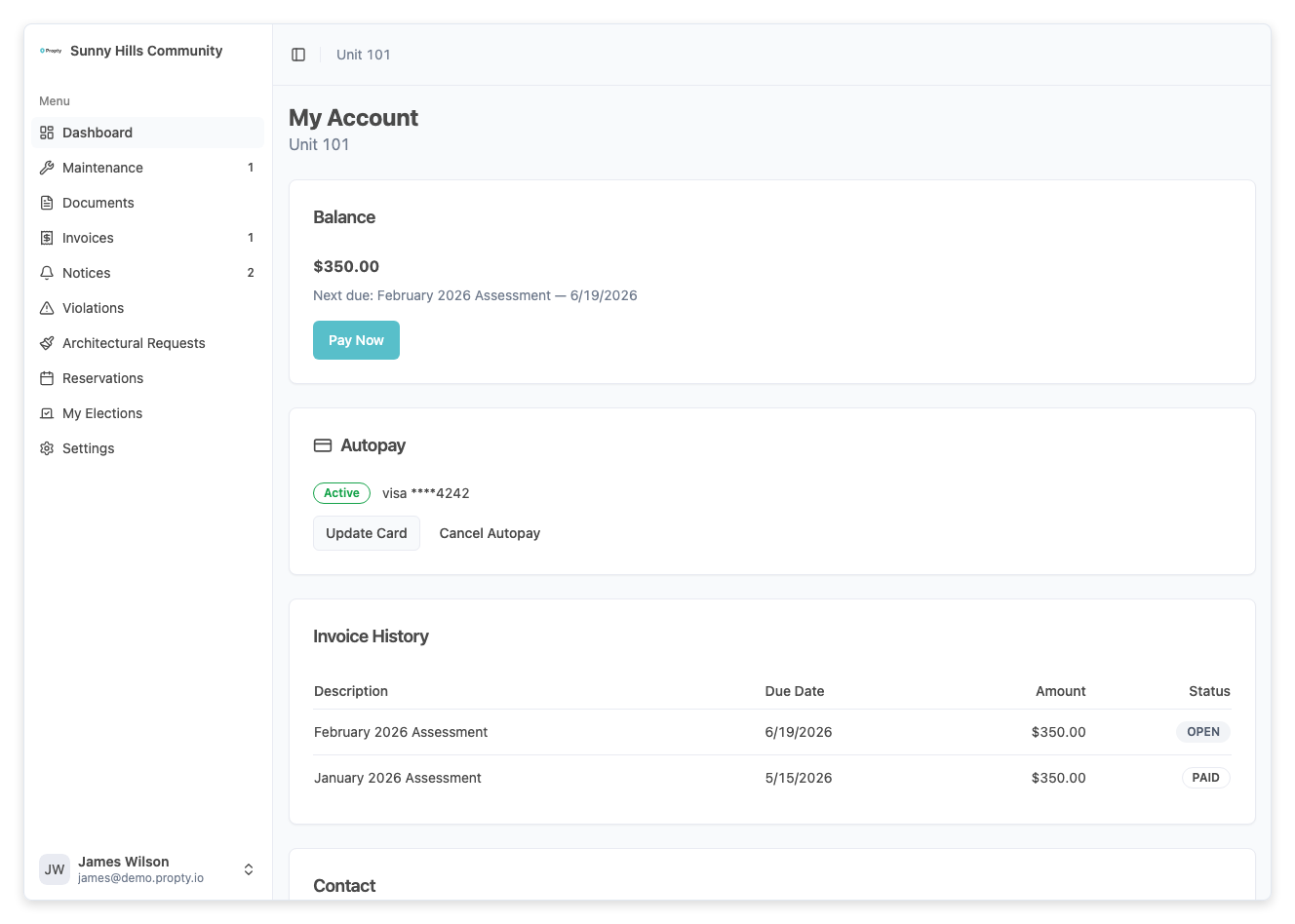
Click Done to close the setup panel. The Autopay card on your account page will now show:
- An Active badge in green
- Your card details (e.g., "Visa ****4242")
- Buttons to Update Card or Cancel Autopay
Update your payment method
If you need to change the card or bank account used for autopay:
- Go to My Account
- In the Autopay card, click Update Card
- Enter your new payment details
- Click Enable Autopay to save
Your old payment method will be replaced with the new one.
Cancel autopay
If you want to stop automatic payments:
- Go to My Account
- In the Autopay card, click Cancel Autopay
- Autopay will be disabled immediately
After cancelling, you will need to pay each invoice manually. See Pay Your Invoice for instructions.
Reactivate autopay after a failure
If your autopay payment fails (for example, due to an expired card), autopay will be paused. You will see:
- A Paused badge in red on the Autopay card
- The reason for the failure (e.g., "Card declined")
- A Reactivate Autopay button
To reactivate:
- Click Reactivate Autopay
- Enter a new or updated payment method
- Click Enable Autopay
If autopay fails, Propty retries up to 3 times (once per day). If all retries fail, you will need to pay manually and reactivate autopay with a valid payment method.
Troubleshooting
Autopay was charged but I don't see a payment
- Check the Invoices page for the payment. Autopay payments appear in the payment history just like manual payments.
- If you paid via bank transfer (ACH), it may take 3-5 business days to show as completed.
I was charged the wrong amount
- Autopay charges the full invoice amount each time. If the amount seems incorrect, contact your property manager — the issue is with the invoice, not autopay.
I want autopay for one property but not another
- Autopay is set up per property. If you belong to multiple properties, you can enable autopay on some and pay manually on others.
My card expired but I didn't get notified
- Propty sends an email when an autopay payment fails. Check your spam/junk folder.
- Update your payment method as soon as possible to avoid late fees.
I cancelled autopay but was still charged
- If you cancelled autopay after the automatic payment was already initiated, the payment may still process.
- Future invoices will not be charged automatically after cancellation.