View Payment History
Every invoice has a payment history section showing all payments recorded against it. You can view payment dates, methods, amounts, and statuses. For card payments, you can also issue refunds.
- A Propty account with Property Manager or Property Admin access
- An invoice with at least one payment recorded
Steps
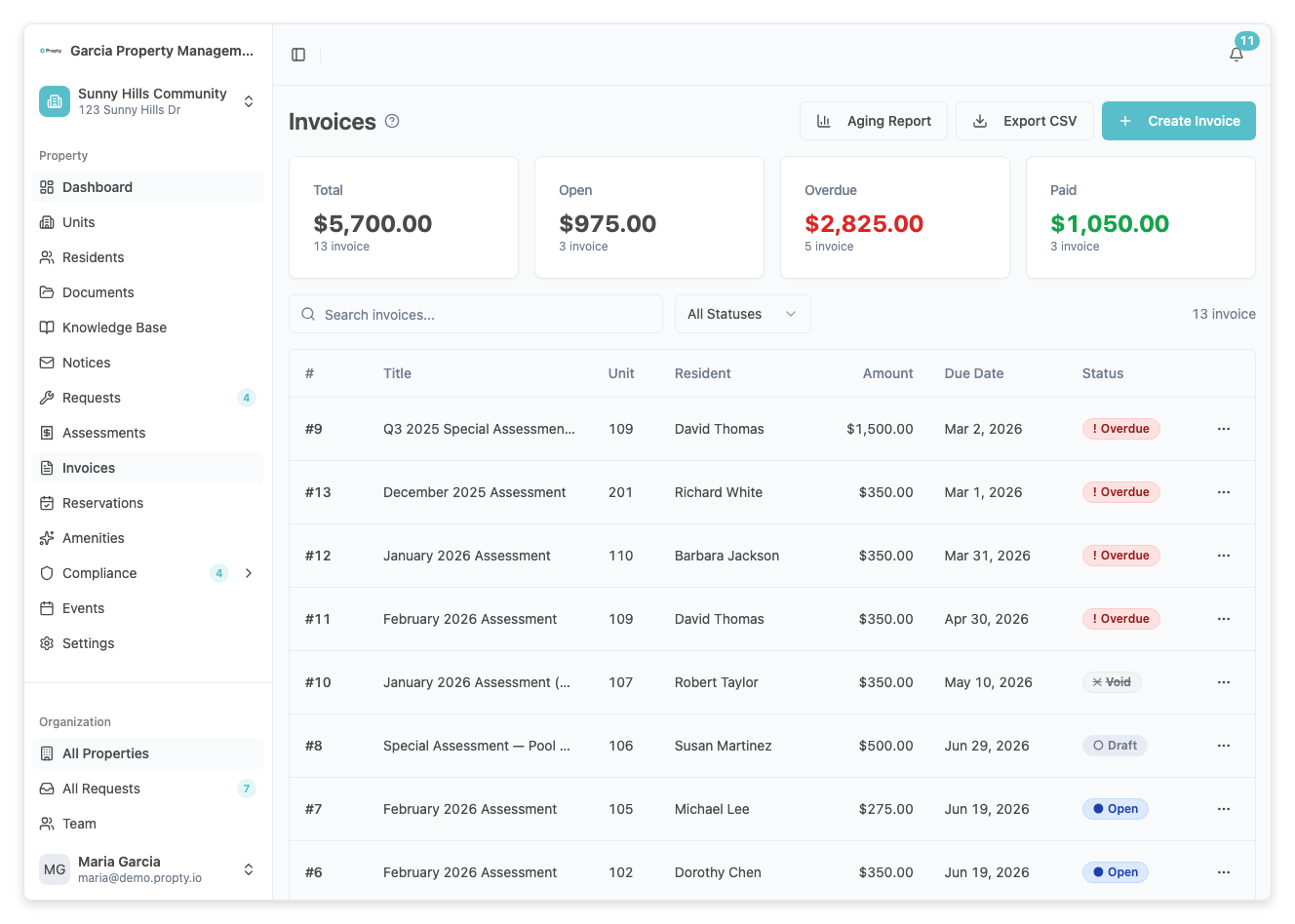
1. Open the invoice
From the Invoices page, click on the invoice you want to review. The invoice detail page will load.
2. Scroll to Payment History
Below the invoice details and payment summary cards, you will see the Payment History section. This table lists every payment recorded for this invoice.
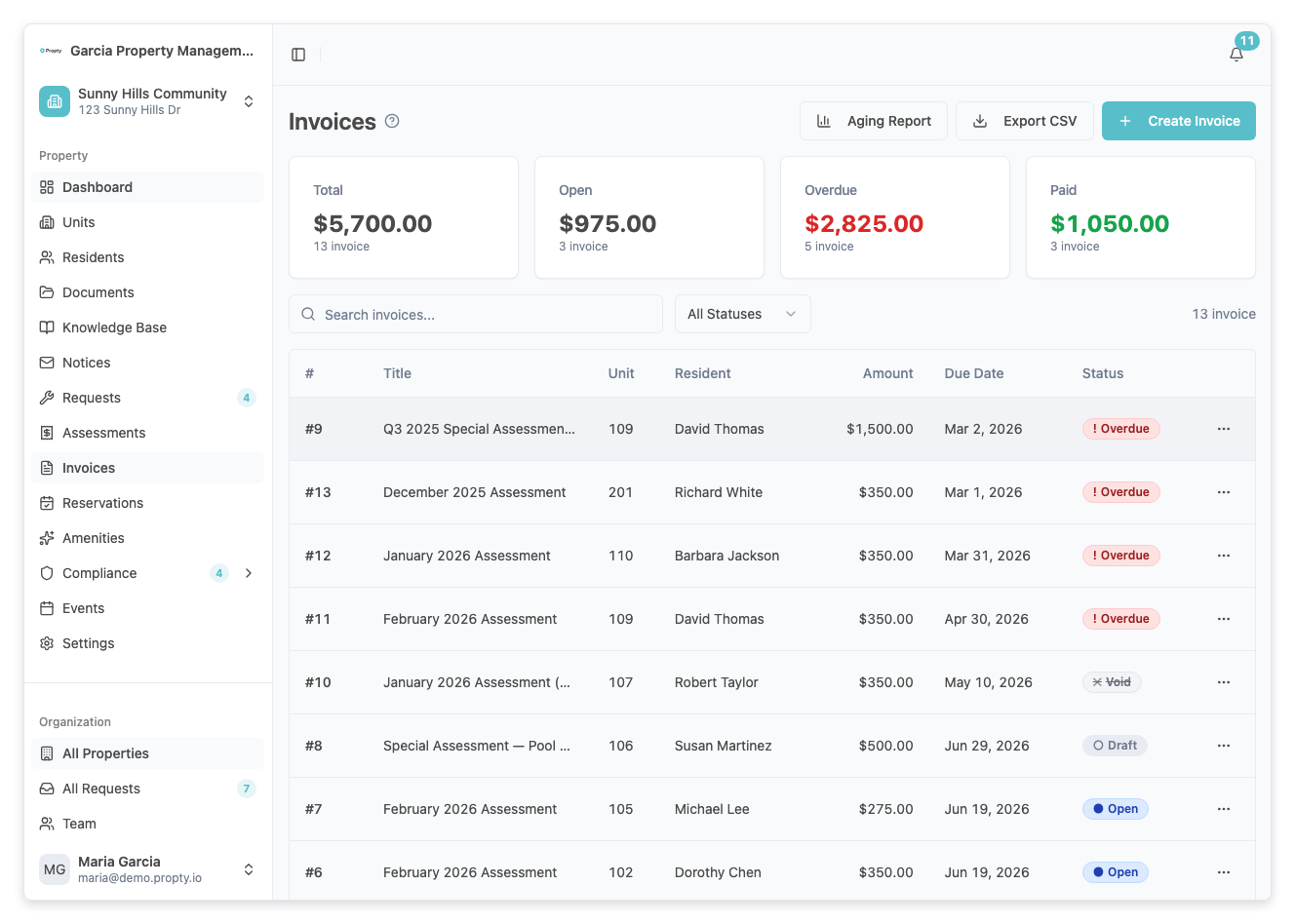
3. Review payment details
Each row in the payment history table shows:
| Column | Description |
|---|---|
| Date | When the payment was received |
| Method | How the payment was made (Card, Check, or Cash), with last 4 digits for card payments |
| Amount | The payment amount |
| Status | Current status of the payment |
4. Understanding payment statuses
| Status | Meaning |
|---|---|
| Pending | Payment is being processed |
| Succeeded | Payment completed successfully |
| Failed | Payment was declined or failed |
| Refunded | Payment has been refunded to the resident |
Issuing a refund
You can refund card payments that have a Succeeded status.
1. Click the three-dot menu
On the payment row you want to refund, click the three-dot menu button on the right side.
2. Click "Refund"
Select Refund from the dropdown menu. A confirmation dialog will appear showing the refund amount.
3. Confirm the refund
Click Confirm Refund to process the refund. The payment status will change to Refunded and the invoice balance will be updated accordingly.
Refunds can only be issued for card payments. Check and cash payments cannot be refunded through Propty — handle those outside the system.
Troubleshooting
I don't see any payment history
- No payments have been recorded for this invoice yet. You can record a payment using the Record Payment button on the invoice detail page.
The refund option is not available
- Only card payments with a Succeeded status can be refunded. Check and cash payments do not have a refund option.
- If the payment is still Pending, wait for it to complete before attempting a refund.
The invoice balance didn't update after a refund
- The balance updates automatically when the refund is processed. Refresh the page if the balance appears stale.