Auto-Close Inactive Requests
The auto-close feature automatically closes maintenance requests that have been inactive for a specified period. This reduces clutter from stale requests and signals to residents that the issue has been resolved or abandoned.
- A Propty account with Property Manager or Property Admin access
- Request Settings page access
How auto-close works
When a request has no new messages or status changes for the configured inactivity period:
- The system waits for the configured number of days
- 48 hours before auto-close, the resident receives an email warning: "Your request will close in 2 days if there is no activity"
- If the resident does not respond, the request automatically closes
- The activity timeline records the closure as "Auto-closed after N days of inactivity"
- The resident can reopen the request if needed
This workflow ensures that truly resolved or abandoned requests don't clutter your dashboard while giving residents a chance to keep the request open.
Steps
1. Go to Request Settings
From the Requests page, click Settings in the top navigation.
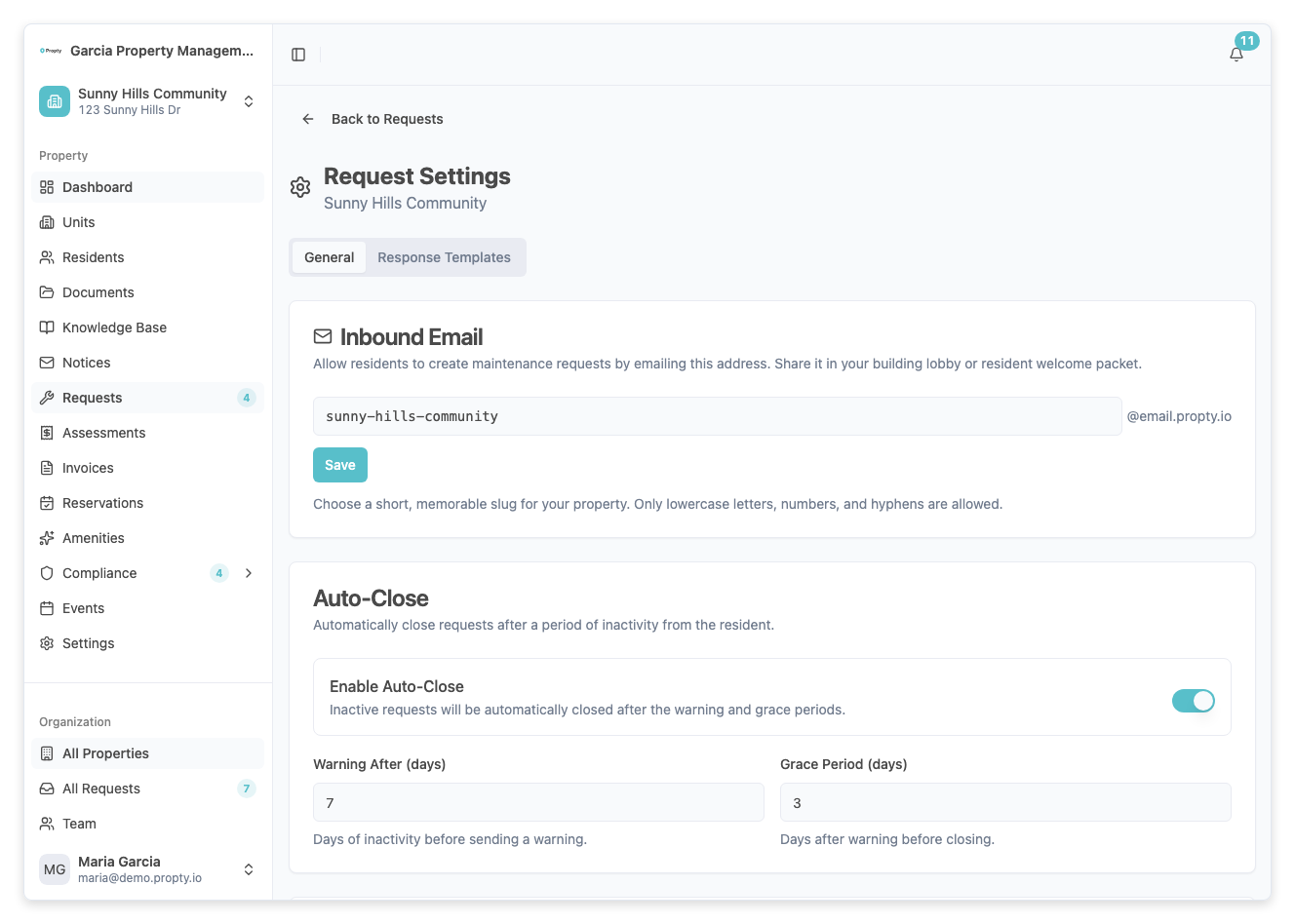
2. Open the General Settings tab
Click the General Settings tab (or scroll to the Auto-Close section if you are already on the main settings page).
3. Enable auto-close
Toggle the Enable Auto-Close switch to turn on the feature.
When enabled, two timing fields appear:
- Inactivity Period (days) — number of days of no activity before auto-close occurs
- Warning Period (days) — number of days before auto-close when the resident is warned
4. Set the inactivity period
Enter the number of days in the Inactivity Period field.
Common settings:
- 7 days — good for most properties; gives residents a week to respond
- 14 days — more lenient; useful if residents are slow to respond
- 30 days — very lenient; best for properties with slower issue resolution
The range is 1–90 days.
5. Set the warning period
Enter the number of days in the Warning Period field. This controls when the resident is notified before auto-close.
Common settings:
- 2 days (default) — warning email sent 2 days before closure
- 3 days — 3 days before closure
- 7 days — full week before closure (more generous notice)
The range is 1–30 days, and must be less than the inactivity period.
Example: Inactivity period of 7 days + warning period of 2 days = request is warned on day 5, auto-closed on day 7 if no response.
6. Save your settings
Click Save Settings at the bottom of the page.
A confirmation message will appear.
Understanding auto-close in the request timeline
When a request is auto-closed, the activity timeline includes an entry that shows:
- "Auto-closed after 7 days of inactivity" (or however many days you configured)
- The timestamp of the closure
- A system badge indicating it was an automatic action
This makes it clear that the request was not manually closed by a staff member, and the resident can see exactly why and when it was closed.
Reopening an auto-closed request
If a resident needs help with the same issue after the request is closed, they can reopen it:
As a resident
- Go to My Requests in the resident portal
- Find the closed request
- Click Reopen Request
- The request returns to Pending status and can be worked on again
As a staff member
- Open the closed request
- Click the Reopen button in the sidebar
- The request returns to its previous status
Reopened requests may have a new auto-close countdown. Check your settings to understand when it will close again.
What triggers auto-close
Auto-close happens when there is no activity for the configured period. Activity includes:
- ✓ New message from resident or staff
- ✓ Status change (New → In Progress, In Progress → Closed, etc.)
- ✓ Priority change
- ✓ Assignment change
What does NOT reset the auto-close timer:
- ✗ Internal notes only (notes visible to staff only)
- ✗ Viewing the request (no activity)
- ✗ Attaching files without a message
If you add an internal note without sending a message to the resident, the auto-close timer is not reset. To extend the auto-close period, send a message to the resident (even just "Still working on this" prevents closure).
Disabling auto-close for specific requests
You may want to keep certain requests open indefinitely (e.g., ongoing maintenance, special issues). You can disable auto-close for individual requests:
- Open the request detail page
- In the sidebar, find the Auto-Close Settings section
- Check the Disable Auto-Close for This Request checkbox
This request will not auto-close, even if no activity occurs.
This setting is per-request. Other requests will still auto-close according to your property settings.
Understanding auto-close vs. manual closure
| Aspect | Auto-Close | Manual Close |
|---|---|---|
| Who decides | System (after inactivity period) | Staff member |
| Resident notification | Warning email before closure | Depends on your workflow |
| Timeline entry | "Auto-closed after 7 days" | "Closed by [staff name]" |
| Can reopen? | Yes | Yes |
| When it happens | After N days of no activity | Immediately when staff clicks Close |
Best practices
Set a reasonable inactivity period
- Too short (1–2 days) — requests may close before issues are fully resolved
- Too long (60+ days) — old requests clutter your dashboard
- Ideal (7–14 days) — balances resolution time with dashboard cleanliness
Communicate the auto-close policy
Include information about auto-close in:
- Your resident portal Help section
- New resident onboarding materials
- The warning email the system sends
This prevents confusion and helps residents understand the timeline.
Use internal notes carefully
Remember that internal-only notes do not prevent auto-close. If you need to keep a request open, send a message to the resident or change its status.
Review auto-closed requests monthly
Check your request list for auto-closed requests to spot patterns:
- Are many requests closing without resolution?
- Are residents frequently reopening requests?
- Do you need to adjust your inactivity period?
Troubleshooting
Auto-close is enabled but requests are not closing
- Check that the inactivity period has actually passed. The clock starts from the most recent activity (message, status change, etc.).
- Verify there is no recent activity that reset the timer. Check the activity timeline to see the last action.
- If the request has Disable Auto-Close for This Request enabled, it will never auto-close. Check the sidebar settings.
A request I wanted to keep open was auto-closed
- You can reopen it immediately by clicking Reopen in the sidebar.
- To prevent this in the future, enable Disable Auto-Close for This Request in the sidebar before reaching the inactivity threshold.
Residents are not receiving the warning email
- Verify that the resident has a valid email address on their profile.
- Check that the warning period is set correctly (must be less than the inactivity period).
- Confirm that email notifications are enabled in your Notification Settings.
I want different auto-close settings for different request types
- Currently, auto-close settings apply to all requests in a property.
- As a workaround, you can disable auto-close globally and manually close resolved requests, or enable auto-close and manually reopen requests that need to stay open longer.
Can I disable auto-close entirely?
- Yes, toggle Enable Auto-Close off in your Request Settings. No requests will auto-close.