Configure Service Level Agreements (SLA)
SLAs (Service Level Agreements) define target response and resolution times for maintenance requests based on their priority level. Once configured, Propty tracks and displays whether each request is on track, at risk, or has breached its SLA targets.
- A Propty account with Property Manager or Property Admin access
- Understanding of your team's capacity and typical response times
What are SLAs?
An SLA is a commitment to respond and resolve requests within a certain timeframe:
- Response SLA — time from when the request is submitted to when staff sends the first reply to the resident
- Resolution SLA — time from submission to when the request is fully closed
Both are measured in hours and can vary by priority level. For example:
- Urgent (no heat, water leak) → 1 hour response, 24 hour resolution
- High (major issue) → 4 hours response, 72 hours resolution
- Medium (standard repair) → 24 hours response, 7 days resolution
- Low (cosmetic issue) → 48 hours response, 14 days resolution
Steps
1. Go to Request Settings
From the Requests page, click Settings in the top navigation.
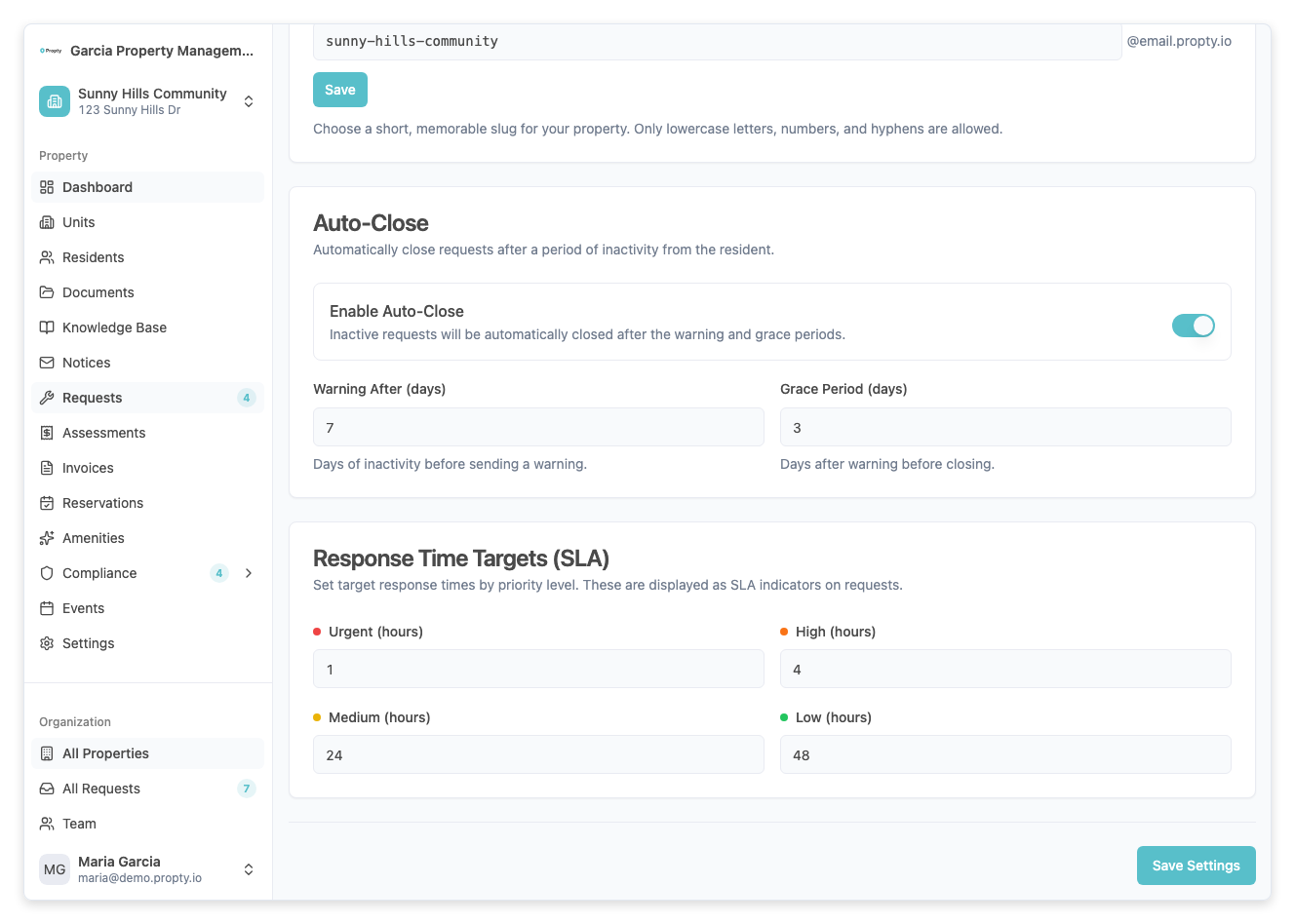
2. Open the SLA Settings tab
Click the SLA Settings tab at the top of the settings page.
You will see a table with four priority levels and fields for response and resolution times.
3. Set response SLA for Urgent
In the Urgent row, find the Response Time (hours) column and enter the target number of hours.
Recommended: 1–2 hours (safety hazards need immediate attention)
4. Set resolution SLA for Urgent
In the same Urgent row, enter the Resolution Time (hours).
Recommended: 24 hours (same-day resolution for emergencies)
5. Repeat for High, Medium, and Low priorities
For each priority level, set both response and resolution times:
| Priority | Recommended Response | Recommended Resolution | Notes |
|---|---|---|---|
| Urgent | 1–2 hours | 24 hours | Safety hazards (water, heat, electrical) |
| High | 4–8 hours | 72 hours | Major issues affecting livability |
| Medium | 24 hours | 7 days (168 hours) | Standard repairs |
| Low | 48 hours | 14 days (336 hours) | Cosmetic or minor issues |
The minimum is 1 hour, and the maximum is 336 hours (14 days).
6. Save your settings
Click Save Settings at the bottom of the page.
A confirmation message will appear. Your SLA targets are now active and will be applied to all current and future requests.
How SLA indicators work
Once configured, each request displays SLA indicators on the request detail page and in the request list:
On-Track (Green)
- Status: Request is within the SLA target
- Meaning: You are on schedule to meet the commitment
- Example: Urgent request with 1-hour response target; staff replied within 45 minutes → On-Track
At Risk (Yellow)
- Status: Request is within 20% of the SLA deadline
- Meaning: You are approaching the deadline; action needed soon
- Example: Urgent request with 1-hour response target; 50 minutes have passed → At Risk (50 minutes of 60-minute window used)
Breached (Red)
- Status: Request has exceeded the SLA target
- Meaning: The commitment has been missed
- Example: Urgent request with 1-hour response target; staff replied after 2 hours → Breached
Understanding SLA tracking
When SLA tracking starts
SLA timers start the moment a request is submitted by the resident, not when it is assigned to staff or viewed for the first time.
Example: Resident submits a request at 10:00 AM. Even if staff doesn't see it until 10:30 AM, the response SLA clock started at 10:00 AM.
How response SLA is measured
Response SLA measures the time from submission to the first message from staff.
- ✓ Counts: Staff reply, internal note that is sent to the resident, assignment to staff
- ✗ Doesn't count: Internal notes only, priority changes, status changes without a message
To meet the response SLA, staff must send at least one message to the resident before the deadline.
How resolution SLA is measured
Resolution SLA measures the time from submission to when the request is closed.
- ✓ Counts: Clicking "Close Request" in the request detail page
- ✗ Doesn't count: Status changes to In Progress or Pending (request still open)
Auto-close and SLA
If auto-close is enabled and closes a request due to inactivity, the resolution SLA will be marked as Breached if the auto-close happens after the resolution deadline.
Filtering by SLA status
On the Requests page, you can filter requests by SLA status to focus on the ones that need attention:
1. Open the Requests page
Click Requests in the left sidebar.
2. Use the SLA filter
Click the SLA Status filter and select:
- On Track — showing requests within their SLA targets
- At Risk — showing requests approaching their deadline (within 20%)
- Breached — showing requests that have exceeded their SLA targets
3. Sort by SLA deadline
Click the Time to Deadline column header to sort requests by how close they are to their SLA deadline. This shows you which requests need the most urgent attention.
SLA performance reporting
To understand your team's SLA performance:
- Go to the Requests page
- Filter by SLA Breached to see all overdue requests
- Note the priority levels and categories with the most breaches
- Identify bottlenecks (e.g., "all electrical requests are breached")
- If urgent requests are consistently breached, increase staffing or adjust the target
- If low-priority requests are consistently on-time, consider raising targets slightly
- Track which categories (Plumbing, Electrical, etc.) have the most breaches and prioritize those teams
Adjusting SLA targets over time
Your SLA targets should reflect your team's realistic capacity:
- Too aggressive (very short timeframes) → many breaches, team demoralized
- Too lenient (very long timeframes) → residents unhappy with response times
- Just right — 80–90% on-time performance, with breaches happening only occasionally
If you find your team consistently breaches targets, you can:
- Return to SLA Settings
- Increase the response or resolution times for problem priorities
- Save the updated targets
Adjusting targets will be applied to future requests; historical requests retain their original SLA.
Be transparent with residents about any SLA changes. If you adjust targets, consider updating your resident-facing policies and knowledge base.
Best practices
Set realistic targets
- Talk to your maintenance team about typical response times
- Base targets on your property's actual capacity, not wishful thinking
- Plan for absences, emergencies, and seasonal fluctuations
Communicate targets to residents
- Include response SLA targets in your AI Knowledge Base
- Post targets in the resident portal or in new resident materials
- This sets expectations and reduces frustration
Monitor and adjust
- Weekly or monthly, review SLA performance using filters
- Identify patterns (e.g., "plumbing is always breached")
- Adjust targets or staffing to improve performance
Use SLA as a team tool, not punishment
- SLAs help identify bottlenecks and resource gaps
- Use breaches as signals to improve, not to blame team members
- Share SLA data with your team to show how they are performing collectively
Account for on-call and shift coverage
- If your team works in shifts, consider longer response targets for night and weekend submissions
- If on-call staff handle emergencies, ensure those people know about urgent requests immediately
Troubleshooting
SLA indicators are not showing on requests
- SLA indicators appear only after you save your SLA settings on the SLA Settings page.
- Existing requests will be evaluated against your new targets.
- If indicators still do not appear, reload the page or contact support.
I want different SLA targets for different properties
- SLA settings are configured per property. Navigate to each property's request settings to set targets independently.
My team is always breaching SLAs
- Your targets may be too aggressive. Review your team's capacity and adjust targets upward.
- You may need more staff for your property's request volume.
- Check for bottlenecks: are certain request types (e.g., electrical) causing delays? Focus resources there.
Can I exclude certain requests from SLA tracking?
- Currently, all requests are tracked against SLA. If you want a request to not count, consider marking it as "Internal Request" or using a different system.
- Alternatively, pause SLA tracking for specific request categories by setting very high targets (e.g., 1000 hours) and then lowering them when needed.
I want to track response time separately from resolution time
- Both response and resolution SLAs are tracked and displayed separately. You can focus on either one using filters and the activity timeline.