AI Knowledge Base
The Knowledge Base is the property-specific source library used by AI triage. Add governing documents, house rules, operational procedures, and Q&A pairs so drafts cite the rules your team actually follows.
- Property Manager or Property Admin access
- Current property documents or written policies
- Optional: existing files already uploaded in the Documents section
Open the Knowledge Base
From the property workspace, open Knowledge Base.
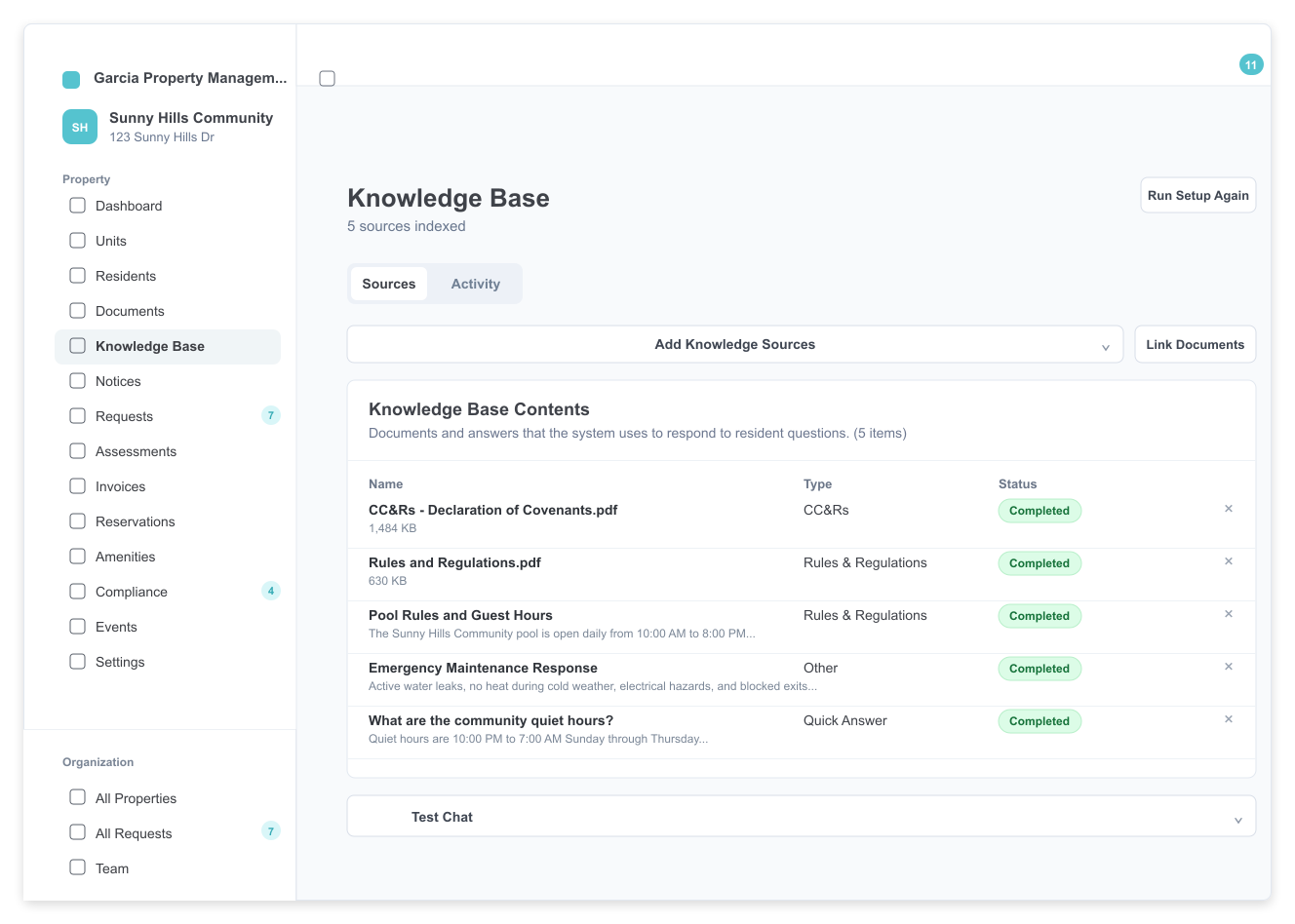
The page has two tabs:
- Sources — documents, articles, and Q&A pairs used for answers
- Activity — AI triage outcomes for inbound email requests
Add knowledge sources
Upload files
- Click Add Knowledge Sources.
- Open the Upload Files tab.
- Drag files into the upload area or click to browse.
- Confirm the document type for each file.
- Click Upload.
Supported file types are PDF, DOCX, TXT, and XLSX, up to 20 MB each. The uploader can auto-detect common document types such as CC&Rs, bylaws, rules and regulations, and FAQs.
Add a custom article
Use Custom Article for policies that are not already in a file:
- Click Add Knowledge Sources.
- Open Custom Article.
- Enter a title, category, and detailed content.
- Click Add to Knowledge Base.
Good article topics include pool hours, guest parking rules, after-hours maintenance procedures, move-in instructions, architectural review steps, and fee schedules.
Add a Q&A pair
Use Q&A Pair for common resident questions:
- Click Add Knowledge Sources.
- Open Q&A Pair.
- Enter the resident question and approved answer.
- Click Add Q&A Pair.
Examples:
- "What are the quiet hours?"
- "How do I reserve the clubhouse?"
- "Can I park an RV in the community?"
- "How do I submit an architectural modification request?"
Link from Documents
If a policy file already exists in Propty Documents:
- Click Link from Documents.
- Select the relevant document.
- Choose the document type.
- Confirm the link.
Linked documents remain in the Documents section and are also indexed for Knowledge Base answers.
Manage sources
The Knowledge Base Contents table shows each source's name, type, indexing status, and available actions.
| Status | Meaning |
|---|---|
| Pending | The source has been added but is not indexed yet. |
| Processing | Propty is indexing the source. |
| Completed | The source is ready for AI triage. |
| Failed | Indexing failed; use the retry action after correcting the issue. |
You can remove sources that are outdated or no longer approved. If a source fails, retry indexing after confirming the file is readable and the content is valid.
Test answers
Open Test Chat on the Sources tab to ask sample resident questions against the current Knowledge Base. Use this before relying on new or heavily edited sources for live triage.
Writing guidance
- Be specific about hours, timelines, fees, limits, and escalation paths.
- Prefer property-specific details over generic customer-service language.
- Keep each source focused on one topic so answers can cite the right policy.
- Update entries when rules, vendor instructions, emergency contacts, or amenity hours change.
- Remove conflicting historical policies before adding replacements.
"Pool hours are 10:00 AM to 8:00 PM daily. Residents may bring up to two guests per unit, and guests must remain with the resident while using the pool area."
Troubleshooting
The AI is not using my source
- Confirm the source status is Completed.
- Ask a focused question in Test Chat to see whether the answer appears.
- Split large or broad documents into smaller articles or Q&A pairs for common questions.
A file fails to index
- Confirm it is PDF, DOCX, TXT, or XLSX and under 20 MB.
- Check that the document contains selectable text rather than scanned images.
- Re-upload or link a cleaner copy, then retry indexing.
Answers are vague
- Add concrete rules, exact hours, dollar amounts, timelines, and escalation instructions.
- Replace broad entries with specific Q&A pairs for recurring questions.
- Remove outdated entries that conflict with current policies.