AI Request Triage
AI triage reviews resident emails that create new requests, classifies the request intent, checks the property's Knowledge Base when the email is asking an informational question, and creates an internal draft reply for staff review when confidence is high enough.
- Property Manager or Property Admin access
- A property Knowledge Base that is active and populated with current rules, policies, FAQs, and procedures
- Inbound email request intake configured for the property
How AI triage works
When an inbound email creates a request, Propty:
- Classifies the email as informational or maintenance-related.
- Checks classification confidence. Informational requests continue only when the classification confidence is at least 60%.
- Queries the Knowledge Base for a property-specific answer.
- Checks answer confidence. A draft is created only when the Knowledge Base answer confidence is at least 70%.
- Creates an internal draft reply in the request timeline with staff-only visibility.
- Notifies staff so a manager can review the draft before responding to the resident.
AI triage does not currently expose a separate "AI Settings" tab or per-property threshold controls in the Request Settings page. The current thresholds are enforced by the application service.
Review triage activity
1. Open the Knowledge Base
From the property workspace, open Knowledge Base.
2. Open the Activity tab
Click Activity to see recent AI triage decisions.
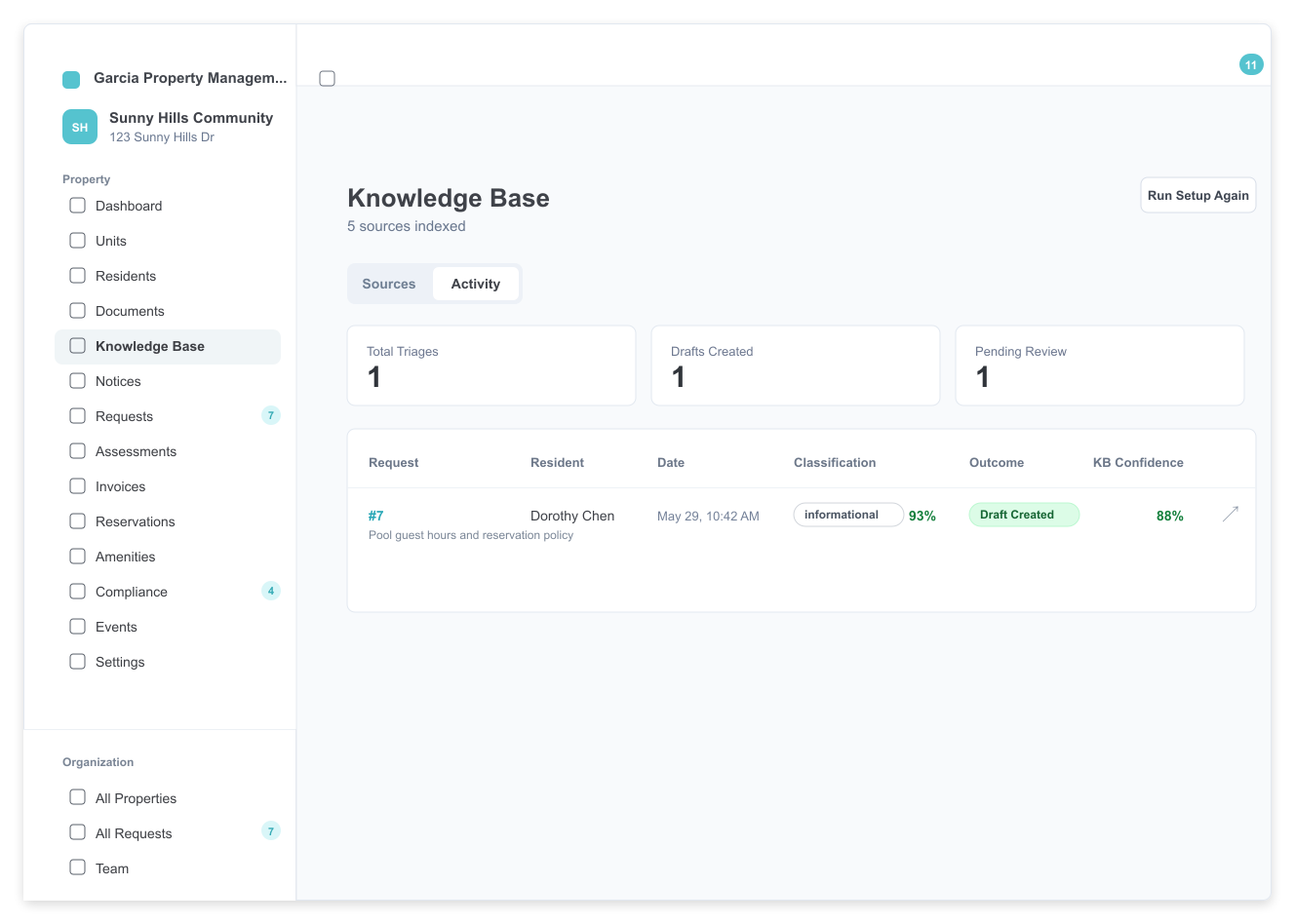
The activity log shows:
- Total Triages — requests with an AI triage result
- Drafts Created — requests where Propty created a staff-only draft
- Pending Review — drafts that still need staff review
- Classification — the detected intent and classification confidence
- Outcome — draft created, skipped, or error
- KB Confidence — the Knowledge Base answer confidence, when a KB query was attempted
3. Open the request
Use the external-link button in the activity table to open the request detail page.
4. Review the internal draft
In the request timeline, AI-created draft replies appear as staff-only internal system messages. Review the text and citations before replying to the resident.
5. Send the resident response
If the draft is appropriate, use the normal request message composer to send a staff response. Edit the wording before sending if the policy, tone, or resident-specific details need adjustment.
Outcomes
| Outcome | Meaning | Staff action |
|---|---|---|
| Draft Created | The email was informational, the Knowledge Base returned a confident answer, and a staff-only draft was added to the request. | Review the request and send or adapt the reply. |
| Skipped | The request was not informational, confidence was too low, the Knowledge Base was inactive, or the KB answer was not confident enough. | Handle the request manually or improve the Knowledge Base. |
| Error | Triage failed unexpectedly. | Review the request manually and check logs if failures repeat. |
Best practices
- Keep the Knowledge Base current with property-specific policies, not generic responses.
- Add Q&A entries for common resident questions such as amenity hours, parking rules, quiet hours, and maintenance response times.
- Review early drafts closely after changing Knowledge Base content.
- Treat AI drafts as staff assistance, not automatic resident communication.
- Keep confidential resident data out of Knowledge Base articles.
AI triage can only answer from the content available to the Knowledge Base. Empty, vague, or outdated entries will produce skipped triage decisions or weak drafts.
Troubleshooting
No activity appears
- Confirm inbound email intake has created requests for the property.
- Confirm the Knowledge Base is active and has indexed sources.
- Check whether resident messages are maintenance requests rather than informational questions.
Requests are skipped
- Review the skip reason in the Activity tab.
- Add more specific Knowledge Base entries for recurring questions.
- Make sure policy documents are text-readable and indexed successfully.
Drafts are not useful
- Rewrite vague Knowledge Base entries with concrete timelines, hours, rules, and escalation steps.
- Add Q&A pairs for the exact questions residents ask.
- Remove outdated or conflicting entries, then reindex affected sources.