Architectural Review Committee
The Architectural Review Committee (ARC) page lets you manage modification requests submitted by residents. When a resident wants to make changes to their unit exterior, landscaping, or other controlled areas, they submit an ARC request through the portal for your review.
- Property manager or organization manager role
- Residents with portal access who can submit requests
The ARC List
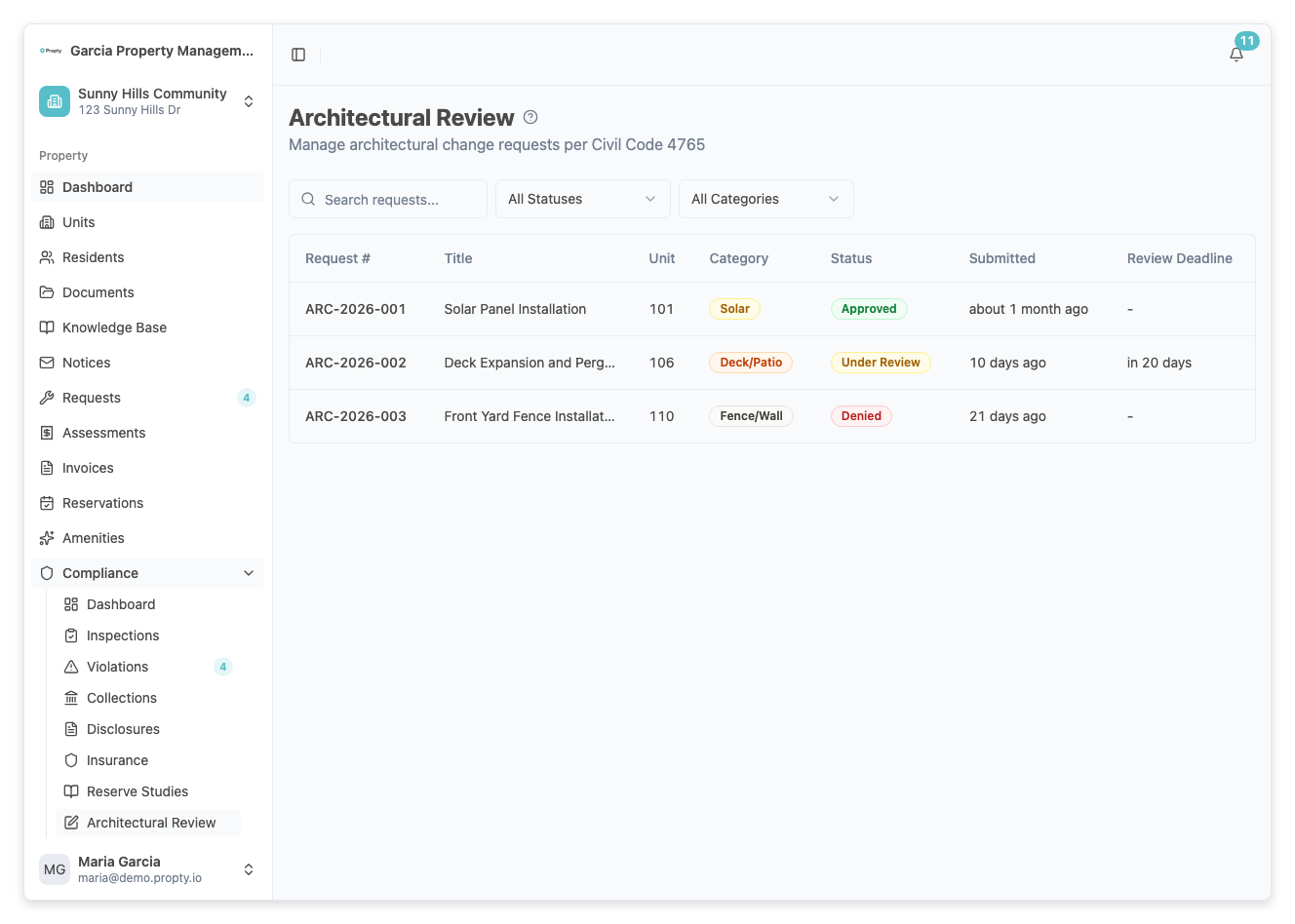
From the sidebar, click ARC under your property. You will see a table of all ARC requests:
| Column | Description |
|---|---|
| Request Number | Auto-generated number (e.g., ARC-001) |
| Title | Short description of the proposed change |
| Unit | The unit making the request |
| Category | Type of modification |
| Status | Current review stage |
| Submitted | When the request was submitted |
| Review Deadline | Deadline for the committee to respond |
ARC Categories
Requests fall into these categories:
- Exterior Modification — Changes to the outside of the unit
- Landscaping — Changes to yards, gardens, or plants
- Fencing — New fences or fence modifications
- Painting — Exterior paint color changes
- Solar Panels — Solar panel installations
- Other — Any other modification request
ARC Statuses
| Status | Meaning |
|---|---|
| Draft | Request created but not yet submitted |
| Submitted | Resident has submitted the request for review |
| Under Review | The committee is actively reviewing |
| Approved | The request has been approved |
| Approved with Conditions | Approved with specific conditions |
| Denied | The request has been denied |
Filtering Requests
Use the filter controls to narrow your view by:
- Search — Search by request number or title
- Status — Filter by review stage
- Category — Filter by modification type
Reviewing a Request
1. Open the request
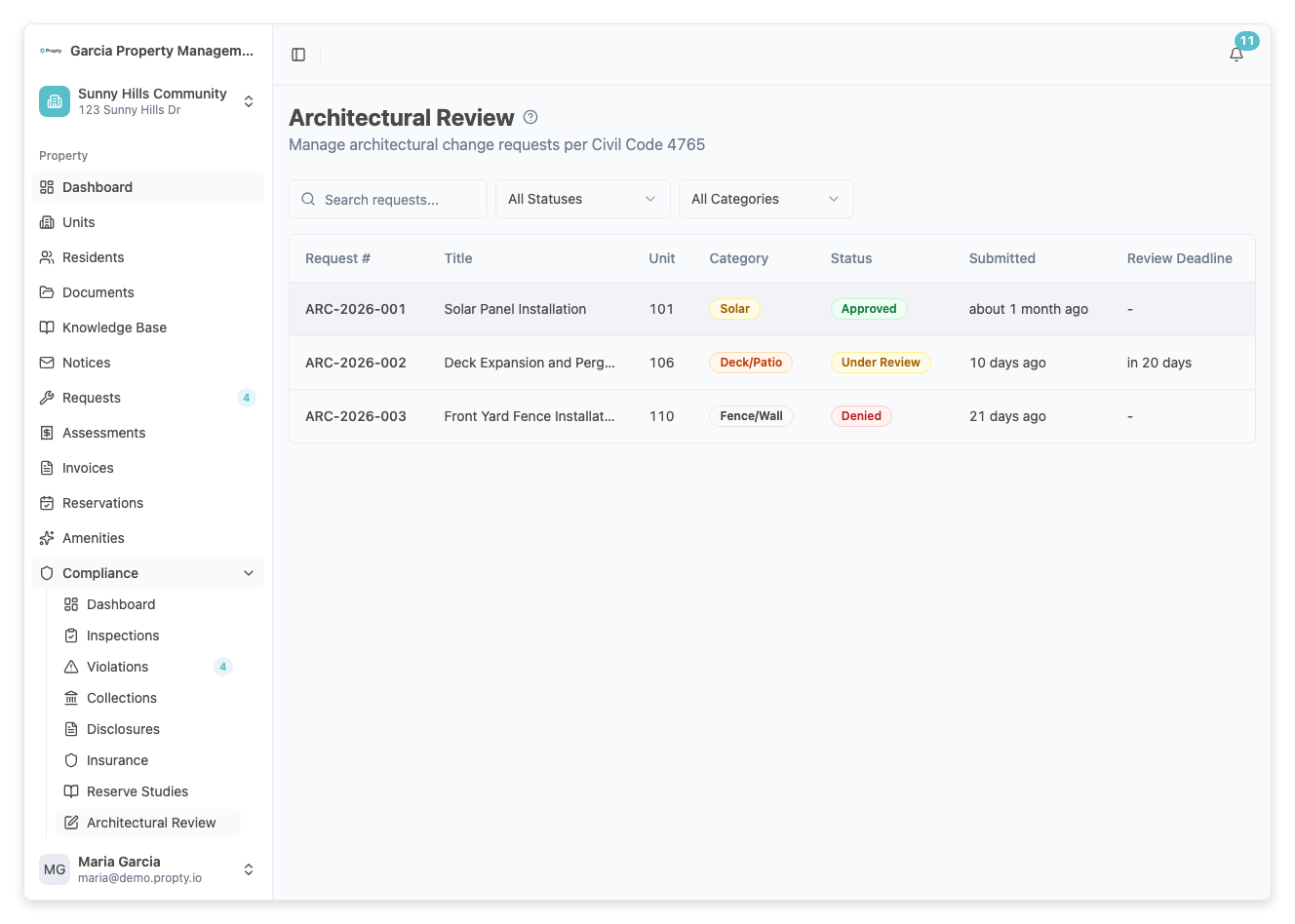
Click any row in the ARC table to open the request detail page.
The detail page shows:
- Header — Request number, title, and status badge
- Description — Full description of the proposed modification
- Documents — Any files the resident attached (plans, photos, etc.)
- Activity Timeline — Chronological log of all actions
- Sidebar details — Unit, category, submitter, estimated cost, proposed dates
2. Start the review
When a request is in Submitted status, click the Start Review button. This moves the request to Under Review and signals to the resident that their request is being considered.
3. Make a decision
When the request is Under Review, click Make Decision. A dialog will appear where you can:
- Choose the decision: Approved, Approved with Conditions, or Denied
- Enter a reason explaining the decision
- Add conditions (if approving with conditions)
Click Submit Decision to finalize. The resident will see the decision in their portal.
Managing Requests
Deleting a Draft
If a request is still in Draft status, you can delete it using the Delete button on the detail page. A confirmation dialog will appear.
Unread Indicators
New or updated requests appear with a blue highlight in the list. Opening the request automatically marks it as read.
Troubleshooting
I don't see any ARC requests
- Residents submit ARC requests through the portal. If no requests appear, no residents have submitted any yet.
- Make sure residents have portal access. See Resident Portal Access.
I can't make a decision on a request
- The request must be in Under Review status. Click Start Review first if the request is still in Submitted status.
A resident wants to modify their request
- The resident can submit a new request. There is no edit function for submitted requests — they would need to be denied and resubmitted.