Manage Disclosures
California law requires HOAs to distribute annual disclosures to all members. Propty tracks two required disclosure types — the Annual Budget Report (Civil Code 5300) and the Annual Policy Statement (Civil Code 5310) — and helps you prepare, generate, and distribute them on time.
- A property set up in Propty with residents assigned
- Your property's fiscal year information
- The disclosure content (budget figures, policy details, reserve study data)
Disclosure Types
| Type | Legal Basis | Contents |
|---|---|---|
| Annual Budget Report | Civil Code 5300 | Operating budget, reserve funding plan, assessment schedule, insurance summary |
| Annual Policy Statement | Civil Code 5310 | Fee and penalty policies, assessment collection procedures, dispute resolution, contact information |
Creating a Disclosure
1. Go to the Compliance dashboard
From your property dashboard, click Compliance in the left sidebar.
2. Click the Disclosures card
Click the Disclosures summary card. You will see a list of disclosures organized by fiscal year.
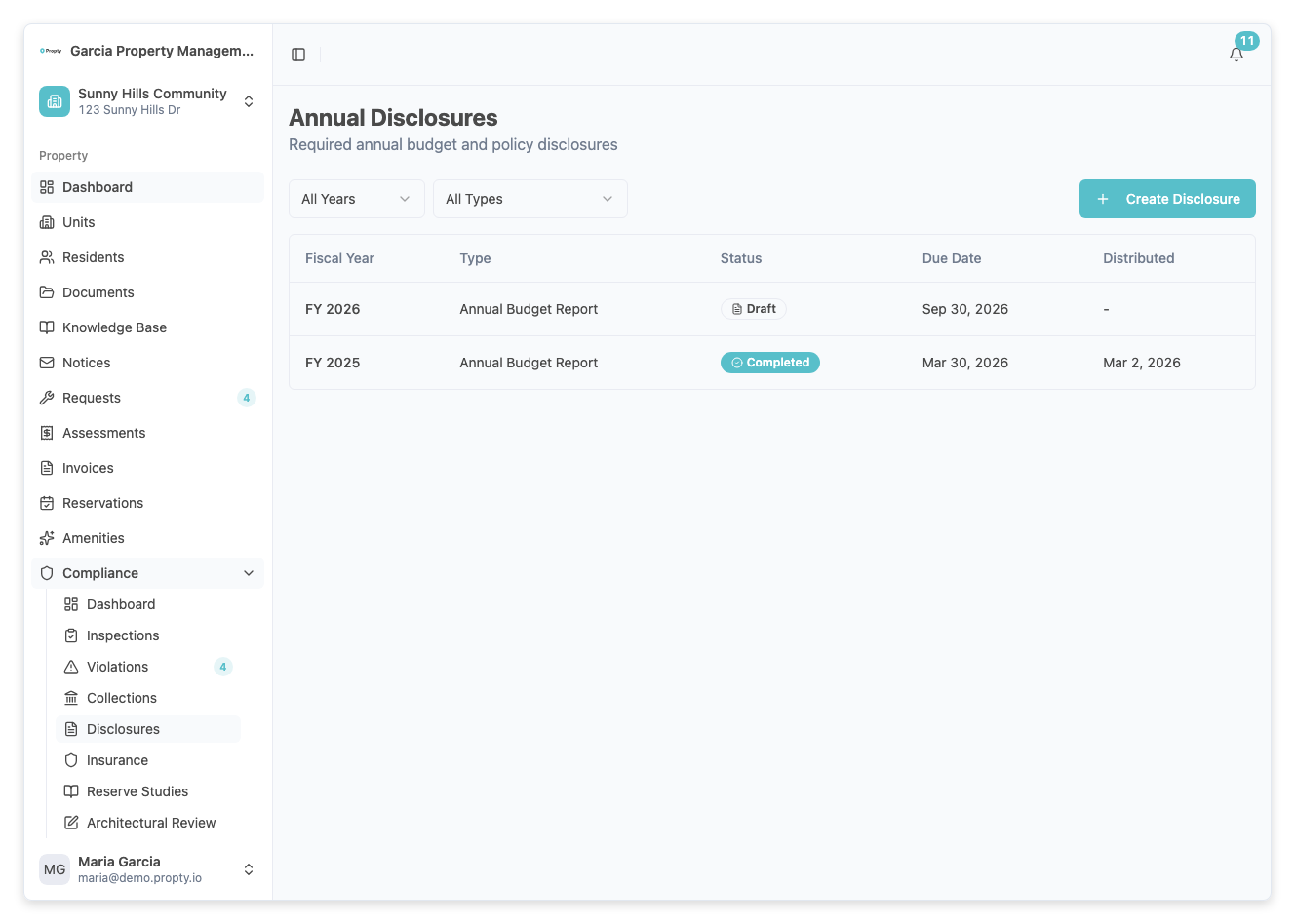
3. Click "Create Disclosure"
Click the Create Disclosure button. You will need to provide:
- Fiscal Year (required) — The fiscal year this disclosure covers (for example, 2026).
- Disclosure Type (required) — Select either Annual Budget Report or Annual Policy Statement.
- Due Date (required) — The deadline for distributing this disclosure. Typically 30 to 90 days before the end of the fiscal year.
4. Fill in the disclosure content
The form presents structured content sections based on the disclosure type. Fill in each required section with the relevant information for your property.
5. Save as draft
Click Save Draft. The disclosure is saved with a Draft status so you can review and edit it before distribution.
Reviewing and Distributing a Disclosure
1. Open the disclosure
From the disclosures list, click the disclosure you want to review.
2. Review the content
Check all sections for accuracy. You can edit any section by clicking on it.
3. Generate PDF
When the content is ready, click Generate PDF. Propty creates a formatted PDF document of the disclosure.
4. Mark as ready
Click Mark as Ready to indicate the disclosure is reviewed and approved for distribution.
5. Distribute to residents
Click Distribute. Propty creates a notice with the disclosure PDF attached and sends it to all residents. The disclosure status changes to Distributing and then Completed once sent.
Understanding Disclosure Statuses
| Status | Meaning |
|---|---|
| Draft | Content is being prepared; not yet reviewed |
| Ready | Content is reviewed and PDF generated; waiting for distribution |
| Distributing | Notice is being sent to residents |
| Completed | Distribution is finished |
Dashboard Indicators
The Disclosures summary card on the compliance dashboard shows:
| Indicator | Meaning |
|---|---|
| All Complete | No disclosures are pending or overdue |
| Due in N days | The next disclosure is due in N days |
| Overdue | A disclosure has passed its due date without being distributed |
Troubleshooting
The disclosure due date has passed
- You can still distribute the disclosure after the due date, but the compliance dashboard will show it as overdue until completed. Distribute the disclosure as soon as possible.
I need to update a disclosure that has already been distributed
- Distributed disclosures cannot be edited. Create a new disclosure for the same fiscal year and type, then distribute the correction as a supplemental notice.
I don't see the option to generate a PDF
- Make sure all required content sections are filled in. The Generate PDF button only appears when the disclosure content is complete.
How often do I need to create disclosures?
- Annual Budget Reports and Annual Policy Statements are each required once per fiscal year. Propty prevents duplicate disclosures for the same type and fiscal year.