Track Insurance Requirements
Propty helps you define insurance requirements for your property and track whether residents have submitted valid certificates of insurance. You can monitor compliance rates, identify expired policies, and request updated certificates — all from the compliance dashboard.
- A property set up in Propty with units and residents
- Knowledge of your property's insurance requirements (coverage types, minimum amounts)
Setting Up Insurance Requirements
1. Go to the Compliance dashboard
From your property dashboard, click Compliance in the left sidebar.
2. Click the Insurance card
Click the Insurance summary card to open the insurance tracking page.
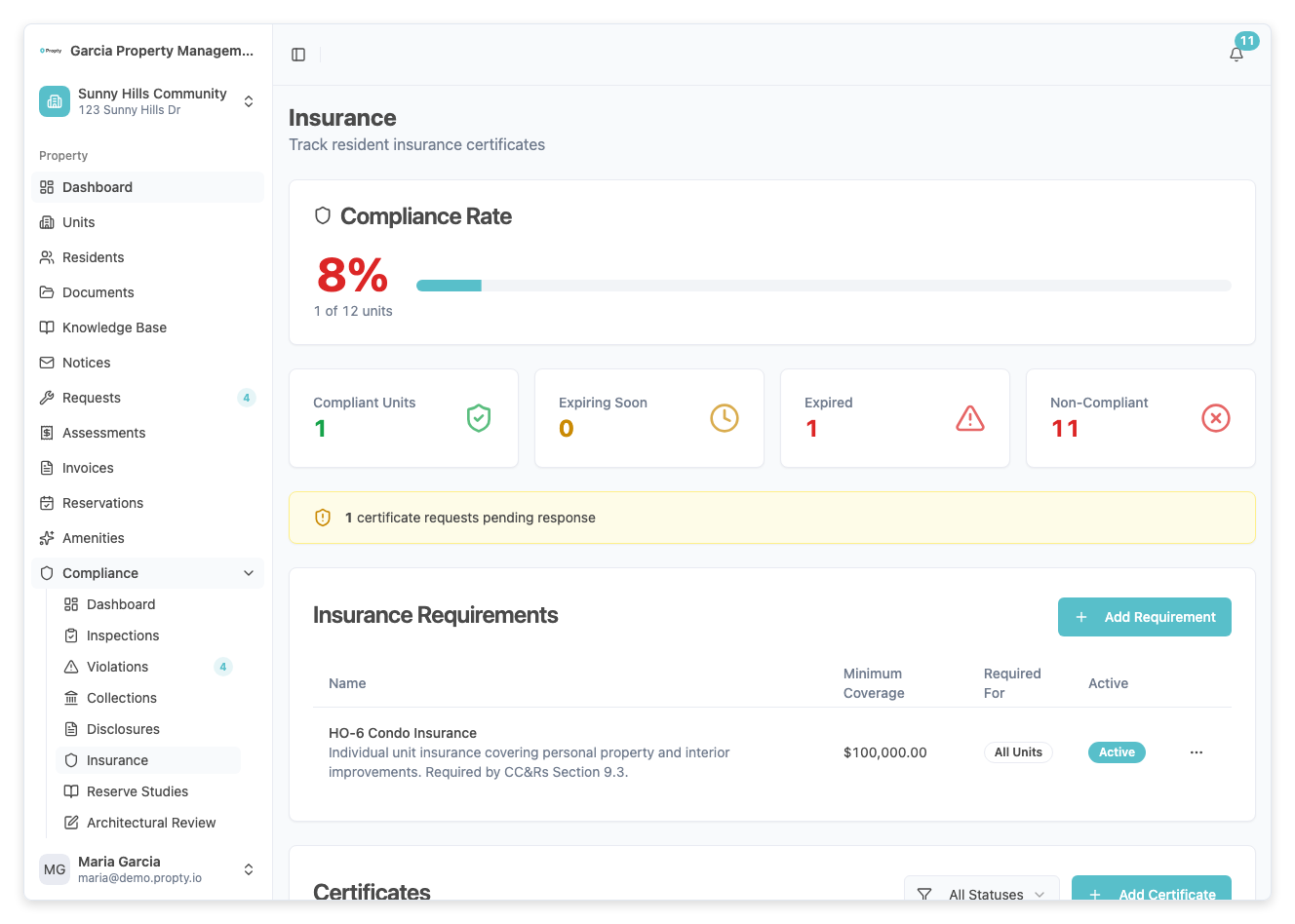
3. Click "Add Requirement"
Click the Add Requirement button. A form will appear with the following fields:
- Name (required) — A descriptive name for the requirement (for example, "Renter's Liability Insurance" or "HO6 Condo Insurance").
- Description (optional) — Additional details about what the policy must cover.
- Minimum Coverage (optional) — The minimum coverage amount required (in dollars).
- Required For (required) — Who this requirement applies to:
- All Units — Every unit in the property
- Rental Units — Only units with tenants
- Commercial Units — Only commercial units
4. Save the requirement
Click Save. The requirement is now active, and Propty will begin tracking compliance for the applicable units.
Recording an Insurance Certificate
1. Open the insurance requirement
From the insurance tracking page, click on the requirement you want to record a certificate for.
2. Click "Add Certificate"
Click Add Certificate. You will need to provide:
- Unit (required) — The unit this certificate covers.
- Resident (required) — The resident providing the certificate.
- Insurer Name (required) — The insurance company name.
- Policy Number (required) — The policy number.
- Coverage Amount (required) — The dollar amount of coverage.
- Effective Date (required) — When the policy takes effect.
- Expiration Date (required) — When the policy expires.
- Certificate PDF (optional) — Upload the certificate document.
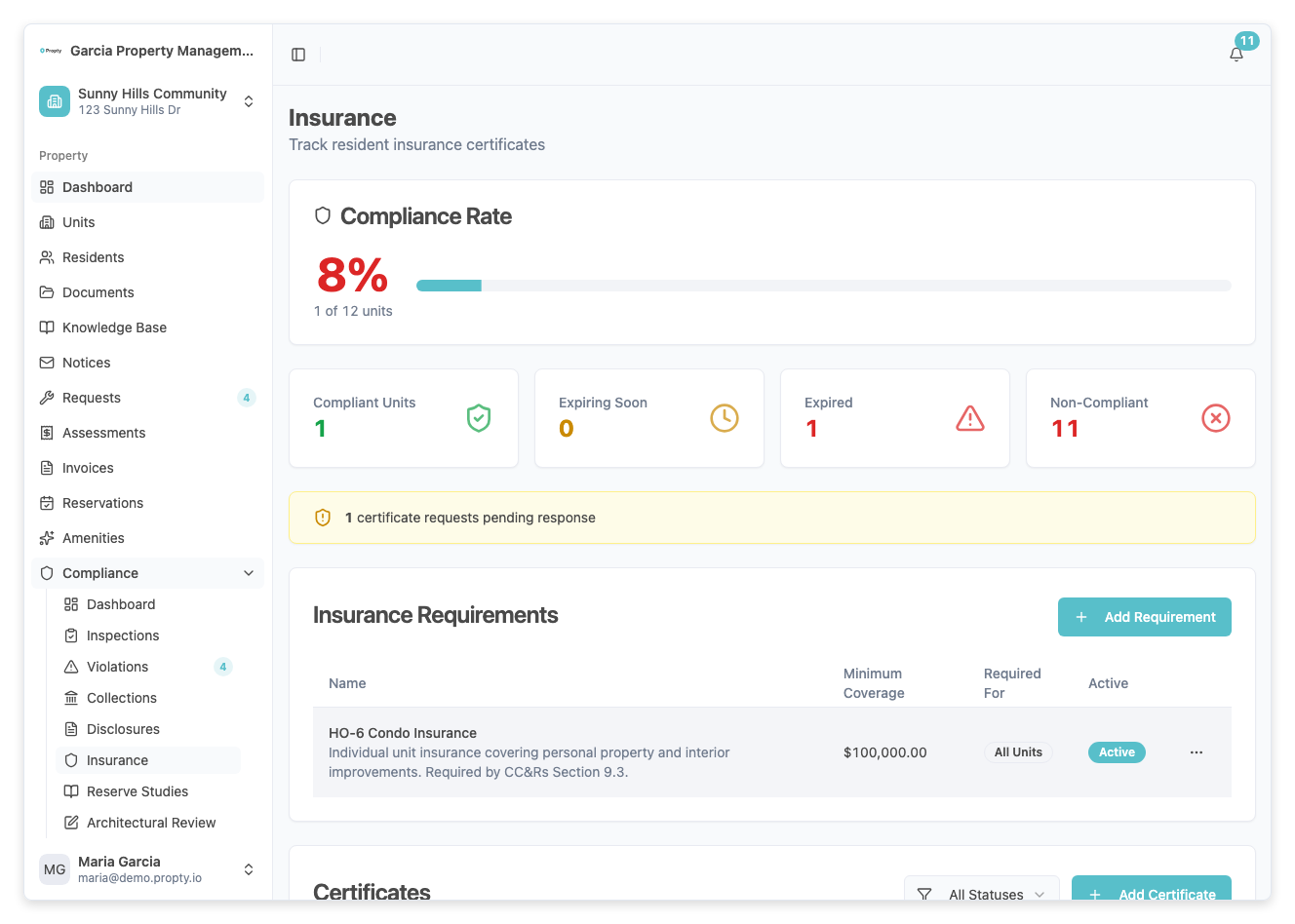
3. Save the certificate
Click Save. The certificate status starts as Received and can be updated as you review it.
Certificate Statuses
| Status | Meaning |
|---|---|
| Requested | A certificate has been requested from the resident but not yet received |
| Received | The certificate has been uploaded and is awaiting review |
| Approved | The certificate meets the requirement and is on file |
| Expired | The policy expiration date has passed |
| Non-Compliant | The certificate does not meet the minimum coverage or other requirements |
Dashboard Indicators
The Insurance summary card on the compliance dashboard shows:
| Indicator | Meaning |
|---|---|
| Compliant (N%) | N% of applicable units have valid, approved certificates |
| Needs Attention (N) | N certificates are expired or expiring within 30 days |
| No Data | No insurance requirements have been set up yet |
Troubleshooting
A certificate shows as "Expired" but the resident renewed their policy
- The resident or manager needs to upload a new certificate with the updated policy dates. Expired certificates are not automatically renewed.
The compliance percentage seems wrong
- The percentage is calculated as: approved certificates divided by total applicable units. If a unit has no certificate at all, it counts as non-compliant.
I need to change which units a requirement applies to
- Edit the requirement and change the Required For setting. This recalculates compliance for all units.
How do I request certificates from residents?
- From the insurance requirement detail page, use the Request Certificate action for individual units. This sends an email notification to the resident asking them to submit their certificate of insurance.