Manage Violation Lifecycle
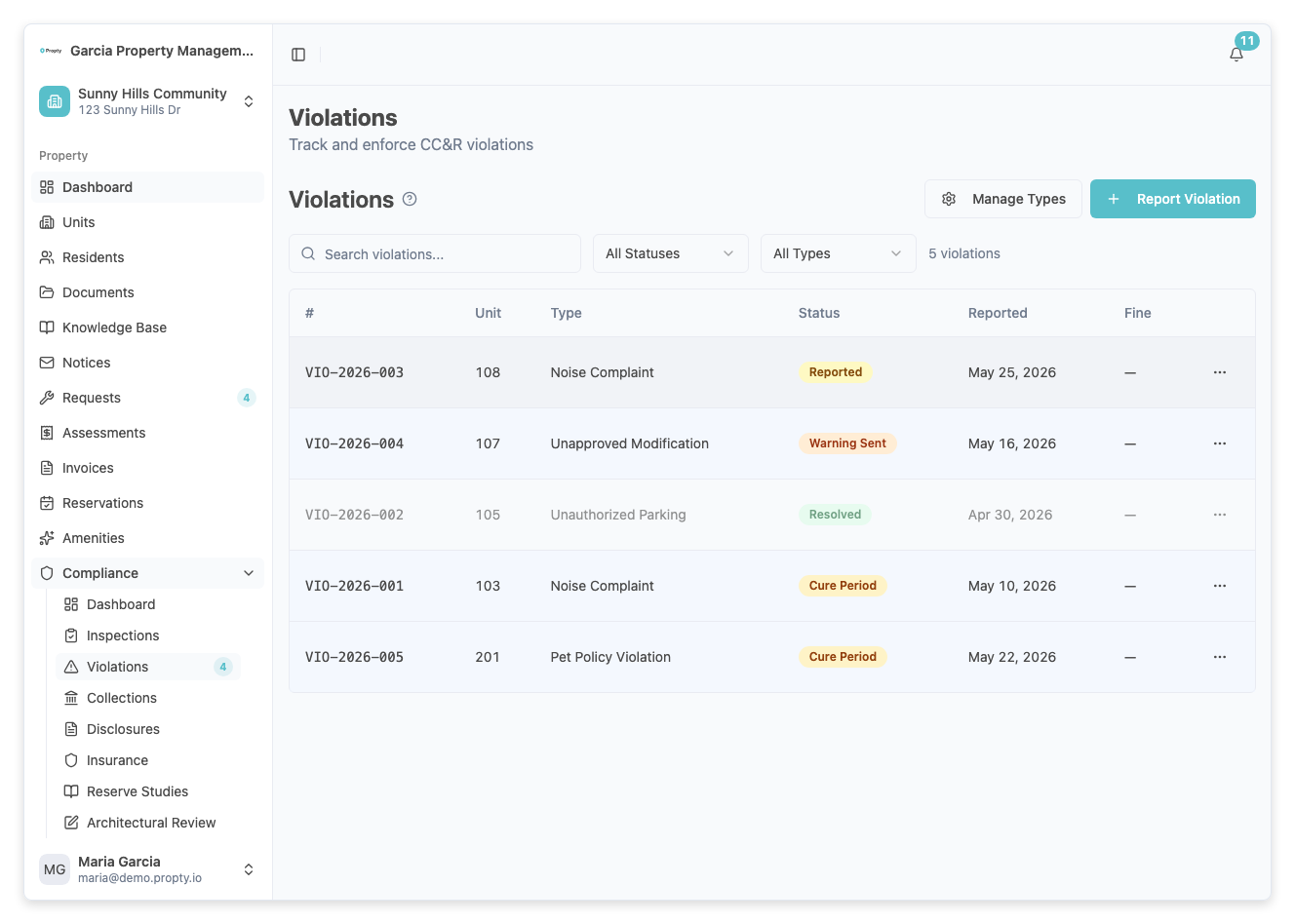
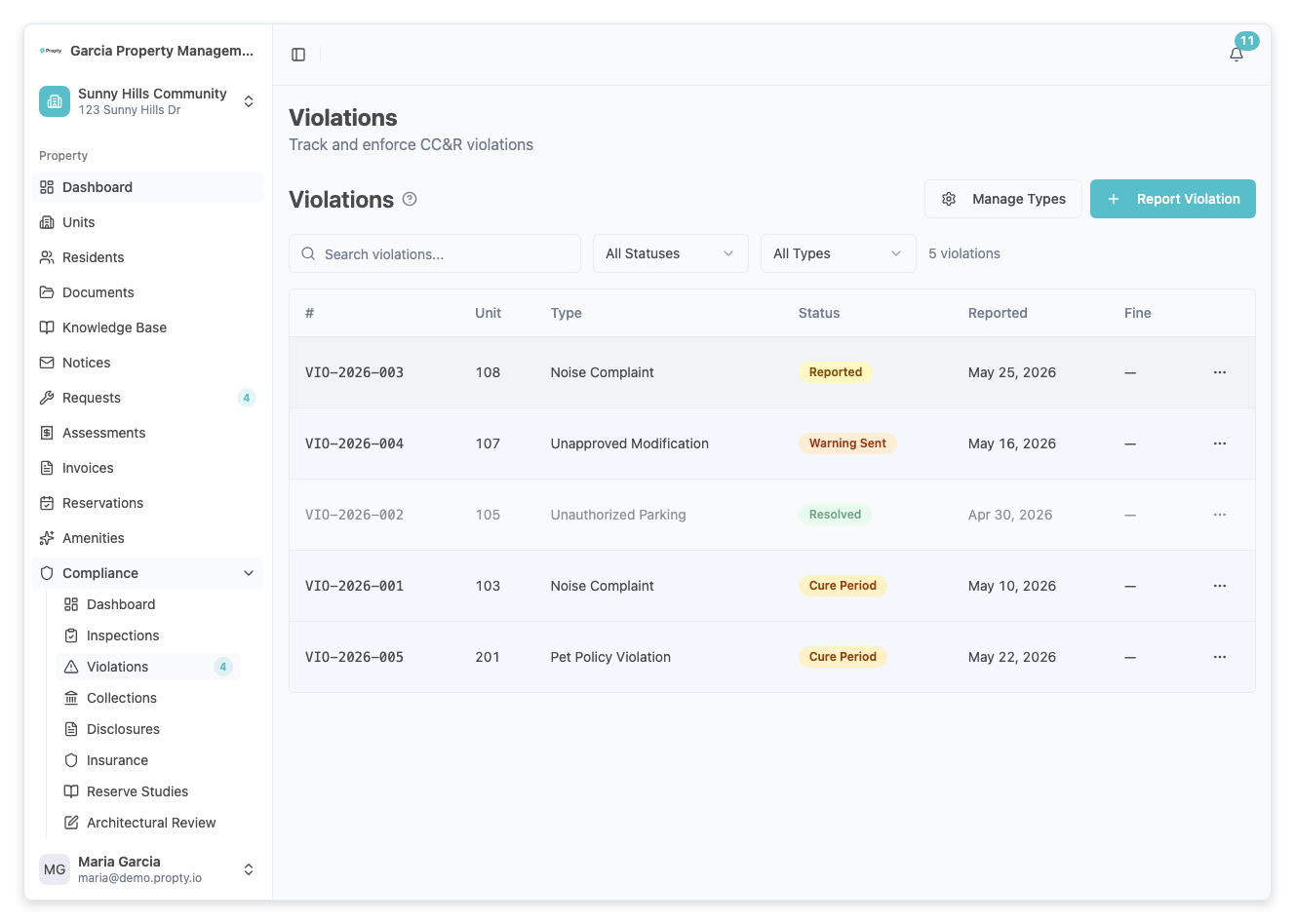
After recording a violation, you move it through the enforcement lifecycle by taking actions on the violation detail page. Each action advances the violation to the next status.
- An existing violation (see Record a Violation)
The Enforcement Flow
The typical progression is:
Reported → Cure Period → Warning Sent → IDR Offered → First Fine Sent → Hearing Scheduled → Resolved
At any point you can also Resolve (issue fixed) or Dismiss (invalid report) to close the violation.
Step-by-Step Actions
1. Start Cure Period
Available when: Status is Reported
Click Start Cure Period on the violation detail page. Set a deadline by which the resident must fix the issue. The violation moves to Cure Period status.
The cure period deadline is displayed on the violation detail page. If the resident fixes the issue before the deadline, you can mark it as cured.
2. Mark as Cured (optional)
Available when: Status is Cure Period
If the resident resolves the issue during the cure period, click Mark Cured. This records the date the issue was fixed. You can then Resolve the violation.
3. Send Warning
Available when: Status is Cure Period and the cure period has expired
If the cure period expires without resolution, click Send Warning to issue a formal warning notice to the resident. The violation moves to Warning Sent status.
4. Offer IDR (Internal Dispute Resolution)
Available when: Status is Reported, Cure Period, Warning Sent, or First Fine Sent (if IDR has not already been offered)
Click Offer IDR to formally offer the resident a chance to resolve the dispute before escalation.
IDR must be offered before a fine can be sent. If you are at Warning Sent status and try to proceed, you will see a reminder that IDR is required first.
5. Send Fine
Available when: Status is Warning Sent and IDR has been offered
Click Send Fine to issue a monetary fine. Enter the fine amount. The violation moves to First Fine Sent status.
6. Schedule Hearing
Available when: Status is First Fine Sent
Click Schedule Hearing to set a formal hearing date. The violation moves to Hearing Scheduled status.
If the violation type has Requires Hearing enabled, a warning banner reminds you that a hearing is required as part of the enforcement process.
7. Record Decision
Available when: Status is Hearing Scheduled
After the hearing, click Record Decision to document the outcome and any notes from the hearing.
8. Resolve or Dismiss
Available at any time (before the violation is closed)
- Resolve — The issue has been fixed. Enter optional notes about the resolution.
- Dismiss — The violation was invalid or no longer applies. Enter a reason for dismissal.
Tracking Progress
The violation detail page shows a timeline of all actions taken, in chronological order. Each entry shows the action, who performed it, and when.
Troubleshooting
I can't find the "Send Warning" button
The warning option only appears after the cure period deadline has passed. Check the cure period end date on the violation detail page.
I can't send a fine
You must offer IDR before sending a fine. Click Offer IDR first, then the fine option will become available.
I want to skip steps in the workflow
The enforcement lifecycle is designed to follow legal best practices. Each step must be completed in order. However, you can always Resolve or Dismiss at any point to close the violation early.
The violation shows "Requires Hearing" warning
This means the violation type was configured to require a formal hearing. Make sure to schedule and complete a hearing as part of the enforcement process.