Schedule a Notice
Instead of sending a notice immediately, you can schedule it to be sent at a specific date and time. This is useful for sending notices during business hours, coordinating with events, or preparing communications in advance.
- A Propty account with Property Manager or Property Admin access
- A notice ready to send (recipients selected, content composed)
Scheduling a new notice
1. Complete the notice wizard
Follow the steps in Send a Notice through to the Review step (Step 3 of 3).
2. Click "Schedule"
On the review step, instead of clicking Send Now, click the Schedule button. A calendar popover will appear.
3. Select the date
Use the calendar picker to choose the date you want the notice sent. You can select any date from today up to one year in the future.
4. Select the time
Use the Time dropdown to choose the send time. Times are available in 15-minute increments (e.g., 9:00 AM, 9:15 AM, 9:30 AM).
The time zone is displayed next to the time selector and matches your property's configured timezone.
5. Confirm the schedule
Review the summary showing when the notice will be sent. Click Schedule to confirm.
The scheduled time must be at least 1 hour in the future. If you select a time too close to the current time, you will see an error message.
The notice will be saved and a banner on the notice detail page will show the scheduled send date and time.
Managing a scheduled notice
View the scheduled notice
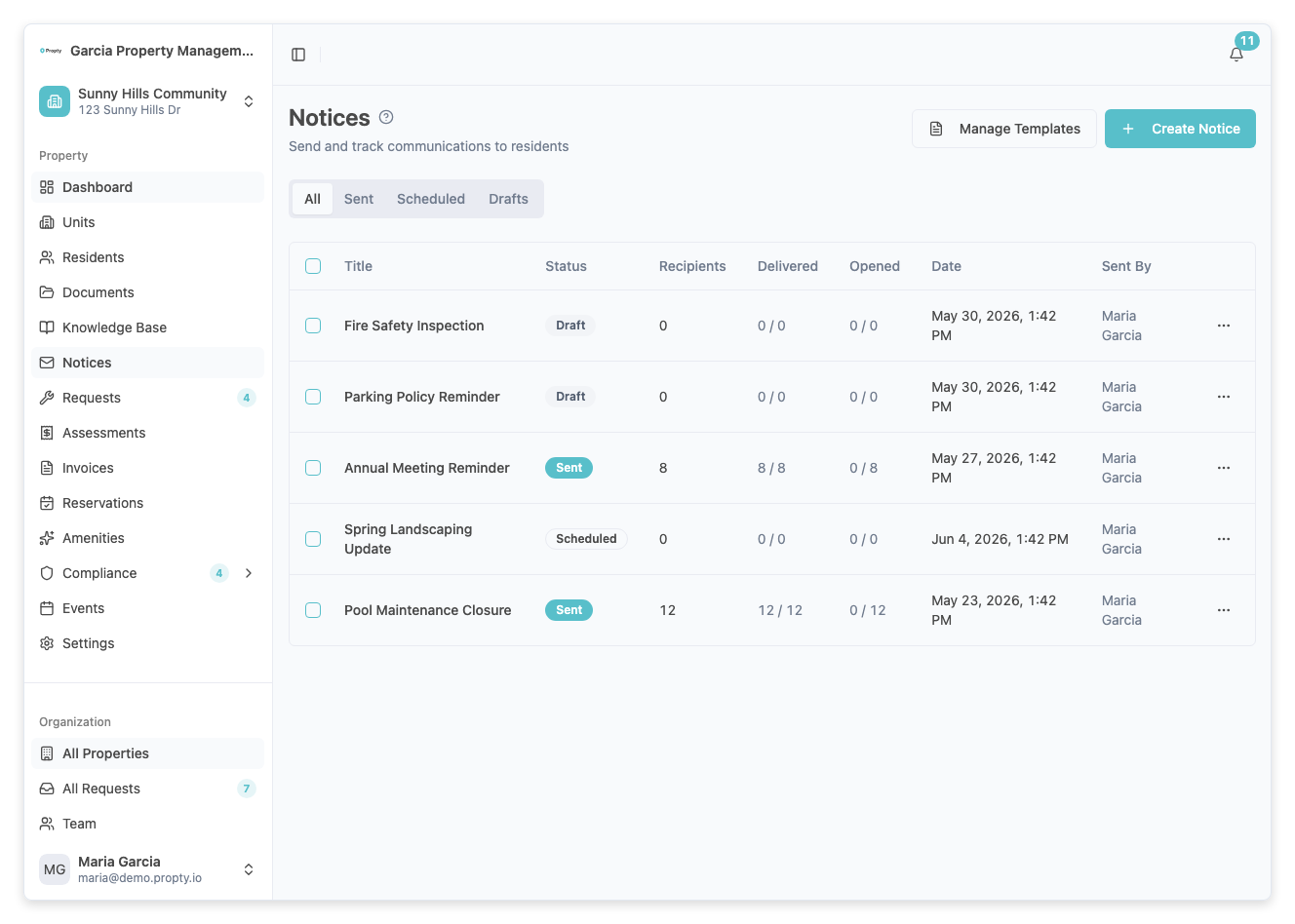
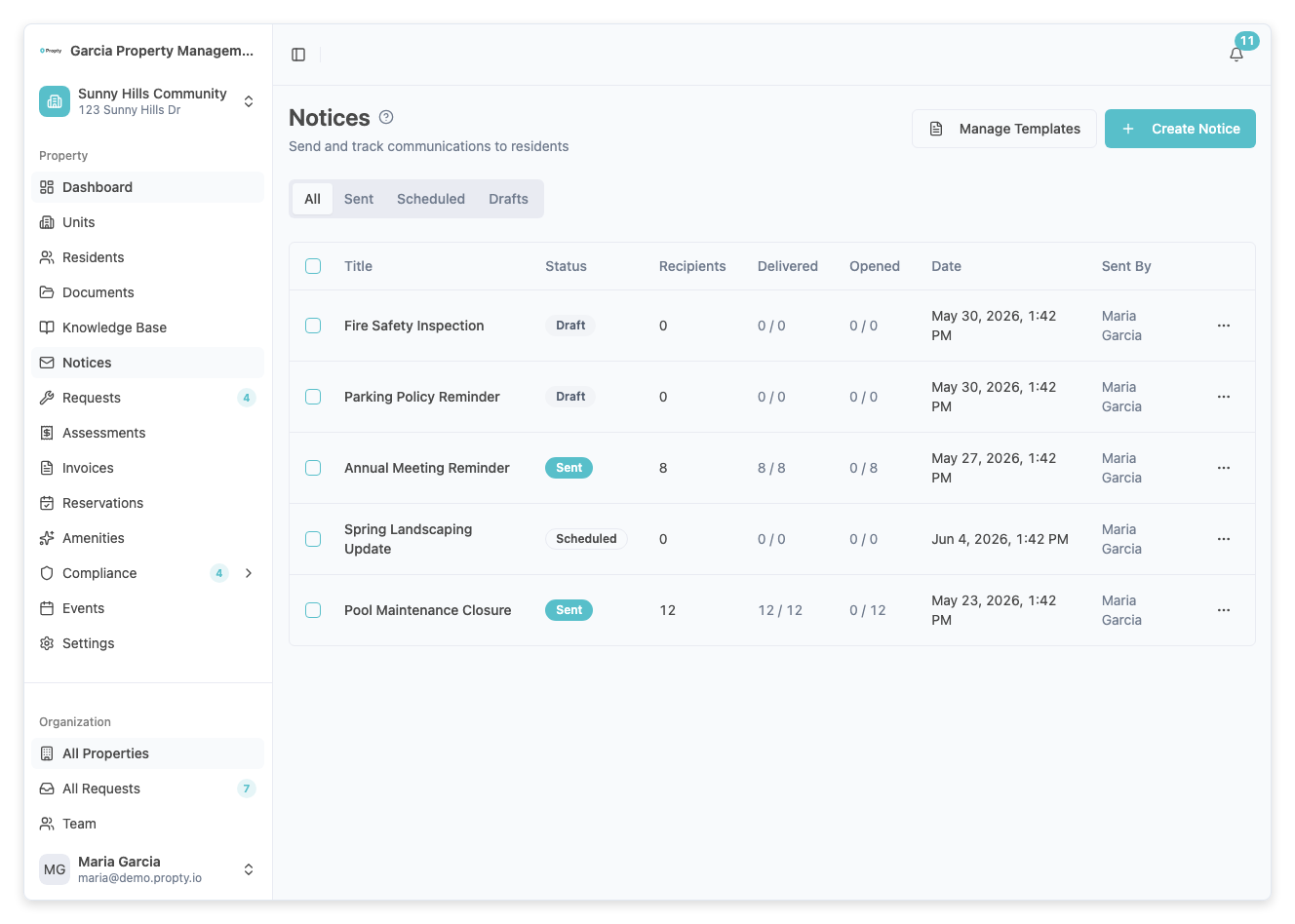
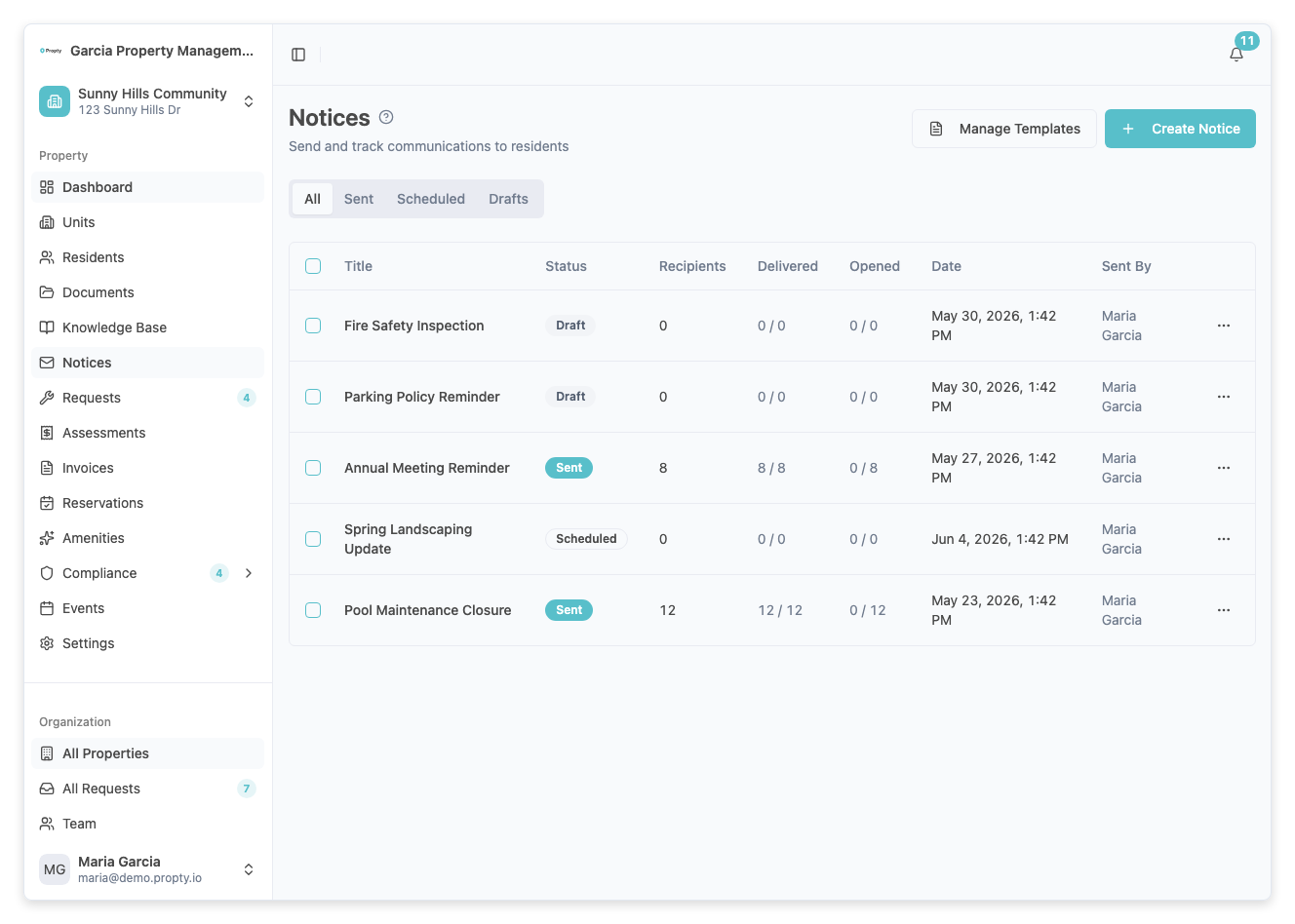
Scheduled notices appear in the notices list with a Scheduled status badge. Click on a scheduled notice to view its detail page.
A blue banner at the top shows the exact date and time the notice will be sent.
Edit a scheduled notice
Click Edit on the notice detail page to modify the recipients, content, or attachments. The schedule time is preserved.
Send immediately
If you no longer want to wait, click Send Now on the notice detail page to send the notice right away.
Cancel the schedule
Click Cancel Schedule on the notice detail page to stop the notice from being sent. A confirmation dialog will appear showing the notice title and scheduled time. Confirming moves the notice back to Draft status so you can reschedule or delete it.
Troubleshooting
I see "Must be at least 1 hour in the future"
- Select a time that is more than 1 hour from now. If you need to send the notice sooner, use the Send Now option instead.
The time zone seems wrong
- The scheduler uses your property's configured timezone. Verify the timezone in your property settings.
I scheduled a notice but it hasn't been sent
- Check the notice detail page to confirm the scheduled time. The notice is sent automatically at the scheduled time — it does not require you to be logged in.
- If the scheduled time has passed and the notice still shows as Scheduled, there may be a processing delay. Wait a few minutes and refresh the page.