Create Notice Templates
Notice templates let you save pre-written notice content for common communications like maintenance schedules, emergency alerts, or financial reminders. When creating a new notice, you can choose a template to pre-fill the content instead of writing from scratch.
- A Propty account with Property Manager or Property Admin access
Steps
1. Go to Notice Templates
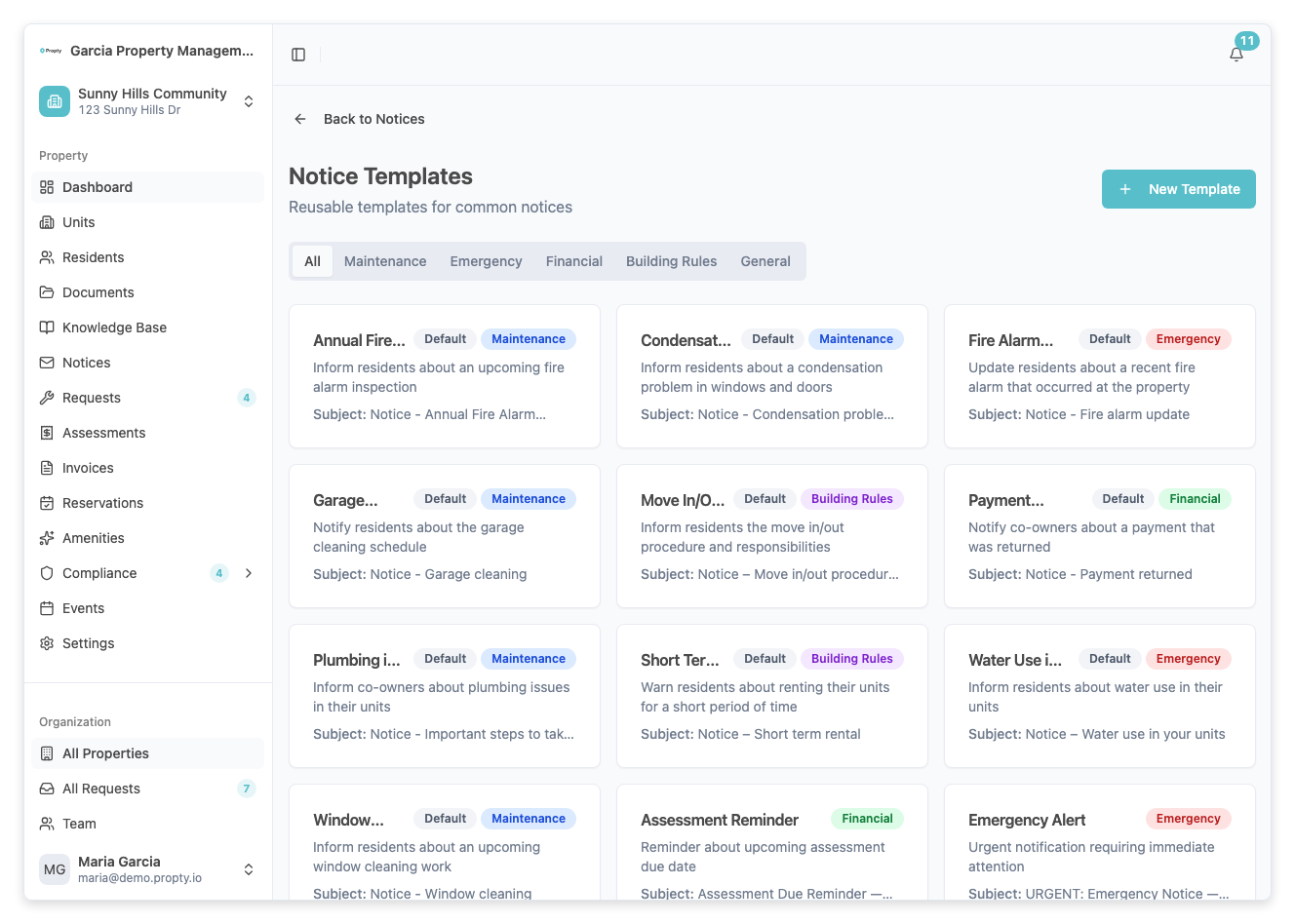
From the Notices page, click Templates to open the template management page. You can also navigate directly from the sidebar.
2. Browse existing templates
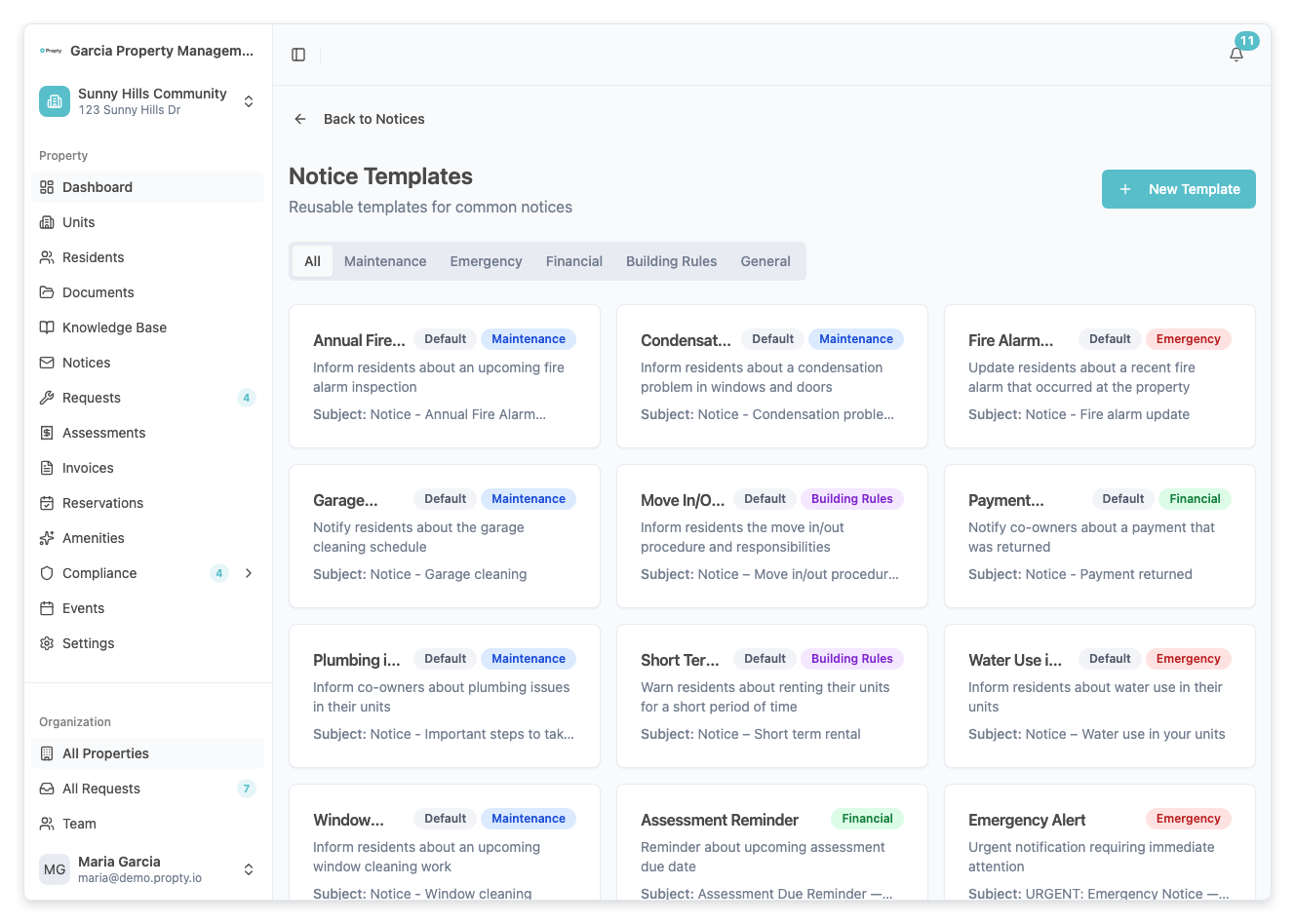
Templates are displayed in a grid of cards. Each card shows the template name, description, subject line, and category. Use the category tabs at the top to filter:
- All — show all templates
- Maintenance — building repair and maintenance notices
- Emergency — urgent safety and emergency notifications
- Financial — payment reminders, assessment notices
- Building Rules — policy updates and rule reminders
- General — everything else
3. Create a new template
Click New Template in the top-right corner. The template editor page will open.
4. Fill in the template details
Complete the following fields:
- Name (required) — an internal name for the template (e.g., "Monthly maintenance reminder"). This is only visible to staff.
- Category — select the category that best fits the template content
- Description (optional) — a brief note about when to use this template
- Subject (required) — the email subject line that will be pre-filled when using this template
- Content (required) — the email body. Use the rich text editor to format your content with:
- Bold, italic, and underline formatting
- Bullet and numbered lists
- Links
- Personalization tokens (
{{firstName}},{{lastName}},{{unitNumber}})
5. Save the template
Click Create Template to save. You will be redirected back to the templates list.
Editing a template
Click on any template card to open the editor. Make your changes and click Save Changes.
Deleting a template
On the template editor page, click the Delete button in the top-right. Confirm the deletion in the dialog. Deleting a template does not affect any notices that were already created using it.
Using a template when creating a notice
When you create a new notice, the first step offers two options:
- Start from scratch — begin with a blank notice
- Use a template — select a template to pre-fill the subject and content
Choosing a template loads its subject and body into the notice wizard. You can then edit the content before sending.
Troubleshooting
My template isn't showing in the template picker
- Make sure the template was saved successfully. Go to Templates and verify it appears in the list.
- The template picker shows all templates regardless of category.
Can I share templates across properties?
- Templates are currently per-property. You need to create templates separately for each property.
The rich text formatting looks different in the email
- The notice email uses a simplified HTML format. Complex formatting may be adjusted slightly for email compatibility. Preview your notice in the review step before sending.