Resend a Notice
If a notice failed to deliver to some recipients, you can resend it without creating a new notice. The resend feature retries delivery only to recipients with failed channels.
- A Propty account with Property Manager or Property Admin access
- A notice with Sent or Partially Failed status that has at least one failed recipient
Steps
1. Open the notice
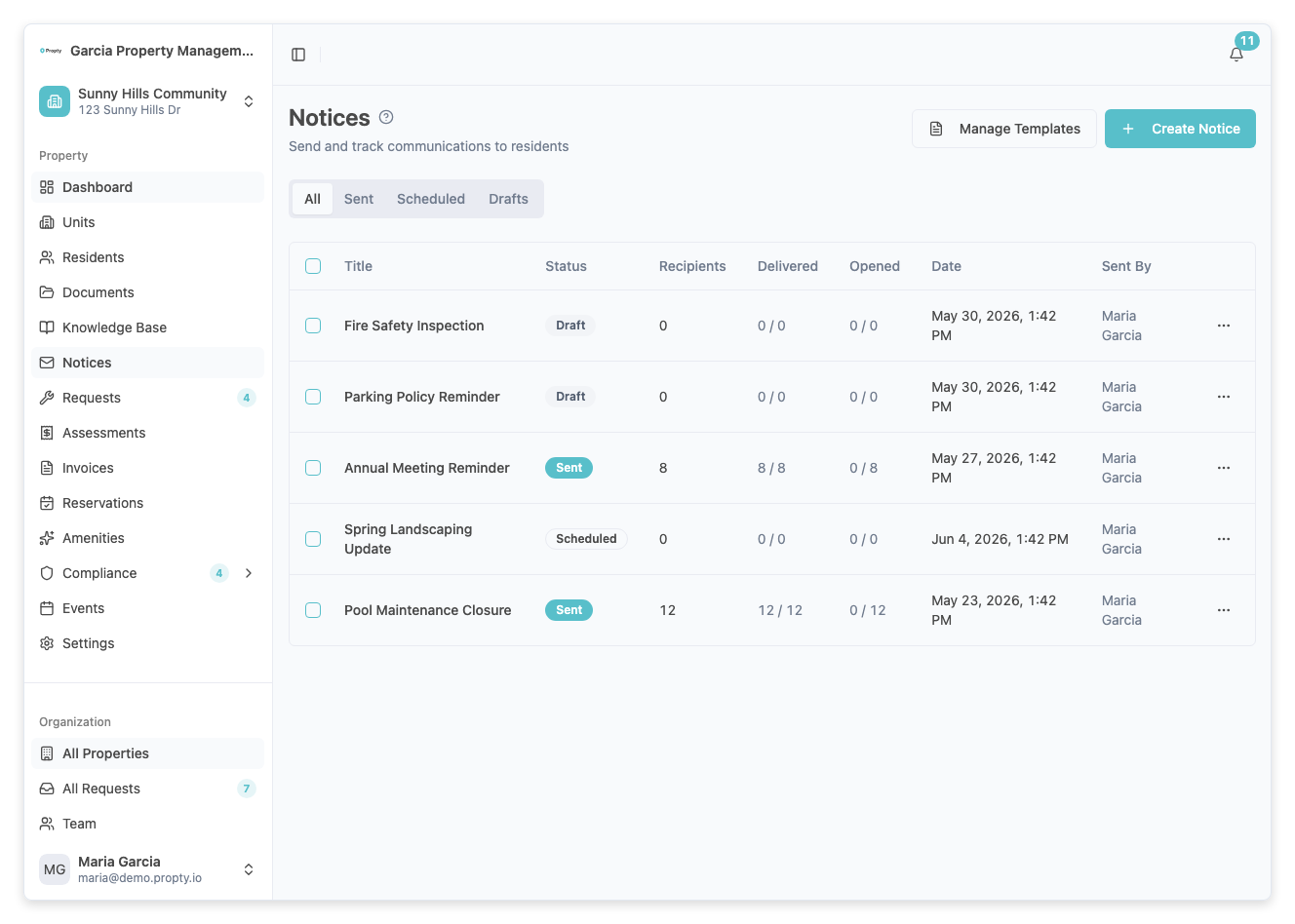
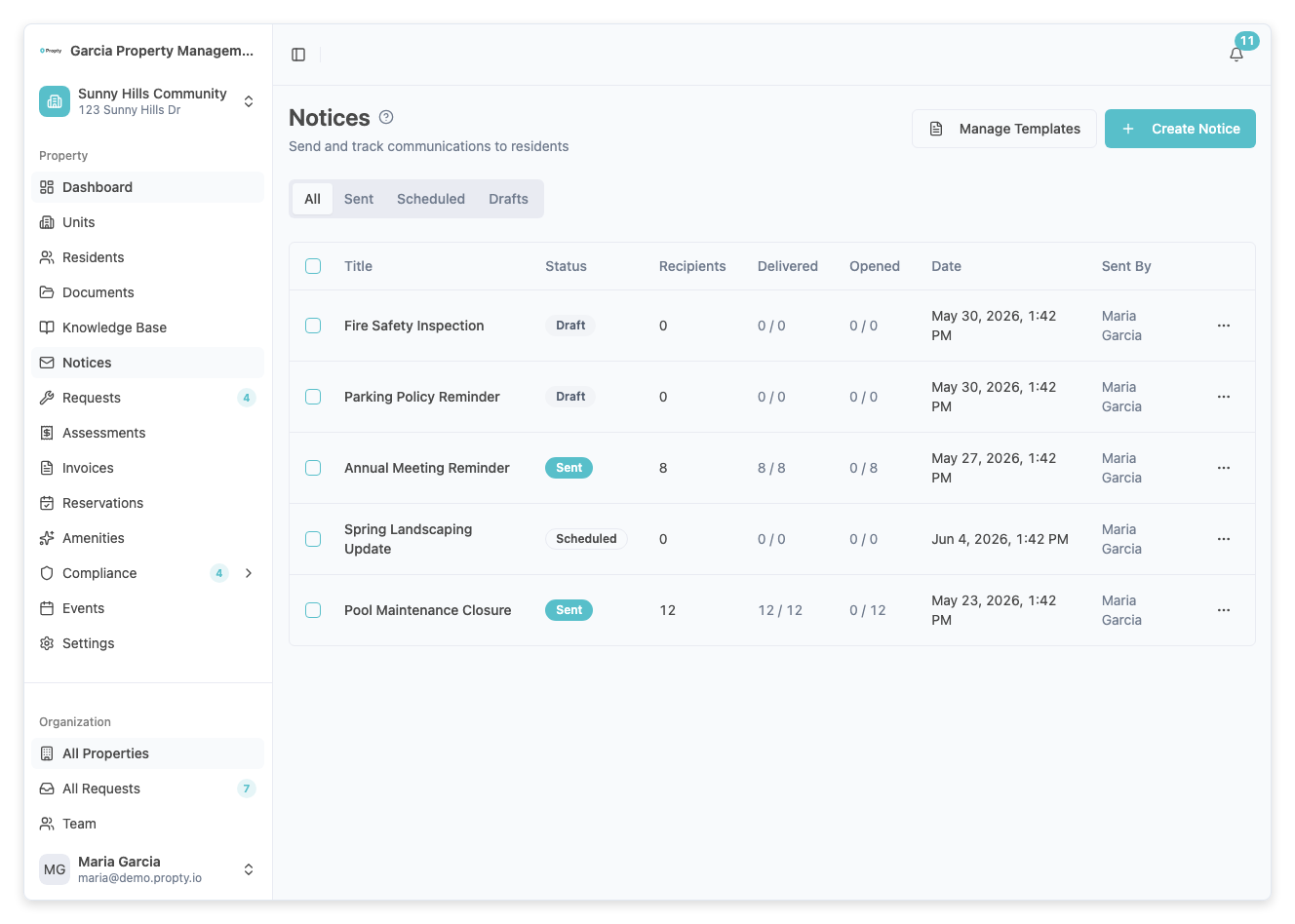
From the Notices page, click on the notice you want to resend. Look for notices with a Partially Failed status or check the delivery stats for failed counts.
2. Click "Resend Failed"
If the notice has failed deliveries, a Resend Failed button appears in the top-right corner of the notice detail page.
3. Choose the resend scope
The resend dialog offers three options:
| Option | Description |
|---|---|
| Failed only | Resend to all recipients whose email or SMS failed (recommended) |
| All non-delivered | Resend to all recipients who did not receive the notice on any channel |
| Selected recipients | Resend to specific recipients you have selected in the recipients table |
The number of recipients for each option is shown next to the label.
4. Click "Resend"
Click Resend to retry delivery. A success message will confirm how many emails and/or SMS messages are being resent.
5. Monitor delivery
After resending, the delivery statistics and recipients table will update as the resent messages are processed.
Resending to selected recipients
To resend to specific recipients:
- In the Recipients table, check the boxes next to the recipients you want to resend to
- Click Resend Failed to open the resend dialog
- Select Selected recipients — the count of selected recipients with failed channels will be shown
- Click Resend
Resend history
Below the recipients table, a Resend History section shows all previous resend attempts, including:
- When the resend was performed
- How many recipients were included
- Whether it was a full or partial resend
Troubleshooting
The "Resend Failed" button is not showing
- The button only appears for notices with Sent or Partially Failed status that have at least one failed recipient.
- Draft and scheduled notices cannot be resent — they have not been sent yet.
"No failed recipients" error
- All recipients may have received the notice on a subsequent attempt. Check the recipients table for current delivery statuses.
A recipient keeps failing
- The recipient may have an invalid or inactive email address. Check their profile and update the email if needed.
- Some email providers may block messages. Ask the resident to check their spam folder.
The "Selected recipients" option is disabled
- You need to select at least one recipient in the recipients table using the checkboxes before this option becomes available.