Making Payments
Propty gives you several ways to pay your assessments and other invoices online. You can make a one-time payment, set up autopay for hands-free billing, and review your full payment history — all from the resident portal.
Payment Methods
You can pay using any of the following methods:
| Method | Service Fee | Processing Time |
|---|---|---|
| Credit or debit card | 3.5% + $0.50 | Instant |
| Bank transfer (ACH) | 1% (max $5.95) | 3–5 business days |
For a $500 quarterly assessment, a bank transfer costs $5.00 in service fees versus $18.00 with a credit card. If you're paying regularly, bank transfer adds up to meaningful savings over the year.
Pay an Invoice
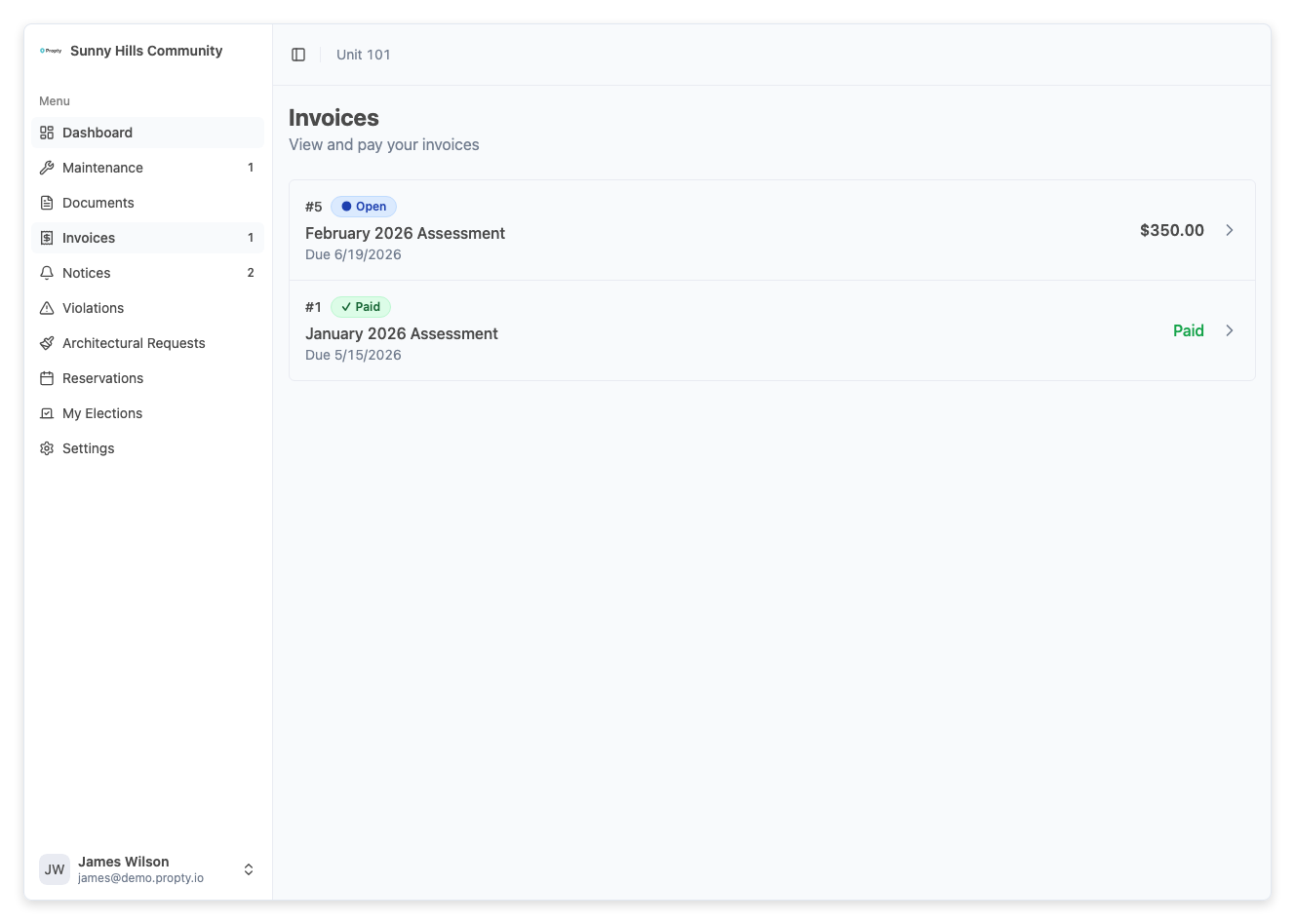
1. Go to your invoices
Log in to the portal at app.propty.io and click Invoices in the sidebar. Click the invoice you want to pay.
2. Click "Pay Now"
Click the Pay Now button on the invoice detail page. A payment panel will slide open.
3. Choose your payment method
Select Card or Bank transfer, enter your payment details, review the fee breakdown, and click Pay Now to submit.
You will see a confirmation screen when the payment succeeds. A receipt is sent to your email automatically.
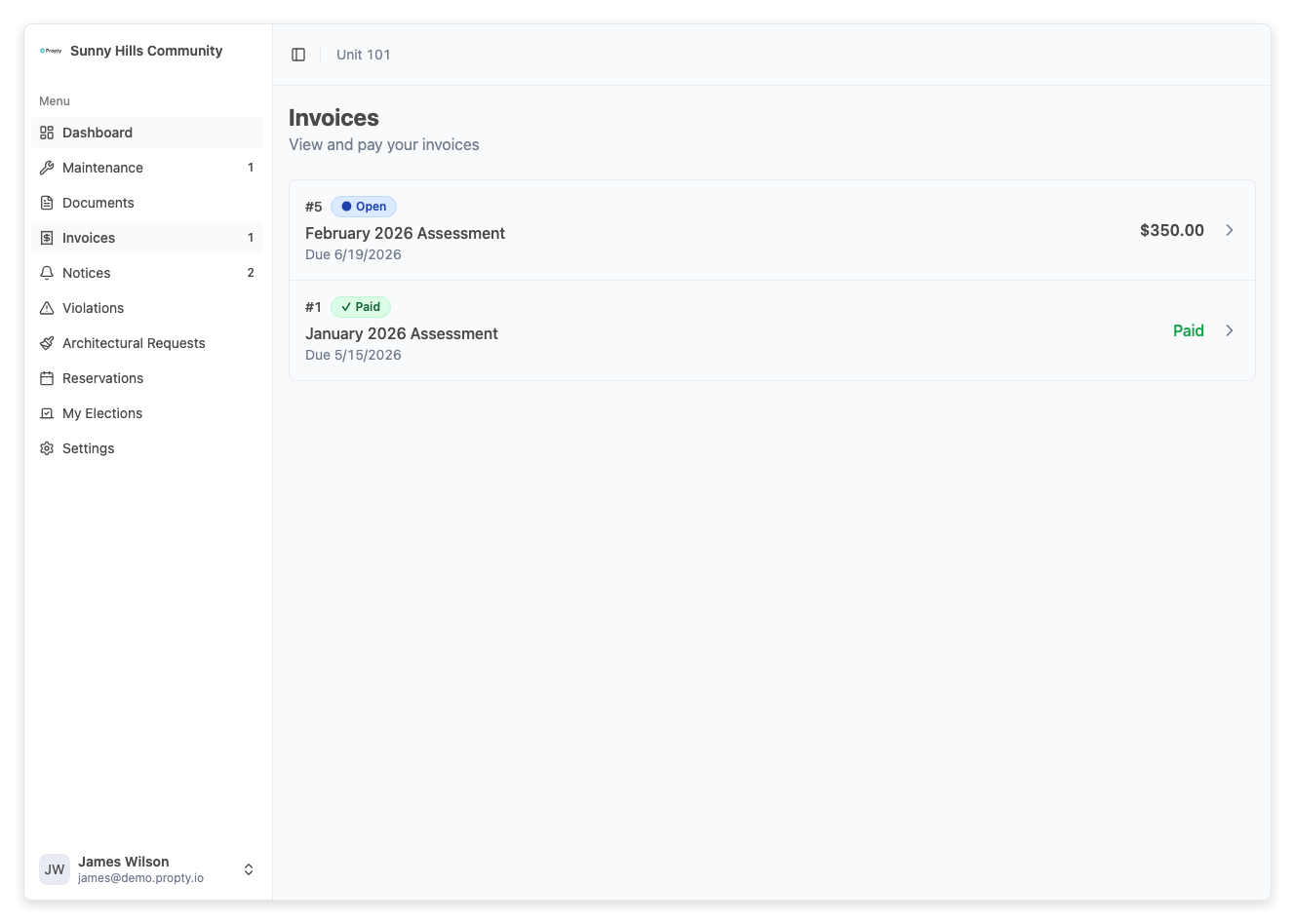
For the complete step-by-step guide with screenshots, see Pay Your Invoice.
Partial Payments
If you cannot pay the full balance at once, you can make a partial payment:
- On the payment panel, change the Payment amount to a smaller number (minimum $1.00)
- Click Confirm amount, then complete the payment
After a partial payment, the invoice remains Open with a reduced balance. You can make additional payments until the full amount is covered.
Set Up Autopay
Autopay ensures you never miss a due date. Once enabled, Propty automatically charges your saved payment method when each invoice is due.
How to enable autopay
- Go to Account in the portal sidebar
- Scroll to the Autopay section
- Click Set Up Autopay
- Enter your card or bank account details
- Click Enable Autopay
You will see an Active badge on the Autopay card and receive email confirmations after each automatic payment.
Managing autopay
- Update your payment method — Click Update Card in the Autopay section
- Cancel autopay — Click Cancel Autopay to switch back to manual payments
- Failed payments — If a payment fails (expired card, insufficient funds), autopay is paused. Update your payment method and click Reactivate Autopay
For full details, see Set Up Autopay.
View Your Payment History
Every invoice tracks its own payment history. To review payments you've made:
- Go to Invoices and click on an invoice
- Scroll to the Payment History section at the bottom
- Each entry shows the amount, payment method, status, and date
You can also see your overall balance and all invoices from the Account page.
See View Your Invoices for more details.
Receipts and Confirmations
- A confirmation email is sent automatically after every successful payment
- For card payments, the confirmation is immediate
- For bank transfers (ACH), you will receive a confirmation once the transfer completes (3–5 business days)
Keep these emails for your records, especially at tax time if your HOA assessments are relevant to your filing.
Troubleshooting
My card was declined
- Double-check your card number, expiration date, and CVC
- Contact your bank — they may be blocking the transaction
- Try a different card or use a bank transfer instead
My bank transfer hasn't completed
- ACH transfers take 3–5 business days. The invoice status will update once the transfer clears.
- If it has been more than 5 business days, contact your property manager.
I was charged a processing fee
- The fee shown at checkout is Propty's service fee for online payments. Whether you pay it depends on your property's settings — some properties absorb the service fee; others pass it to the resident. Contact your property manager if you have questions about fee policies.
I need a receipt for a past payment
- Check your email for the payment confirmation. You can also view payment details on the invoice detail page in the portal.