Collection Payment Plans
A payment plan lets a delinquent resident repay what they owe in installments over time instead of a lump sum. Payment plans are useful for residents facing temporary hardship and help preserve the relationship while ensuring the HOA recovers its assessments.
- A collection case already opened (see Collection Cases)
- Agreement from the resident to accept a payment plan
- A plan structure: total amount, down payment, number of installments, and start date
California Civil Code § 5653 allows HOAs to accept payment plans. However, the HOA is not required to offer them. Each property should establish its payment plan policy in advance.
Creating a Payment Plan
1. Open the collection case
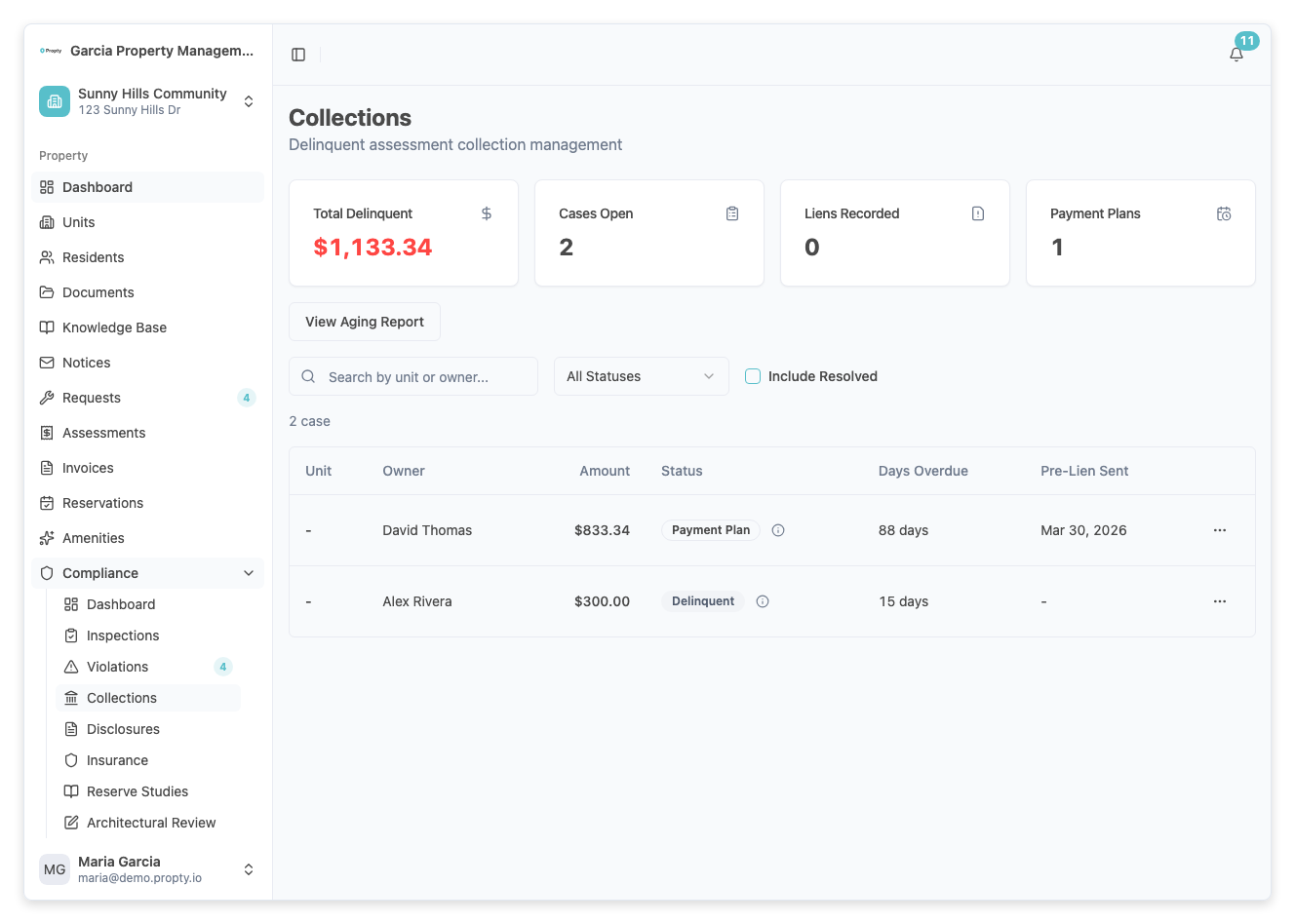
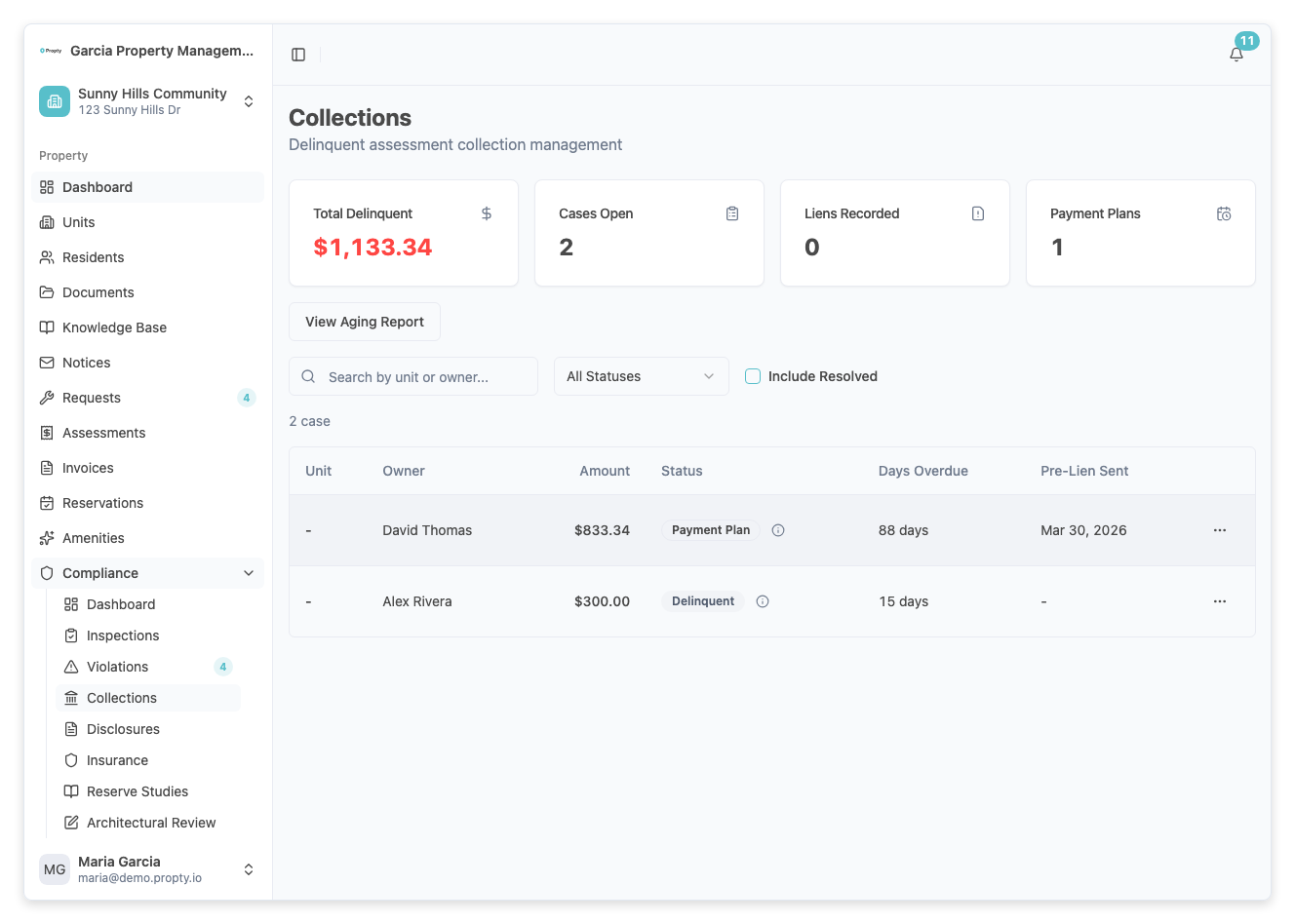
From the property dashboard, go to Compliance → Collections. Click on the case for which you want to create a payment plan.
2. Click "Create Payment Plan"
On the case detail page, click the Create Payment Plan button.
3. Fill in the payment plan details
A form will appear with the following fields:
- Total Amount (required) — The full amount the resident will repay. This is typically the principal owed plus any accrued late fees and interest.
- Down Payment (optional) — An initial payment the resident makes upfront before the installments begin.
- Number of Installments (required) — How many payments the resident will make (for example, 6, 12, or 24).
- Installment Amount — This is auto-calculated based on (Total Amount - Down Payment) ÷ Number of Installments. You can adjust it manually if needed.
- Start Date (required) — The date the first installment is due.
Set the start date at least 15 days in the future to give the resident time to prepare the first payment.
4. Save the plan
Click Create Plan. Propty generates the installment schedule and displays it on the case detail page. The case status automatically updates to Payment Plan.
Recording Installment Payments
As the resident makes payments, you record each one so Propty can track plan progress.
1. Open the collection case
From Compliance → Collections, click on the case with the active payment plan.
2. Find the installment row
On the case detail page, scroll to the Payment Plan section. You will see a table listing all installments with their due dates and amounts.
3. Click "Record Payment"
On the installment row you want to record, click the Record Payment button.
4. Enter payment details
A form will appear asking for:
- Payment Amount — The amount received (may match the installment amount or be partial).
- Payment Date — The date the payment was received.
- Payment Method — How the resident paid (Check, ACH, Credit Card, Cash, etc.).
- Notes (optional) — Any additional details about the payment.
5. Save the payment
Click Save. The installment row updates to show the payment received. Propty automatically checks the installment as Paid once the full amount is received.
Payment Plan Statuses
| Status | Meaning |
|---|---|
| Active | The plan is in progress. The resident is currently making installments. |
| Completed | All installments have been paid in full. The collection case can now be closed. |
| Defaulted | The resident missed one or more scheduled installments. The plan is terminated and the case may move to attorney referral or foreclosure. |
What Happens When a Resident Misses an Installment
If a resident fails to pay by the due date:
- Case status updates — The case status changes from Payment Plan to Defaulted Plan.
- Manager notification — You receive a notification that an installment is overdue.
- Board decision — The board reviews the default and decides the next step: issue a reminder, terminate the plan and resume collections, or proceed to foreclosure.
When a plan is defaulted, the full outstanding balance may become immediately due depending on your HOA's governing documents and policy.
Foreclosure Votes
If a resident's delinquency exceeds your property's foreclosure threshold and the board votes to pursue foreclosure, you can record the board's authorization in Propty.
Recording a Foreclosure Vote
- Open the collection case and navigate to the case detail page.
- Click "Record Foreclosure Vote" (visible when the case is eligible for foreclosure).
- Enter the vote details:
- Vote Date — The date the board voted
- Vote Outcome — Approved or Denied
- Notes — Any board comments about the decision
- Click Save. The case now shows the foreclosure authorization and is ready for lien recording.
Foreclosure Threshold Configuration
Each property has a configurable threshold that determines when a case becomes eligible for foreclosure. To adjust it:
- Go to Settings → Property Settings → Compliance Settings.
- Find Foreclosure Threshold.
- Set the threshold (for example, $5,000 or 120 days delinquent).
- Click Save.
California law requires specific notice and hearing requirements before foreclosure. Consult your HOA's attorney before proceeding.
Best Practices
- Set clear payment plan terms upfront. Make sure the resident understands the schedule and consequences of default.
- Stay in touch with the resident. If you notice a payment is late, reach out before officially recording a default.
- Document everything. Use the Notes field to record agreements and conversations.
- Have a fallback plan. If the plan is defaulted, know what your next step will be — attorney referral, lien recording, or other action.
- Review your payment plan policy. Work with your board to define whether plans are discretionary or available to all delinquent residents.
Troubleshooting
The "Create Payment Plan" button is not visible
- You must have an open collection case first.
- The case status must be at Pre-Lien Period or later (not in early "Friendly Reminder" stages).
A resident wants to modify their payment plan
- Currently, payment plans cannot be edited once created. If the resident needs different terms, you can create a new plan (record the old one as defaulted first) or work with your board on an exception.
I recorded an installment payment but it doesn't show on the plan
- Refresh the page. Propty updates the plan display automatically.
- Make sure you clicked Save after entering the payment details.
What if a resident pays extra toward their balance?
- Record the payment for the installment amount due. If the resident paid extra, add a note explaining the additional amount, and record it as a separate principal payment on the collection case using Record Action → Payment Received.