Getting Started as an Owner
When your property manager adds you to Propty, you will receive an email invitation to set up your account and access the resident portal. This guide walks you through the process.
What You'll Need
- The invitation email from Propty (check your inbox and spam folder)
- A working email address
- A few minutes to complete the setup
Steps
1. Check your email for the invitation
Your property manager will send you an invitation through Propty. Look for an email with the subject line containing your property name and an invitation to join.
Check your spam or junk folder. If you still don't see it, ask your property manager to resend the invitation. Make sure they have your correct email address on file.
2. Click the sign-in link
Click the link in the invitation email. This will take you to the Propty login page.
Propty uses magic links for authentication — there is no password to remember. Each time you log in, you will enter your email address and receive a link to sign in.
3. Access your portal
Once signed in, you will land on your resident portal. This is your home base for everything related to your unit at the property.
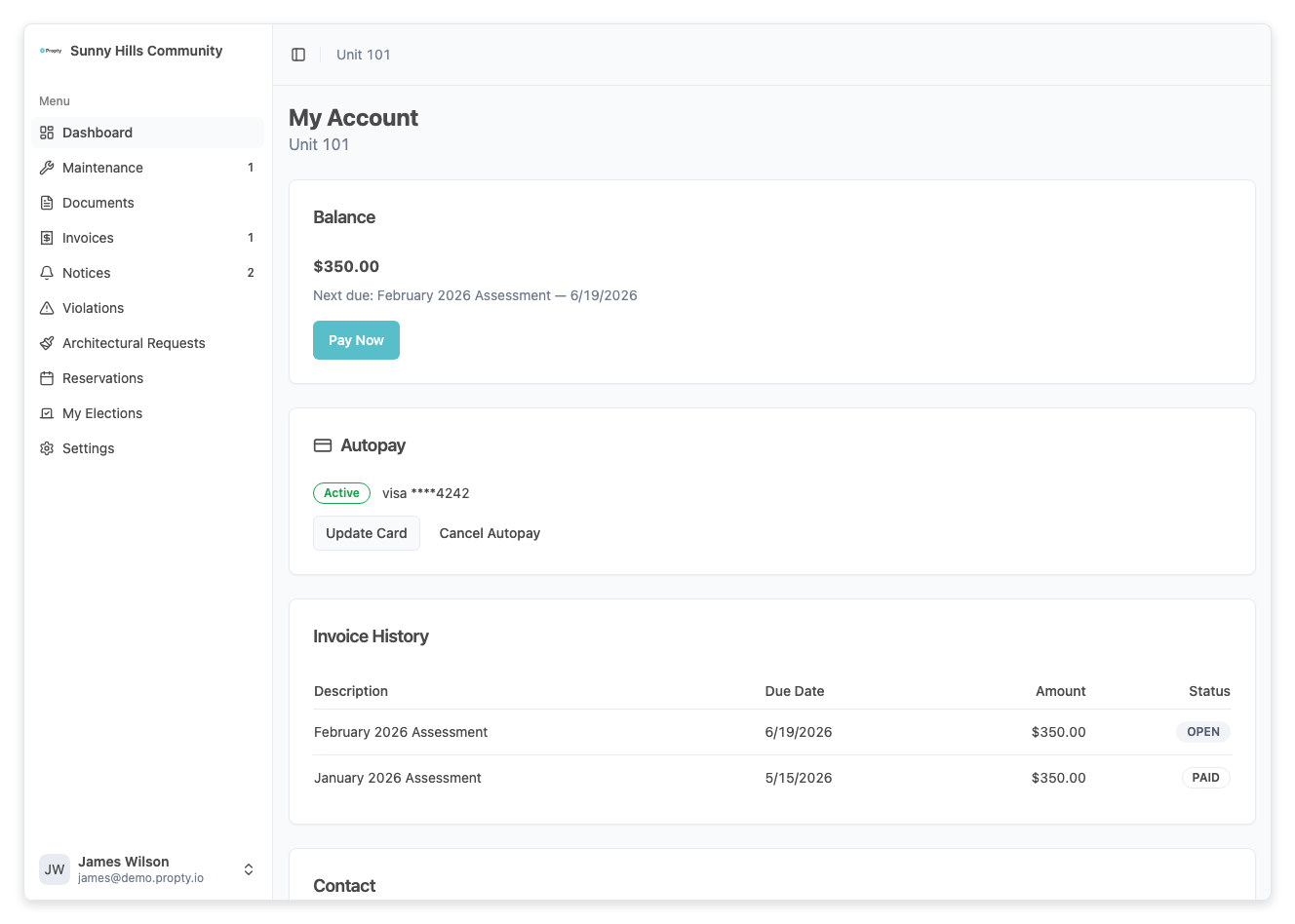
From the portal sidebar, you can access:
- Account — Your balance, invoice history, and autopay settings
- Invoices — All invoices issued to your unit
- Notices — Announcements from your property manager
- Requests — Submit and track maintenance requests
- ARC Requests — Submit architectural modification requests (if available)
4. Review your account information
Click Account (or My Account) to see your profile. Verify that your information is correct:
- Your name and email address
- Your unit number
- Your current balance (if any invoices are outstanding)
If anything looks incorrect, contact your property manager to update it.
For a detailed look at your account page, see View Your Resident Profile.
5. Set up autopay (recommended)
To avoid missing due dates, consider setting up automatic payments. With autopay, Propty charges your saved payment method before each invoice is due.
- On the Account page, scroll to the Autopay section
- Click Set Up Autopay
- Enter your payment details (credit card, debit card, or bank account)
- Click Enable Autopay
For step-by-step instructions, see Set Up Autopay.
Multiple Properties
If you own units in multiple properties managed through Propty, you can switch between them using the property selector in the portal navigation. Each property has its own invoices, notices, and settings.
Board Member Access
If you serve on the HOA board, your property manager may grant you additional access to the management dashboard. This gives you visibility into property-wide financials, invoices, and reports. Ask your property manager if you need dashboard access for board duties.
Troubleshooting
I didn't receive an invitation email
- Check your spam/junk folder
- Confirm your property manager has your correct email address
- Ask your property manager to resend the invitation
The sign-in link expired
- Magic links expire after a short time for security. Go to app.propty.io, enter your email address, and request a new link.
I can see the portal but my unit information is wrong
- Contact your property manager to update your unit assignment or personal details. Only your property manager can make changes to your account.
I need board-level access
- Ask your property manager to grant you dashboard access. They control user permissions for the property.