Maintenance Requests
When something in your unit or a common area needs attention, you can submit a maintenance request through the resident portal. Your property manager is notified immediately and can coordinate the repair. You can track the status and communicate about the issue — all in one place.
Submitting a Request
1. Open Requests
Log in to the portal at app.propty.io and click Requests in the sidebar.
2. Click "New Request"
Click the New Request button to open the request form.
3. Fill in the details
Complete the following fields:
-
Title (required) — A short description of the issue. For example: "Garage door won't close" or "Water stain on ceiling"
-
Category (required) — Select the type of issue:
- Plumbing
- Electrical
- HVAC / Heating & Cooling
- Appliances
- Doors & Locks
- Windows
- Pest Control
- Cleaning
- Elevator
- Fire Safety
- Parking
- Common Area
- Noise Complaint
- Other
-
Description (required) — Provide more details about the problem. Include when you first noticed it and how severe it is.
-
Permission to enter — Let management know if staff can access your unit:
- Yes, enter anytime — Staff may enter without contacting you
- Contact me first — Staff should reach out before entering
- No, I must be present — You need to be home
4. Submit
Click Submit to send your request. Your property manager will be notified.
For the full step-by-step guide with screenshots, see Submit a Maintenance Request.
Tracking Your Requests
After submitting, you can monitor progress from the Requests page. Each request shows a status badge:
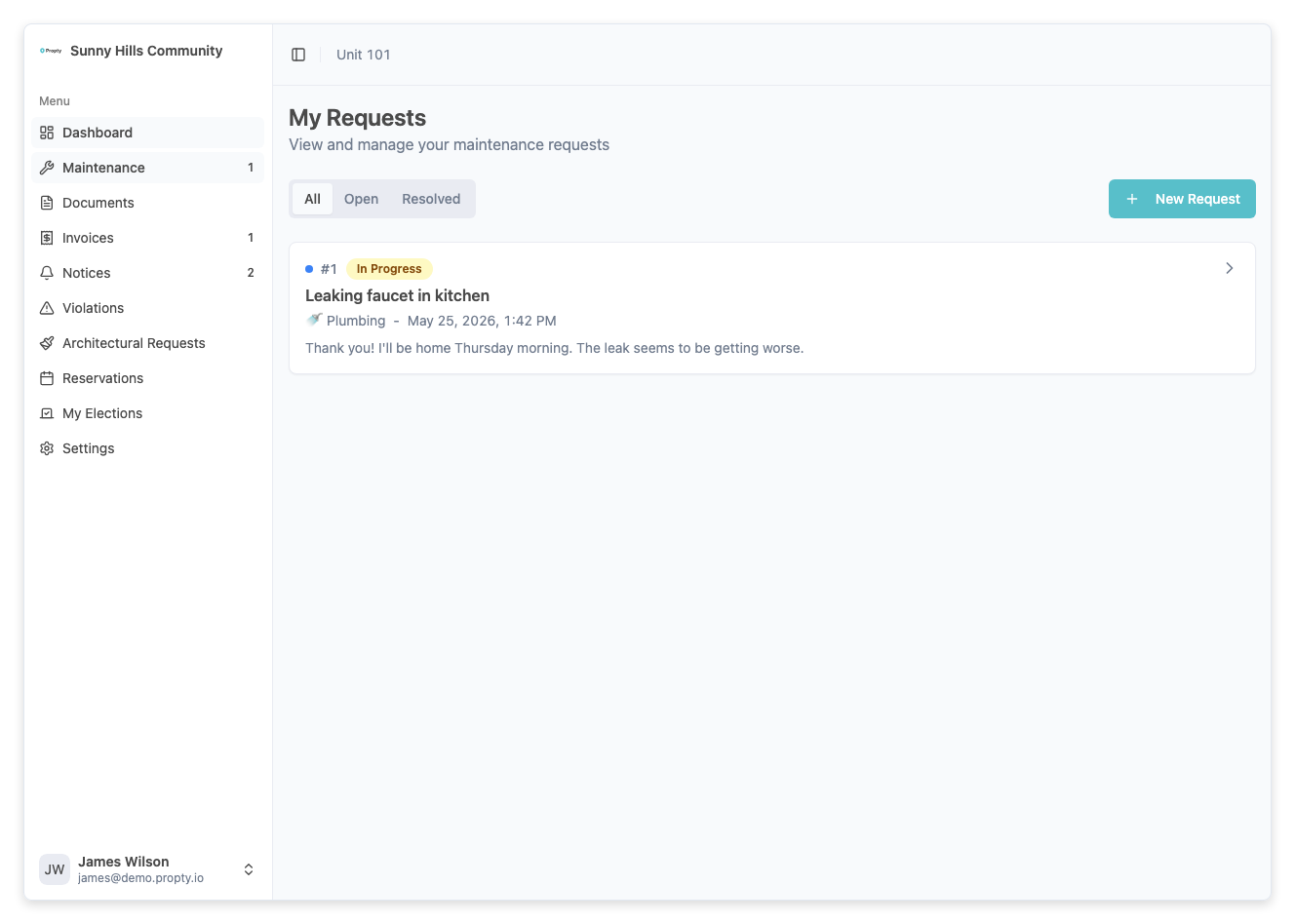
| Status | Meaning |
|---|---|
| New | Your request was received and is waiting to be reviewed |
| In Progress | A team member is actively working on the issue |
| Pending | The team is waiting for something (parts, scheduling, your input) |
| Closed | The issue has been resolved |
Click on any request to see the full detail, including the activity timeline and priority level.
Reading the Activity Timeline
The request detail page shows a chronological log of all activity:
- Messages from staff — Updates from your property manager or maintenance team
- Your messages — Replies and additional information you've sent
- Status changes — When the request moved between statuses
- Assignments — When a team member was assigned to the request
Sending a Message
Need to provide more information or ask a question? Use the message box at the bottom of the request detail page. Type your message and click Send.
This is the best way to communicate about a specific issue — it keeps everything in one thread for you and your property manager.
For more on tracking and messaging, see Track Your Maintenance Requests.
Tips for Effective Requests
- Be specific in the title — "Kitchen faucet dripping" is better than "Water issue"
- Describe severity — Is it a minor annoyance or causing damage?
- Note the location — Specify which room, common area, or building section
- Mention timing — When did you first notice the problem?
- Set entry permissions — This helps maintenance staff plan their visit
Common vs. Unit Requests
- Unit issues — Problems inside your individual unit (leaky faucet, broken appliance, HVAC not working)
- Common area issues — Problems in shared spaces (lobby lights out, elevator malfunction, parking lot damage)
You can submit requests for both. For common area issues, your property manager may already be aware, but it helps to report them so nothing falls through the cracks.
Troubleshooting
I can't find the right category
- Select Other and describe the problem clearly in the description field.
I submitted a request by mistake
- Contact your property manager and ask them to close the request, or add a message to the request explaining the situation.
My request has been "New" for a while
- Your property manager may have a backlog. If the issue is urgent, send a follow-up message on the request or contact your property manager directly.
My request was closed but the issue isn't fixed
- Send a message on the closed request explaining that the problem persists. Your property manager can reopen it.
Can I attach photos?
- If your portal supports file attachments, you can add photos when creating or messaging about your request. Photos help management understand the issue faster.