Use Polls in Meetings
Polls let you hold formal votes during meetings — electing board members, approving budgets, ratifying CC&R amendments, and more. Each poll can have multiple questions with configurable options, and votes are weighted based on each participant's ownership share.
- An existing event with participants added (see Schedule a Meeting)
- The poll questions and answer options prepared
Creating a Poll
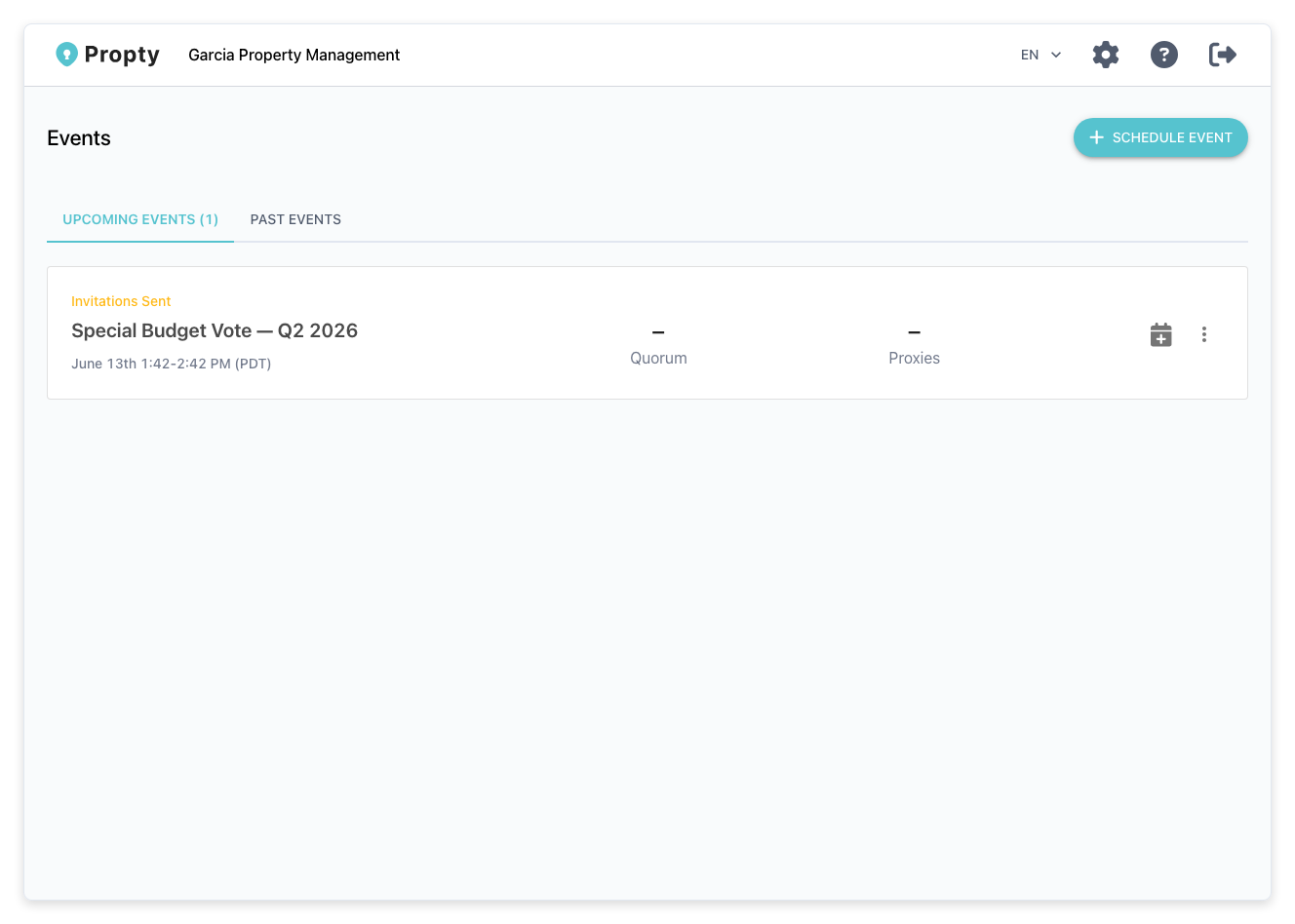
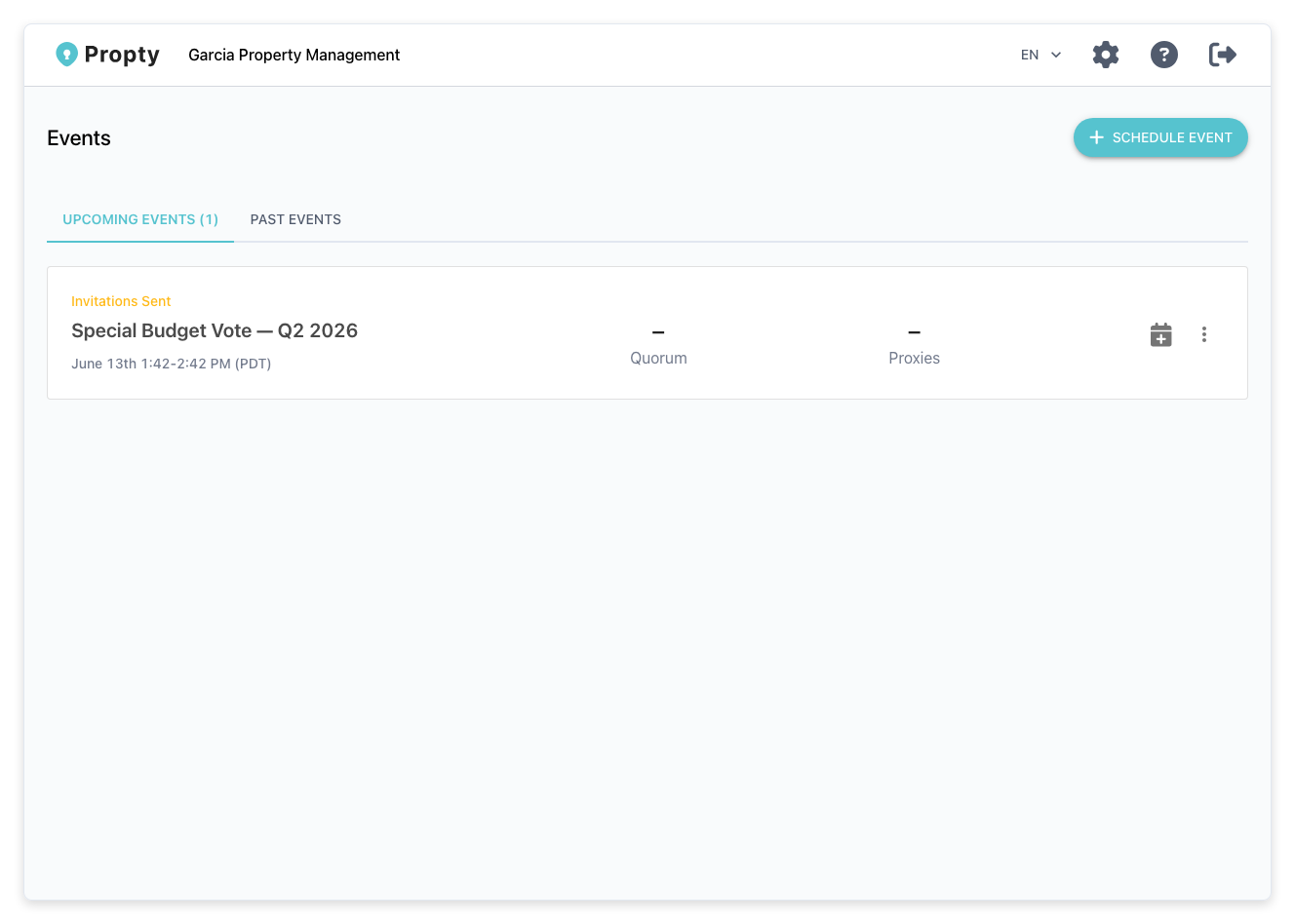
1. Open the event detail page
From the events list, click the event you want to add a poll to.
2. Go to the Polls tab
Click the Polls tab.
3. Click "Create Poll"
Click the Create Poll button. A form will appear:
- Poll Title (required) — A descriptive name for the poll (for example, "Election of Board Members" or "2026 Budget Approval").
- Description (optional) — Additional context for voters about what this poll covers.
4. Add questions
Each poll contains one or more questions. For each question:
- Question Text (required) — The question being asked (for example, "Who should serve as Board President?").
- Description (optional) — Additional details about the question.
- Minimum Selections — The minimum number of options a voter must select.
- Maximum Selections — The maximum number of options a voter can select. Set to 1 for single-choice questions.
5. Add options to each question
For each question, add the answer options:
- Option Text (required) — The choice label (for example, a candidate's name, "Yes", "No", "Abstain").
- Description (optional) — Additional information about this option.
- Avatar (optional) — Upload a photo (useful for candidate elections).
6. Save the poll
Click Create Poll. The poll is saved with an Awaiting status — it will not be visible to participants until you start it during the meeting.
Running a Poll During a Meeting
1. Start the event
From the event detail page, click Start Event to begin the live meeting.
2. Launch the poll
From the live meeting interface, find the poll you want to run and click Start Poll. The poll status changes to Ongoing and participants can now cast their votes.
3. Monitor voting
While the poll is open, you can see:
- How many participants have voted
- Whether quorum has been reached (based on checked-in participants and their voting weights)
4. End the poll
When voting is complete, click End Poll. The poll status changes to Completed and results are calculated.
5. View results
Results show:
- The total votes for each option
- Weighted vote totals (based on ownership shares)
- Whether the measure passed based on the required threshold
Poll Statuses
| Status | Meaning |
|---|---|
| Awaiting | Poll is created but not yet started; invisible to participants |
| Ongoing | Poll is active; participants can cast votes |
| Completed | Voting has ended; results are final |
How Voting Weight Works
Each participant's vote is weighted based on their ownership share:
- Single-unit owner — Weight equals their unit's voting weight (default: 1)
- Multi-unit owner — Weight is the sum of voting weights across all their units
- Board member (non-owner) — Default weight of 1
Weights are set when participants are generated from the resident list. You can manually adjust individual weights from the Participants tab.
Troubleshooting
Participants can't see the poll
- Make sure the poll status is Ongoing. Polls in Awaiting status are only visible to the event administrator.
- Verify the event itself is Ongoing (started).
A participant voted incorrectly and wants to change their vote
- Once a vote is submitted, it cannot be changed by the participant. If absolutely necessary, you can void the poll and create a new one.
The results don't add up to 100%
- Results show raw vote counts (or weighted totals), not percentages. Multiple-selection questions may have totals exceeding the number of voters.
I need to add a poll during the live meeting
- You can create new polls while the event is ongoing. Go to the Polls tab and click Create Poll, then start it when ready.
How do proxy votes work?
- A participant marked as a proxy votes on behalf of another participant. Their vote carries the weight of the person they represent. Set up proxy assignments from the Participants tab before the meeting begins.